Everything you need to know about The Blood of Dawnwalker’s controls for Keyboard and Mouse, as well as Xbox and Playstation Controllers: settings, keybinds, customizations.
How to Access and Customize Keybinds
To see and access your Keybindings, open the Pause Menu (Esc/Menu/Start) and select Settings. Then navigate the menu along the top (Using Q/E for Keyboard, LB/RB for Xbox, or L1/R1 for Playstation) to Controls for Keyboard and Mouse Settings, or Controller for Controller settings.
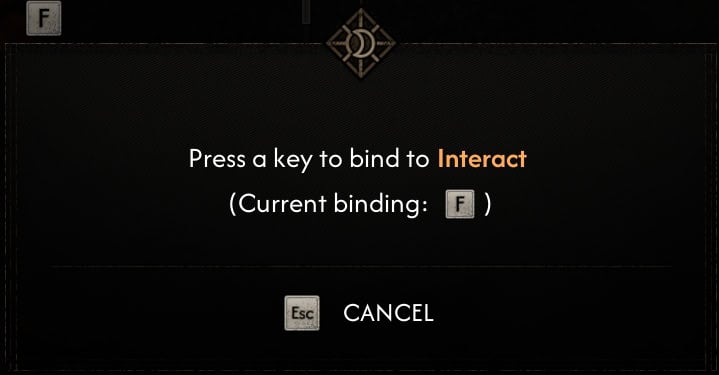
In the Controls menu, you can scroll down to the control list and freely rebind any action by Left Clicking it and pressing the new keybind you want to bind it to.
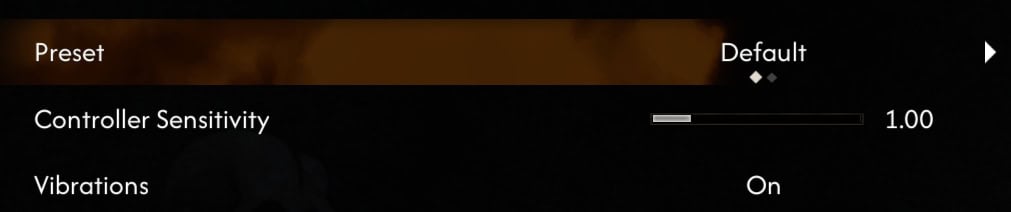
In the Controller menu, you can only adjust sensitivity, Vibration, and pick between the Default and Alternative Control Schemes.
PC Keyboard and Mouse Controls
In The Blood of Dawnwalker, you can adjust setting for Mouse Sensitivity and Keybind for both keyboard and mouse.
Mouse Settings
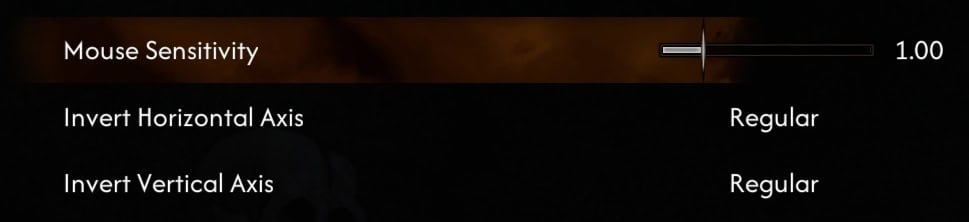
Mouse settings are limited, featuring only a single Sensitivity slider as well as the option for Inverting the Camera directions.
Keyboard Controls List
Only one input may be bound for any action. The following table lists the Default Controls.
| Action | Button | Input | Category |
|---|---|---|---|
| Interact | F | Press | General |
| Left Quickslot | 1 | Press | General |
| Top Quickslot | 2 | Press | General |
| Right Quickslot | 3 | Press | General |
| Bottom Quickslot | 4 | Press | General |
| Pause | Esc | Press | General |
| Quick Menu | Tab | Press | General |
| Toggle Control Guide | L | Hold | General |
| Quicksave | F5 | Press | Menu Shortcuts |
| Quickload | F9 | Press | Menu Shortcuts |
| Active Abilities | X | Press | Menu Shortcuts |
| Character | C | Press | Menu Shortcuts |
| Court | B | Press | Menu Shortcuts |
| Crafting | T | Press | Menu Shortcuts |
| Glossary | G | Press | Menu Shortcuts |
| Inventory | I | Press | Menu Shortcuts |
| Journal | J | Press | Menu Shortcuts |
| Map | M | Press | Menu Shortcuts |
| Move Forward | W | Hold | Movement and Camera |
| Move Left | A | Hold | Movement and Camera |
| Move Backwards | S | Hold | Movement and Camera |
| Move Right | D | Hold | Movement and Camera |
| Sprint | LS (Press) | Press to Toggle | Movement and Camera |
| Jump | Space | Press | Movement and Camera |
| Crouch | Left Control | Press | Movement and Camera |
| Climb / Mantle | W + Space | Press | Movement and Camera |
| Clawride (Vrakhir) | Left Control (Near Ledge) | Press | Movement and Camera |
| Planeshift | R (Near Flat Wall) | Press | Movement and Camera |
| Move Camera | Mouse | Move | Movement and Camera |
| Lock Target | MMB | Press | Movement and Camera |
| Next Target | Mouse Wheel Down | Scroll | Movement and Camera |
| Previous Target | Mouse Wheel Up | Scroll | Movement and Camera |
| Draw/Sheathe Weapon | Y | Press | Combat |
| Swap Weapon | F | Press | Combat |
| Omni-Attack | LMB | Press | Combat |
| Directional Attack | Hold WASD, LMB | Hold and Press | Combat |
| Omni Block | RMB | Press | Combat |
| Directional Block | Hold WASD, RMB | Hold and Press | Combat |
| Dodge | Hold WASD, Space | Hold and Press | Combat |
| Toggle Quickslots | A | Q | Combat |
| Focus | RMB (Without weapon Drawn) | Hold | Abilities |
| Navigate Ability Wheel | Z (While Focused) | Hold | Abilities |
| Use Ability | LMB (While Focused) | Press | Abilities |
| Shadow Step (Forward) | E | Tap | Abilities |
| Shadow Step (Aim) | E + Mouse | Hold and Release | Abilities |
| Drink Blood | Space | Press | Abilities |
Controller Inputs
Controller Inputs cannot be rebound. However, there are two different Control Schemes available to use: Default and Alternative.
PS5 and Xbox Controls List
| Action | Xbox | Xbox Alt | PS5 | PS5 Alt | Category |
|---|---|---|---|---|---|
| Interact | X | X | ☐ | ☐ | General |
| Left Quickslot | D-Pad Left | D-Pad Left | D-Pad Left | D-Pad Left | General |
| Top Quickslot | D-Pad Up | D-Pad Up | D-Pad Up | D-Pad Up | General |
| Right Quickslot | D-Pad Right | D-Pad Right | D-Pad Right | D-Pad Right | General |
| Bottom Quickslot | D-Pad Down | D-Pad Down | D-Pad Down | D-Pad Down | General |
| Menu | Menu | Menu | Start Touchpad Press (right) | Start Touchpad Press (right) | General |
| Quick Menu | View | View | Options Touchpad Press (Left) | Options Touchpad Press (Left) | General |
| Move | LS | LS | LS | LS | Movement and Camera |
| Sprint | LS (Press) | LS (Press) | L3 | L3 | Movement and Camera |
| Jump | A | A | X | X | Movement and Camera |
| Crouch | B | B | ⭘ | ⭘ | Movement and Camera |
| Climb / Mantle | LS + A | LS + A | LS + X | LS + X | Movement and Camera |
| Clawride (Vrakhir) | B (Near Ledge) | B (Near Ledge) | ⭘ (Near Ledge) | ⭘ (Near Ledge) | Movement and Camera |
| Move Camera | RS | RS | RS | RS | Movement and Camera |
| Lock Target | RS (Press) | RS (Press) | R3 | R3 | Movement and Camera |
| Switch Target | RS | RS | RS | RS | Movement and Camera |
| Draw Weapon | Y | RT | △ | R2 | Combat |
| Swap Weapon | X | A | ☐ | X | Combat |
| Omni-Attack | RB | X | R1 | ☐ | Combat |
| Directional Attack | RB + LS | X + LS | R1 + LS | ☐ +LS | Combat |
| Omni Block | LB | Y | L1 | △ | Combat |
| Directional Block | LB + LS | Y + LS | L1 + LS | △ + LS | Combat |
| Dodge | B + LS | B + LS | ⭘ + LS | ⭘ + LS | Combat |
| Toggle Quickslots | A | LB | X | L1 | Combat |
| Focus | LT | LT | L2 | L2 | Abilities |
| Navigate Ability Wheel | LS (While Focused) | LS (While Focused) | LS (While Focused) | LS (While Focused) | Abilities |
| Use Ability | A (While Focused) | A (While Focused) | X (While Focused) | X (While Focused) | Abilities |
| Shadow Step (Forward) | Tap RT | Tap RB | Tap R2 | Tap R1 | Abilities |
| Shadow Step (Aim) | Hold RT, Tilt RS | Hold RB, Tilt RS | Hold R2, Tilt RS | Hold R1, Tilt RS | Abilities |
Default vs Alternative Control Scheme
While both control schemes offered in The Blood of Dawnwalker are practical, they do offer enough differences to appeal to different players.
The Default control scheme will appeal to those that may have played Crimson Desert, from earlier this year. Like many RPGs as of late, a lot of the combat functions are linked to the shoulder buttons.
For those familiar with Witcher 3, you may prefer the Alternative style, as they are quite similar in layout with a couple differences. The biggest difference is that the Attack and Block Buttons are on the face buttons, rather than the shoulder buttons.
Directional Combat Input
You may have noticed among the controls above, that there are two different inputs listed for Attacking and Blocking: a Directional and Omni input.
The Blood of Dawnwalker utilizes a Directional Combat System, allowing for Attacking and Blocking in four directions: Left, Right, Top, and Bottom. The attacking and Blocking Direction of your opponents is displayed over them in combat to help determine which directions you may want to strike or block.
Directional Attacks can be made to land more consistently, while Directional Blocks can be timed to not consume stamina.
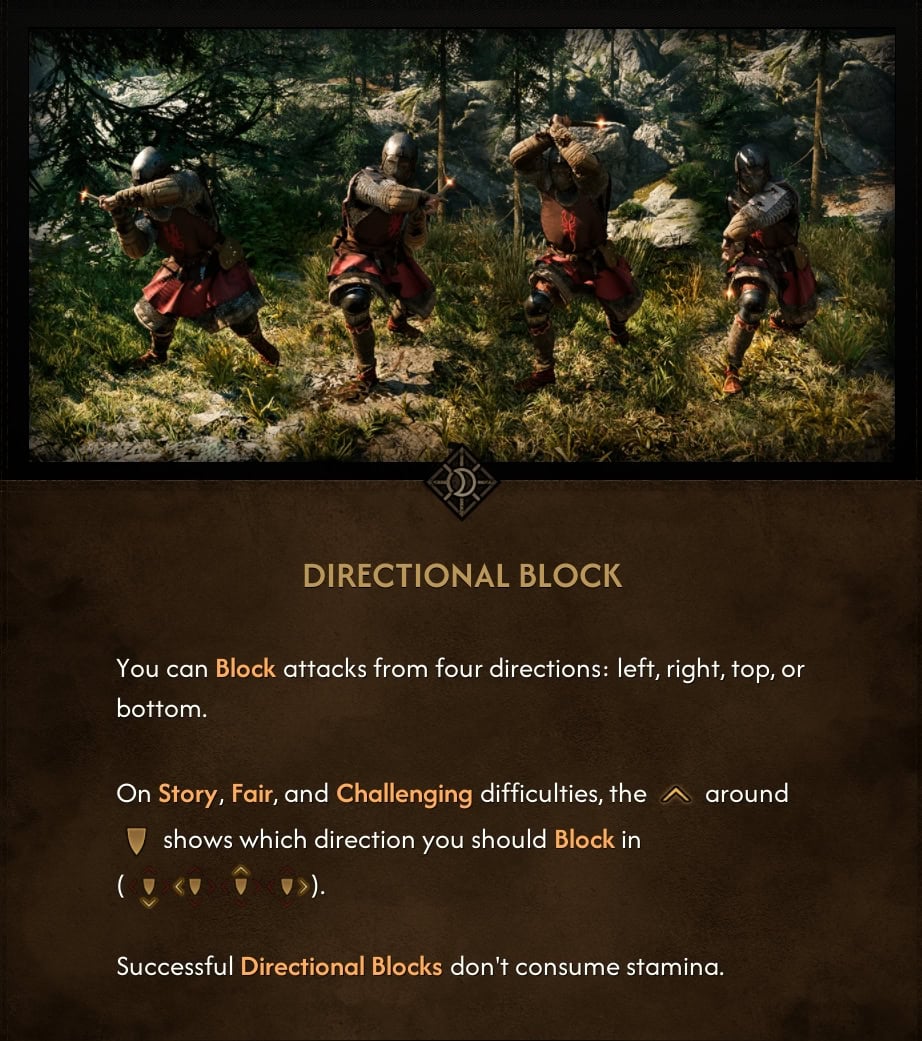
This works very similarly to other games such as For Honor or the Mount & Blade series. This allows for skillful and more rewarding play with practice.
If you find yourself not enjoying this directional system, the game also offers an Omni-directional Attack and Block, that simply require the button to be held or tapped.
Omni-Directional Attacks are more likely to be blocked when used repeatedly, leading to wasted Stamina on attacks that don’t connect. Omni-Directional Blocks are unable to execute perfect blocks. This means they will always consume Stamina.
Due to your decreased Stamina and increased enemy aggression on higher difficulties such as Challenging and Duelist, you will want to practice and learn the Directional Combat System to succeed.
If you find Directional Combat is really not for you, you may have a tough time on those difficulties, making Story and Fair difficulties more tolerable.
We have a guide explaining the key differences between Omnidirectional and Directional Combat in The Blood of Dawnwalker to help you master perfect Blocks, manage Stamina, and optimize your Abilities.
Combat Guide: Omnidirectional vs. Directional ExplainedControl Tips and Tricks
This list contains a few helpful Control tips and tricks that the game doesn’t tell you or very briefly explains and are easy to forget.
- Numbered Dialogue Choices – you can press a number on your keyboard to select the corresponding answer in a dialogue choice during a cutscene. The numbers are not displayed on the screen, but the list of available answers is numbered in the back end.
- Toggle Control Guide – Similar to how The Witcher 3 displays keyboard shortcut hints in the lower edge of the screen, The Blood of Dawnwalker offers a similar feature, but the hints are hidden behind a button press. On Keyboard, press L to reveal the hints for some of the most common keybinds in your current environment and situation.
- Swap Weapons Quickly – You can press F on Keyboard | Square on PS5 | X on XBOX to quickly swap between armed and unarmed in daytime or armed and claws during nighttime.
- Day | Night Equipment Slots – In your Inventory, you can swap to preview the equipment you have for the Day and Night cycles separately. In-game, Coan automatically switches to the appropriate preset depending on the time of the day.
- Walk Mode on Keyboard – The only way currently to walk instead of jog if you use a keyboard and mouse to play the game, is to press and hold ALT (can be modified, of course). The game does not offer this as a toggle. You have to use mods to achieve that.