Learn how to access and install SWTOR’s Public Test Server, how to copy and boost a character, how to transfer your UI files and what activities are available on the PTS.
Table of contents
What is PTS
The Public Test Server (PTS) for Star Wars: The Old Republic is a test environment that the developers launch before a major update so players can check out the new content and provide feedback.
This Test Server is not accessible all the time. Even when it is, wipes and restarts can be frequent. This test environment is not meant for you to play the normal way you usually play and build your stories, but to help the developers find bugs and glitches and fix them, or experiment with new builds and gear configurations for free.
Requirements to access PTS
When the SWTOR PTS is up and running, it is only available to Subscribers. Find out what digital bundles are available and which ones may fit your current needs and budget to get full access to everything the game has to offer, including PTS. Check out the FAQ section at the end of this guide for answers to additional details.
At the time of the most recent update of this guide, PTS 7.8 allows you to check out the Dantooine Dynamic System.
How to Access PTS from the Classic Launcher
If you prefer the classic SWTOR Launcher, this guide will show you how to access and install PTS so you can check out new content when it’s available.
- Start the SWTOR Launcher and log in to your game account.
You need an active connection to Internet and subscription to the game in order to instal land access the Public Test Server.
- Open Settings
In the top right corner, click on your account name and choose “Settings”.
- Enable PTS
In the Settings menu, choose to Enable SWTOR PTS by selecting “Yes” in the Drop-down menu. Click Save and go back to the Launcher main screen.
- Access the Environments List
If and when you are allowed to access PTS, a button will appear in the bottom left corner. Click it.
- Choose PTS Environment
You will be prompted to choose the Environment. If you have not installed PTS, when you pick this, it will start installing it.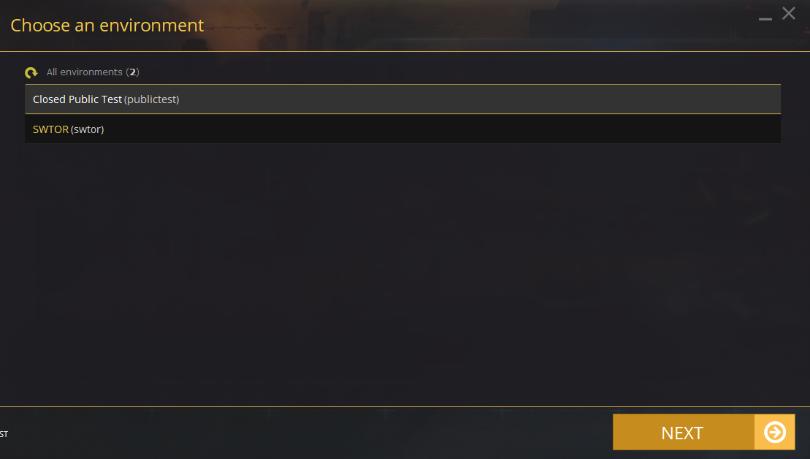
If PTS is already installed, you still have to go through this menu. By default the game launcher will start you in the normal SWTOR environment, not on PTS. You have to manually select PTS (if that’s where you want to log in) it every time you start the launcher. - You now have access to PTS
Once the installation is complete, you will have access to the SWTOR PTS. Enjoy your time amongst the bugs and don’t forget that you are can help game devs by providing feedback and ideas. PTS can be closed or restarted at any time while the server is up and active.
How to Access PTS from Steam
This is a step-by-step walkthrough showing you how to install and access the SWTOR Test Server if you play the game via Steam.
- Log in to Steam with your Steam account
When you install SWTOR from Steam your SWTOR account is automatically linked to your Steam account.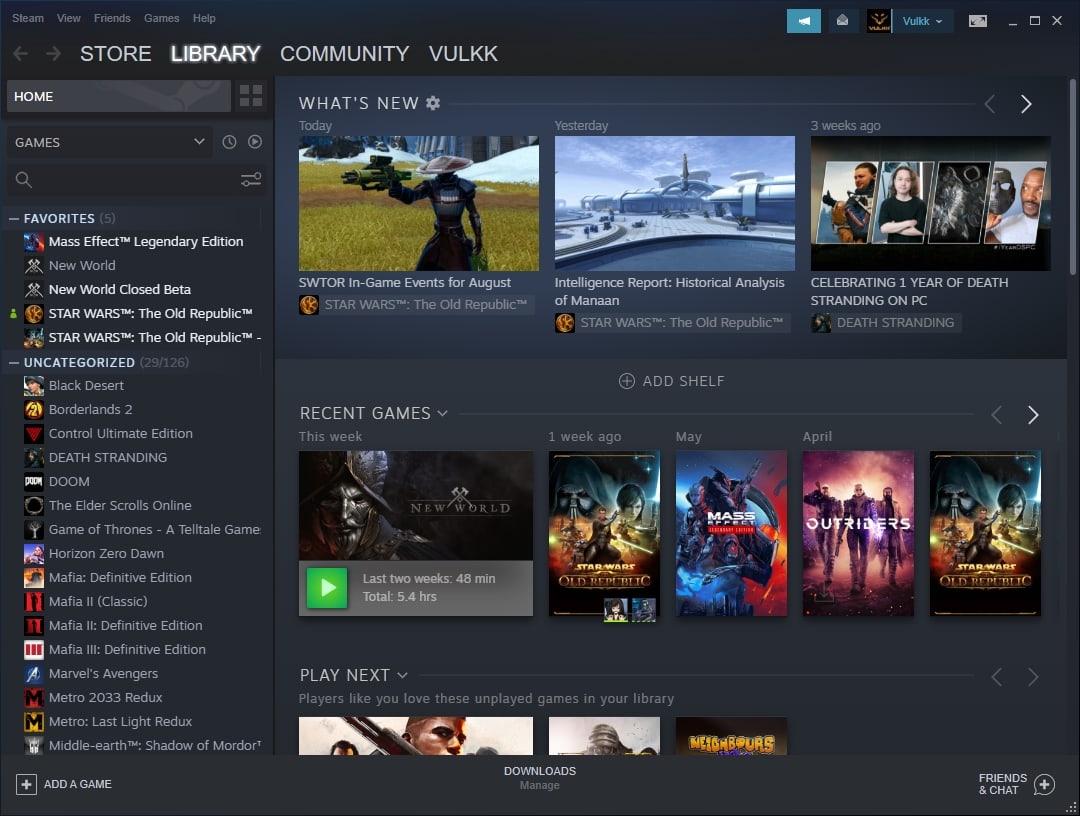
- Access PTS from SWTOR’s page on Steam
Open the SWTOR Store Page in Steam. Find the button/line that offers you to install and access SWTOR PTS and click on it.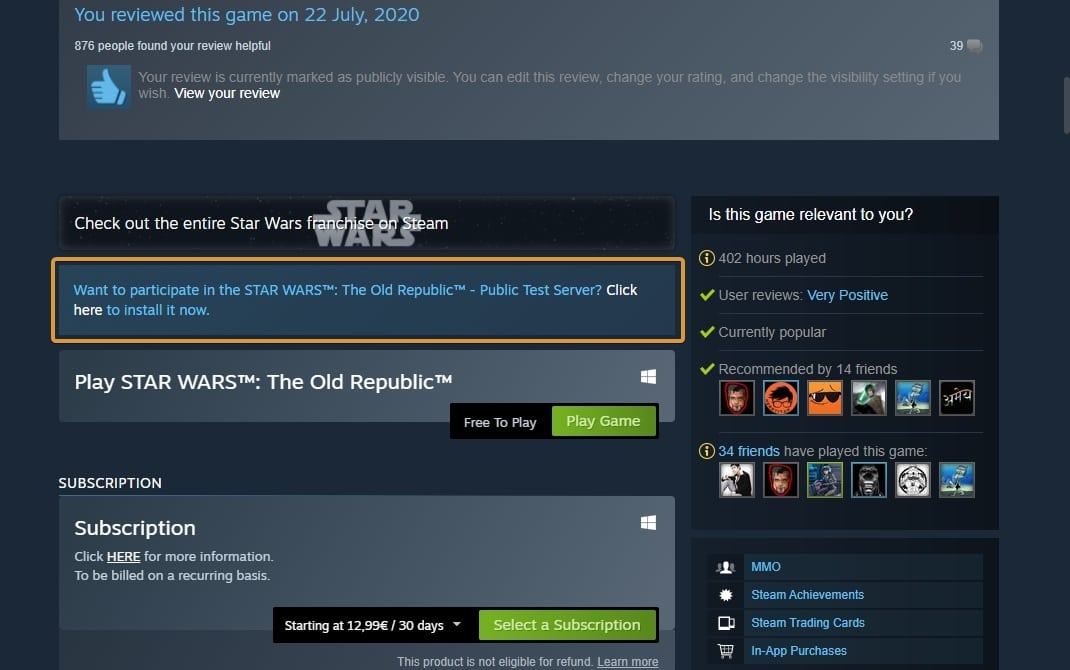
- Install SWTOR PTS
The SWTOR PTS is actually a separate game with its own installation. It will appear in your Library separately from SWTOR. Start the SWTOR PTS game either from Steam or by double-clicking on the icon it may have created on your Desktop (it does that by default).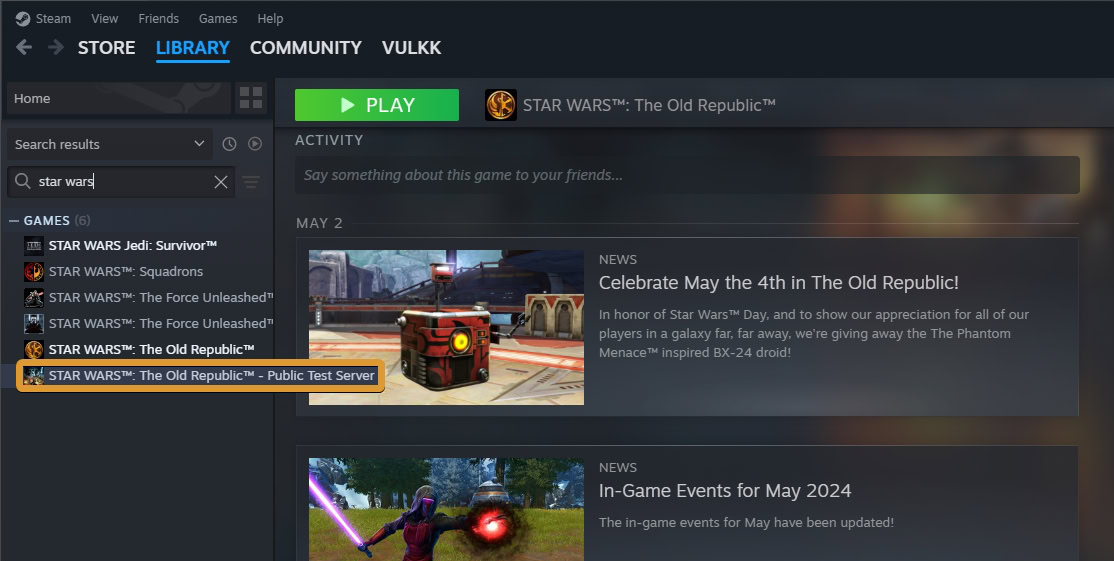
- You now have access to PTS
Once the installation is complete, you will have access to the SWTOR PTS. You can log in and out of it whenever you want, for as long as the server is up and running.
How to copy your character to PTS
This step-by-step walkthrough will help you copy your characters from the live server onto SWTOR PTS where you will be able to test new gameplay features and systems the developers are planning to implement into a future game update.
- Log in to SWTOR
Open the game’s official page and log in to your account at https://account.swtor.com using your credentials. Remember to never share your account password with anyone. - Access PTS Character Copy page
Open the Account page on the site and navigate to the last sub-menu on the right called “PTS Character Copy”.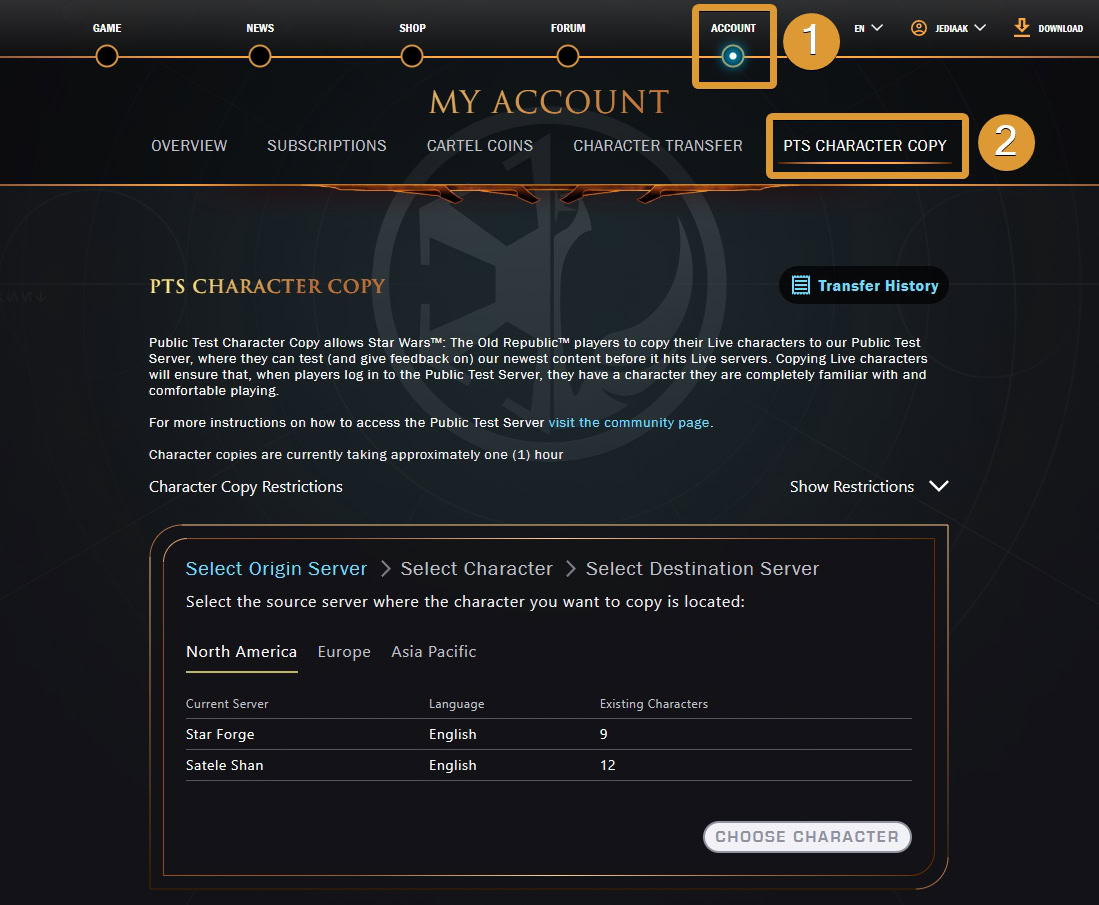
- Select Origin Server and Character
The origin server is the live server where you play the character you want to transfer to PTS.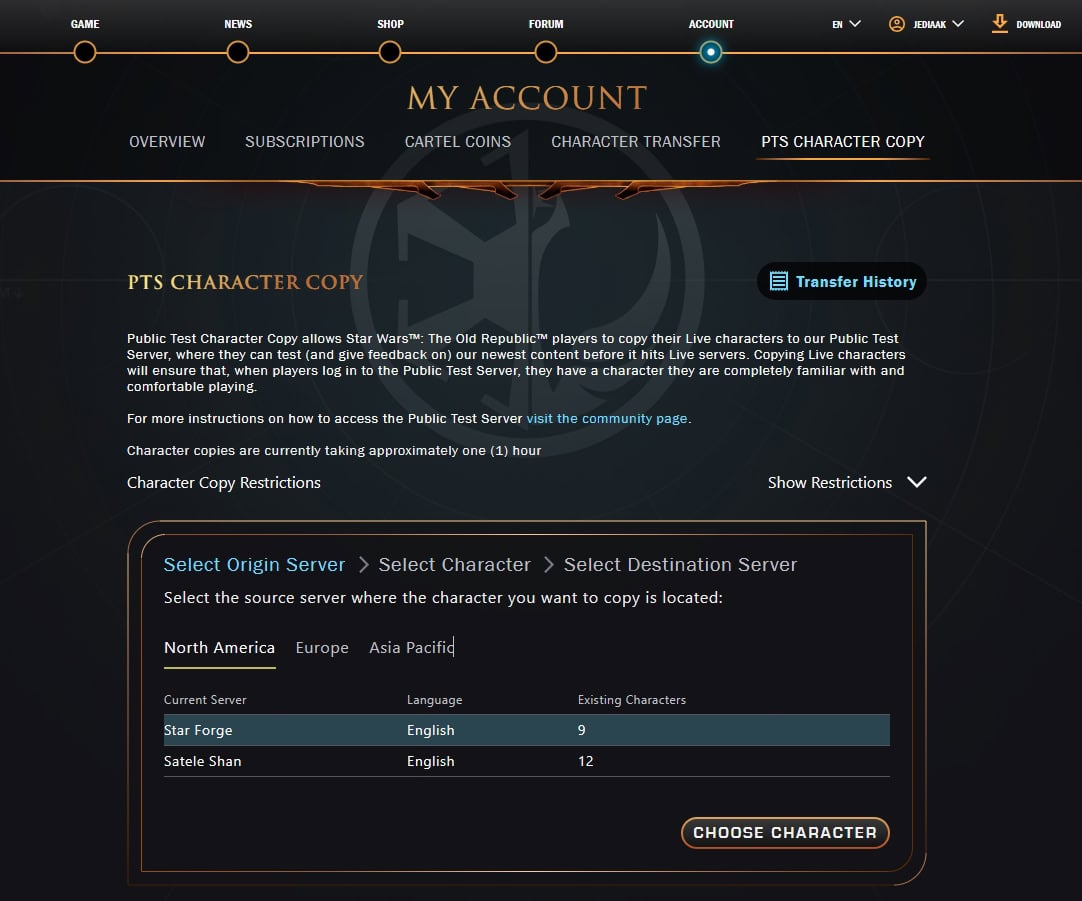
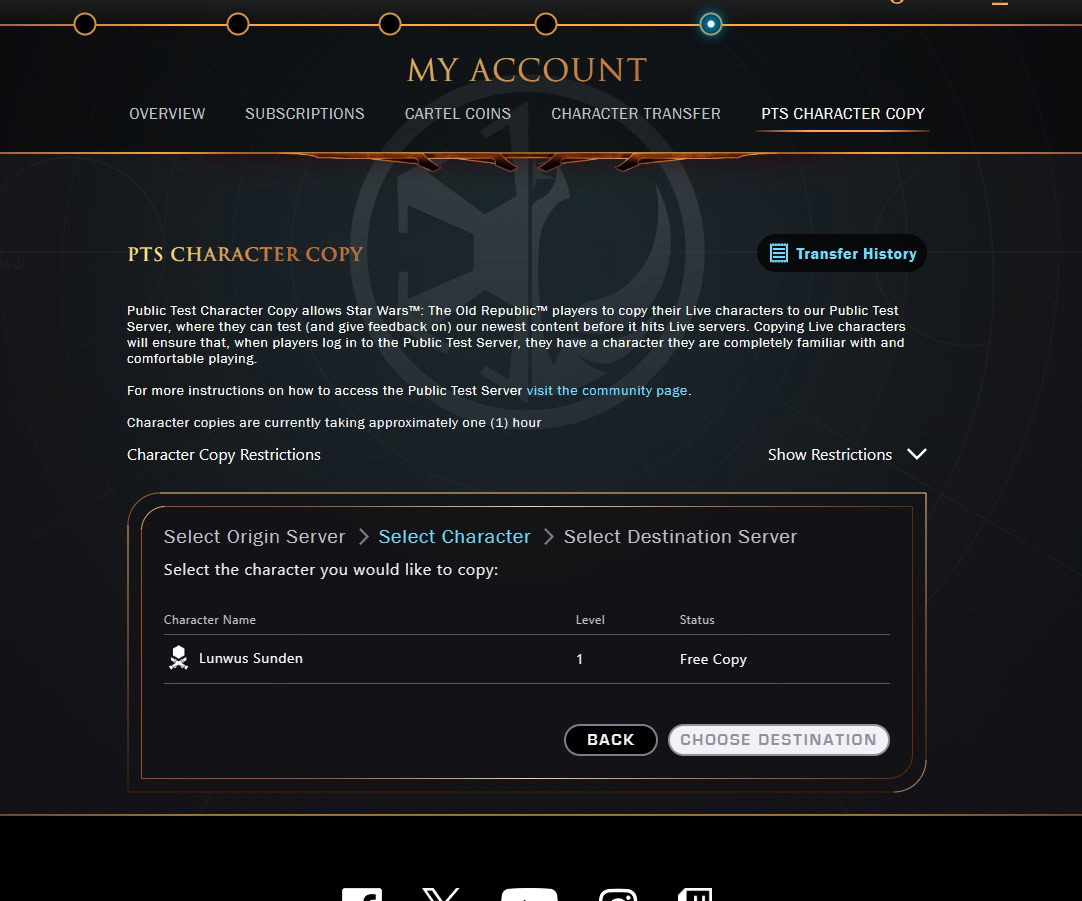
- Select Destination
Since this is a PTS Character Copy procedure, you will only have one option for a destination – the Public Test Server.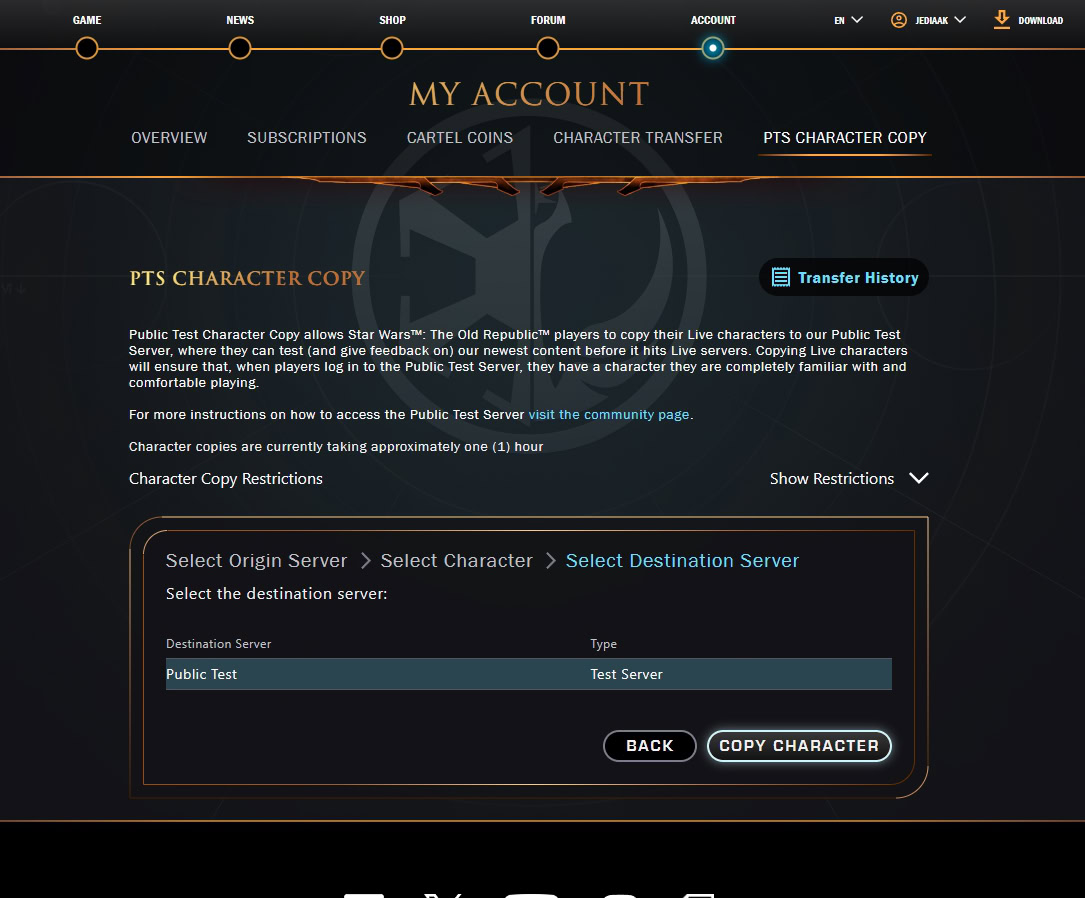
FYI, this is the same process when you want to transfer a character from one live server to another, except now you only see PTS as an option. - Log in to your character on PTS
PTS Character transfers usually only take a minute or two. If you are logged in to PTS while you are making the transfer via swtor.com, the game will log you out and bring you to the character select screen with your newly copied character now included in the list.
If any of the links included in the steps above, leading to a page on swtor.com, are not active when you click them, it is because the specific feature or page may not be active or accessible at the moment or for the current testing phase.
Sometimes Broadsword doesn’t allow character copying for all testing phases as some times they don’t need it for their testing purposes.
If and when the PTS testing phase allows or needs it (the devs decide that for each phase), you can create a new character, use the “Travel to Odessen” special terminal, placed right outside the starter conversation. This will automatically level you up to level cap and will usually also grant you credits, enough to spend on the newly created vendors on the landing area platform.
Some times there are terminals available for you that will automatically level you up to level cap.
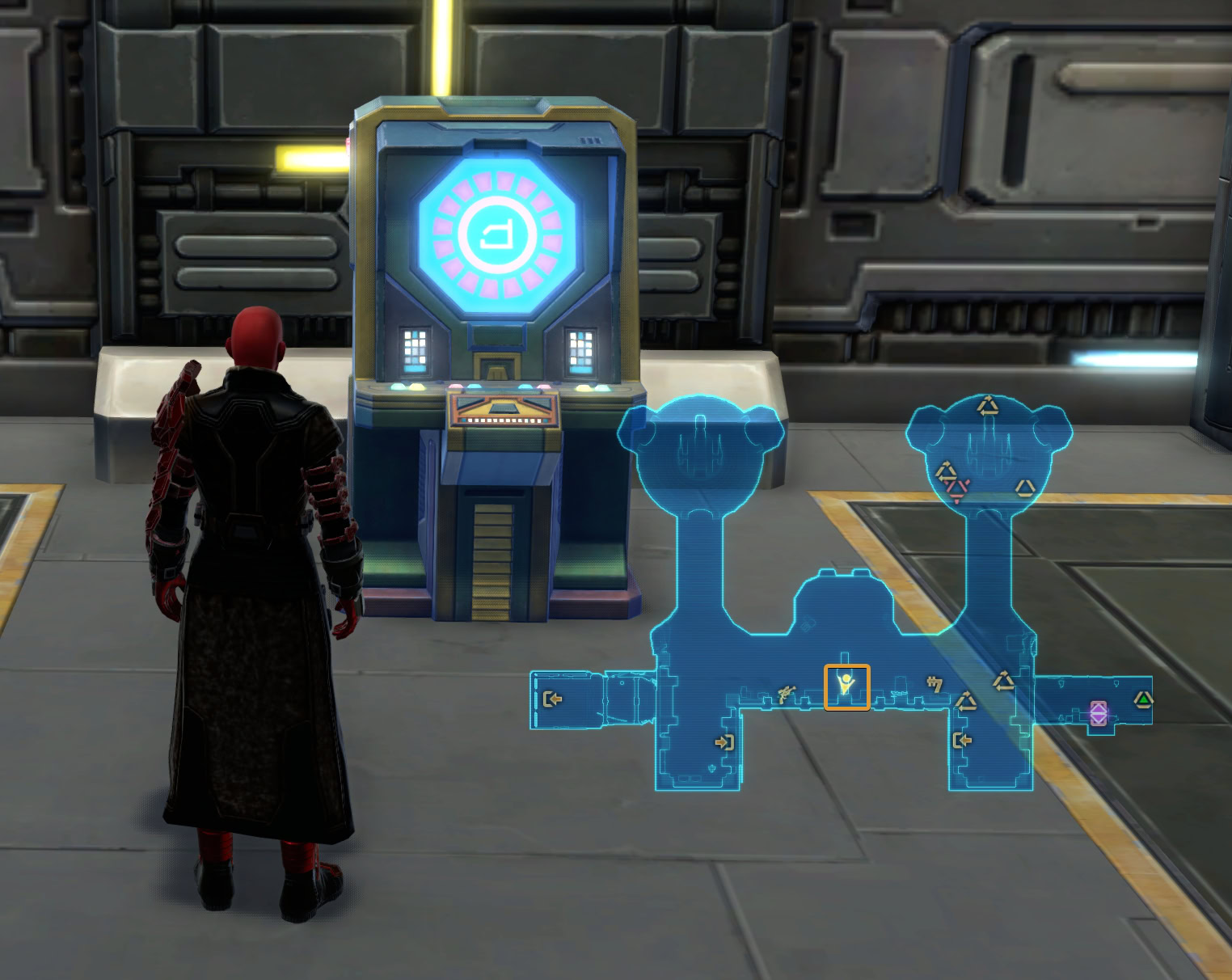
Other terminals or vendors are usually nearby to provide all the latest endgame gear to you for free, so you can test the new challenges.
This is a test environment, not meant to be played like you do on a normal server. Use your time on PTS to both help the devs fix bugs and also test new builds for your favorite classes.
How to transfer your custom UI to PTS
After you have installed PTS and copied your character(s), you can also transfer your custom UI, if you have made any. To do that, copy the file from the live folder into the PTS one.
- Location for Live: C:\Users\YOURNAME\AppData\Local\SWTOR\swtor
- Location for PTS: C:\Users\YOURNAME\AppData\Local\SWTOR\publictest
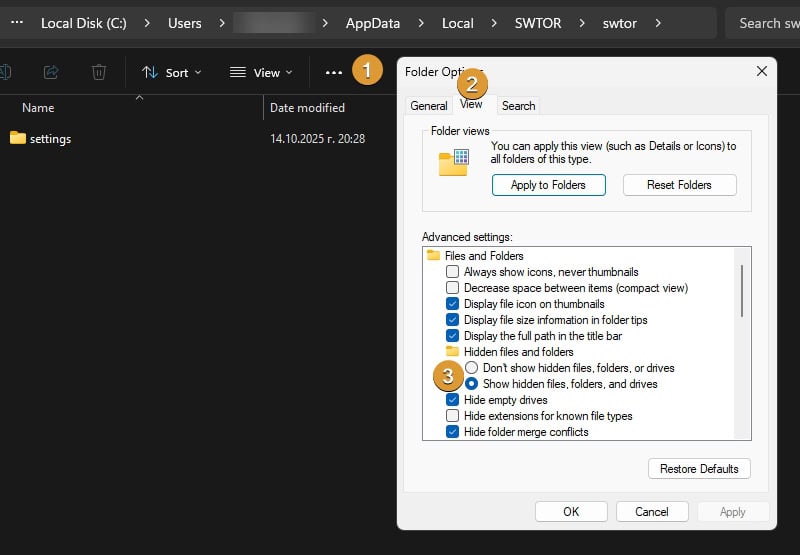
If you can’t see the “App Data” folder, you may need to enable the option in Windows to show you hidden files and folders. Here is a quick how-to for Windows 11 (older Windows versions may be only slightly different):
- In your Windows Explorer, click on the three dots button and then on Options to access “Folder Options”.
- Navigate to the View tab.
- Activate “Show hidden files, folders, and drives.
For a more in-depth instructions on how to create, save and export a custom UI (GUI, HUD etc), check the Vulkk SWTOR UI with Installation Instructions and Keybinding Guide
SWTOR PTS FAQ
Here are some of the most popular questions regarding the SWTOR PTS that you may have when you decide to install and check out the contents on this server.
No, The Public Test Server for Star Wars: The Old Republic is only accessible to current subscribers.
The server is available whenever the developers need it for testing and feedback from the community. It is usually launched a few weeks before a major content update like a new game system, a major redesign or key new features.
You can access the server from both the classic SWTOR Launcher as well as from Steam. This guide contains step-by-step instructions for both methods.
Sometimes. The developers usually allow copying your characters from a live server to PTS for most testing phases. In some cases, when they want to test starter worlds or early game features, they may disable this feature and ask that you create a fresh new character on the PTS.
Yes. You can copy all of your custom UI files and Keybinds from the live client to the PTS.
Usually early and unfinished builds for upcoming new game systems and mechanics. Sometimes gearing revamps or upgrades are accessible so players can check out what the developers are working on and provide feedback.
Sometimes PTS may limit your ability to access certain areas, gameplay features or apply other restrictions that the developers need to focus the player’s attention to a specific feature.
Sometimes. For some PTS testing phases the developers may offer PTS achievements that track your participating on a specific new feature and track your progress. If you participate enough, you may earn a reward such as a mount or a new Legacy Title available to your characters on the live servers.
No. SWTOR PTS is its own server and whatever you do, stays on it. You cannot transfer a character from PTS to a live server.