Take the time to adjust your settings in Star Wars Zero Company and create a smoother gameplay experience. We’ll show you key features that you should consider changing through difficulty settings, graphics options, and accessibility options.
New Game Setup
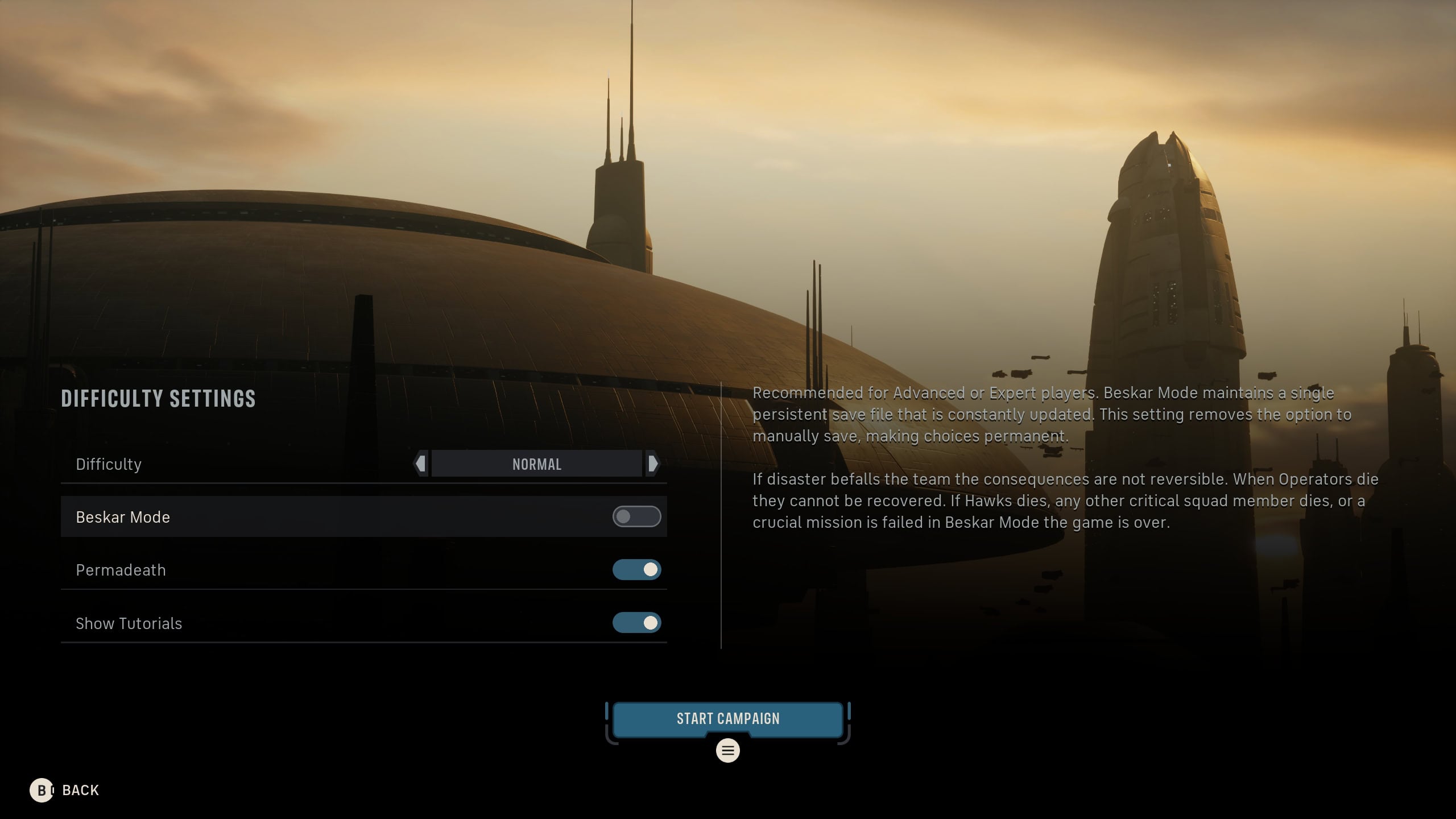
When starting a new game, you’ll be given a list of difficulty options. While there aren’t a lot of options to adjust, these can have a large impact on your overall experience and playthrough of Star Wars Zero Company.
Difficulty
There are four difficulty modes for Zero Company: Story, Normal, Hard, and Expert. If you’re new to Turn Based Strategy games, Normal or Story would be a good option to select until you’ve gained the experience for harder difficulties.
Story Difficulty
If you’re looking to enjoy the ride without a lot of risk, you’ll want Story Difficulty. All player actions deal increased damage to enemies, those enemies are easier to fight, and they’ll have lower accuracy and damage .
Normal Difficulty
This is the default difficulty setting and the one most players will likely use on their first run. This is good if you’re new to tactical games without making it too easy. Enemy weapons have normal difficulty and accuracy while your weapons have a good range.
Hard Difficulty
If you’ve been playing tactical games such as XCOM in the past, this might be more your speed. Enemies are tougher overall, your weapon ranges are reduced. The reduces weapon range requires better maneuvering on your end, and your initial bond levels between Operators are lower.
Additionally, the Bacta Tank will be disabled. On Normal or Story, you can place an injured Operative in the Medbay’s Bacta Tank to instantly remove existing injuries. On Hard, they’ll need bed rest to recover, so you’ll need to be smarter about your combat decisions to minimize the amount of injuries and healing time.
Expert Difficulty
If you’re a veteran of tactical games and want a challenge, you’ll want Expert Difficulty. Enemies are of course tougher here and your weapon ranges are reduced even further. Initial bond levels between Operators are much lower and the Bacta Tank is disabled.
Beskar Mode
Beskar Mode is essentially Zero Company’s “Hardcore” mode. You’ll have a single save file and cannot manually save. As the save file updates itself, you’ll be unable to redo past events.
Operators that die cannot be recovered. If Hawks or another critical squad member dies, or if you fail a crucial mission, the game is over and you’ll need to restart from the beginning. This option can only be adjusted at the start of a new game.
Permadeath
When Permadeath is toggled on, any Operators that receive three injuries will die. There will be no way to recover them once they are lost, and you’ll find their holoportrait in The Den’s Memorial.
While Zero Company was made with Permadeath being part of the experience, you can turn it off at the start of a new game. You cannot change this decision later on.
Even if this is toggled off, there is one character in the tutorial missions that will die regardless of this setting to introduce this mechanic.
Show Tutorials
It is what it says on the tin, you’ll have tutorial pop ups as you play Zero Company. Keep this on if you’re not familiar with tactical games of this nature.
Gameplay Options
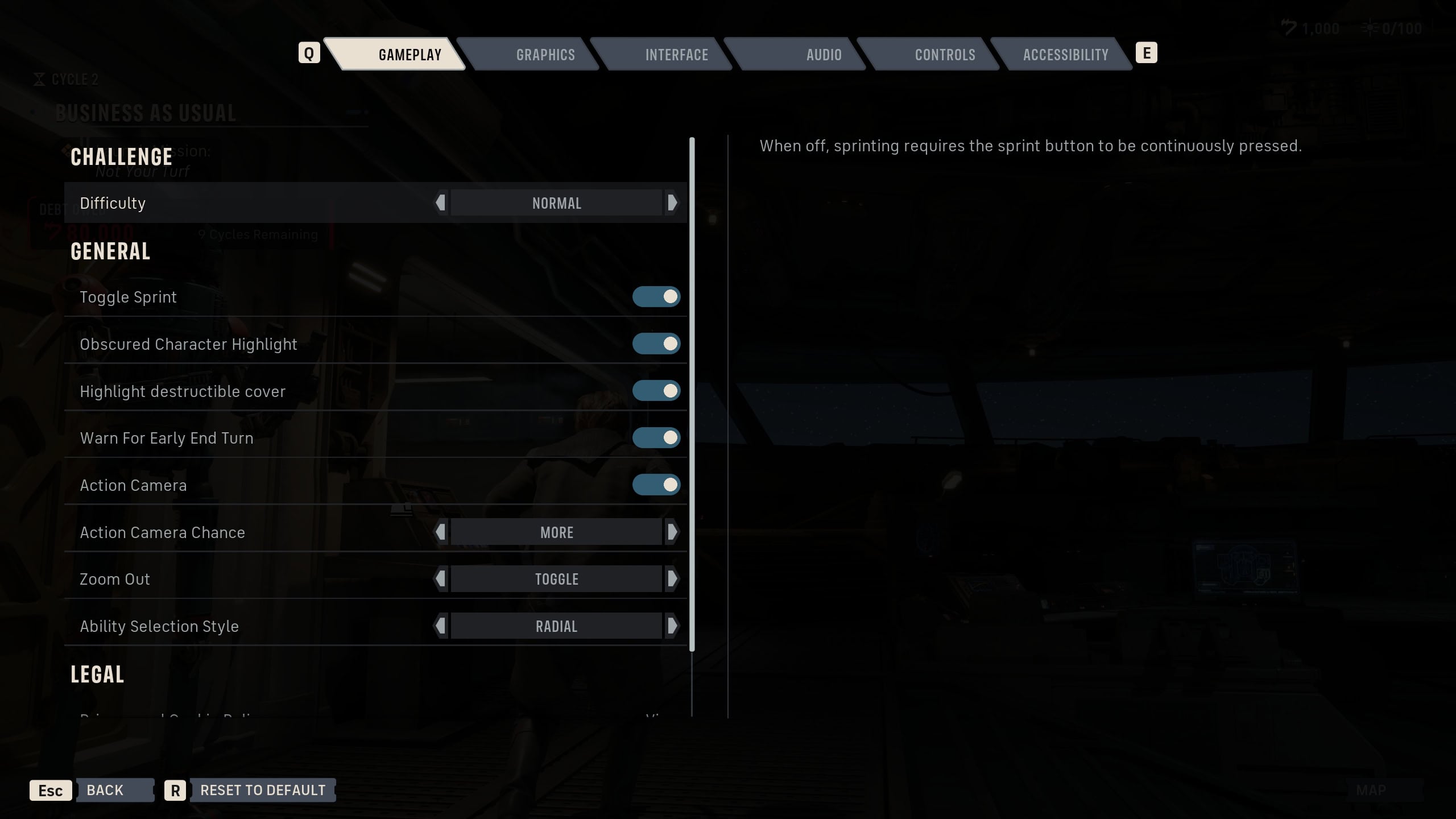
When you go to the Options Menu, the Gameplay Options will be the default tab you’ll start out in. Here you can change some general settings or view legal information that you’ll likely never read.
Toggle Sprint
This primarily affects how you move Hawks around while out of combat. Toggled on means he’ll keep sprinting when you press the Sprint button. If toggled off, you’ll have to hold the Sprint button to maintain your sprint.
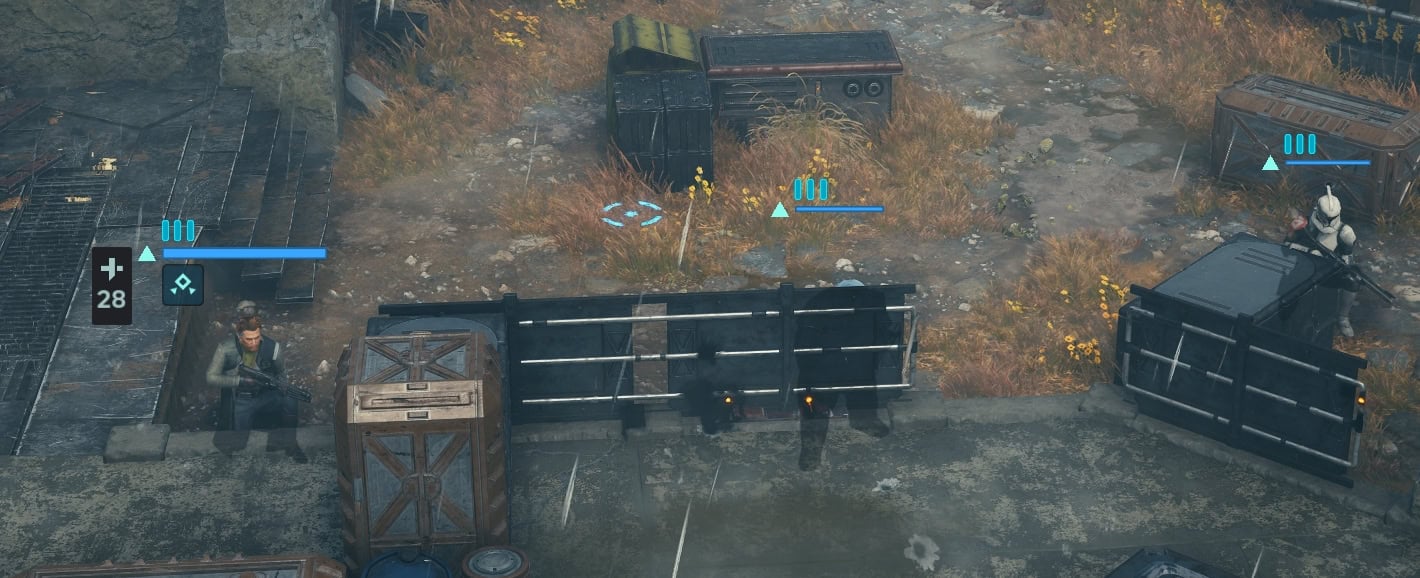
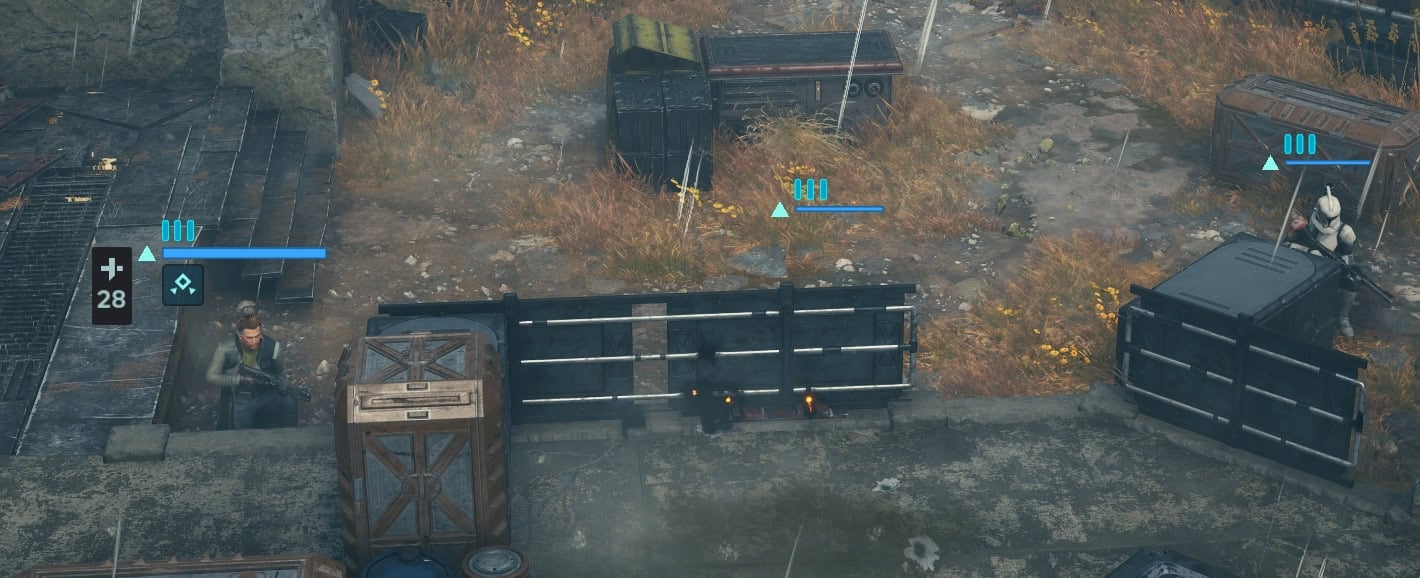
Obscured Character Highlight
Character that are behind terrain will have their silhouette shown through said terrain when this option is turned on. This subtle but useful feature is good to use if you want a better visual idea of where your units are.
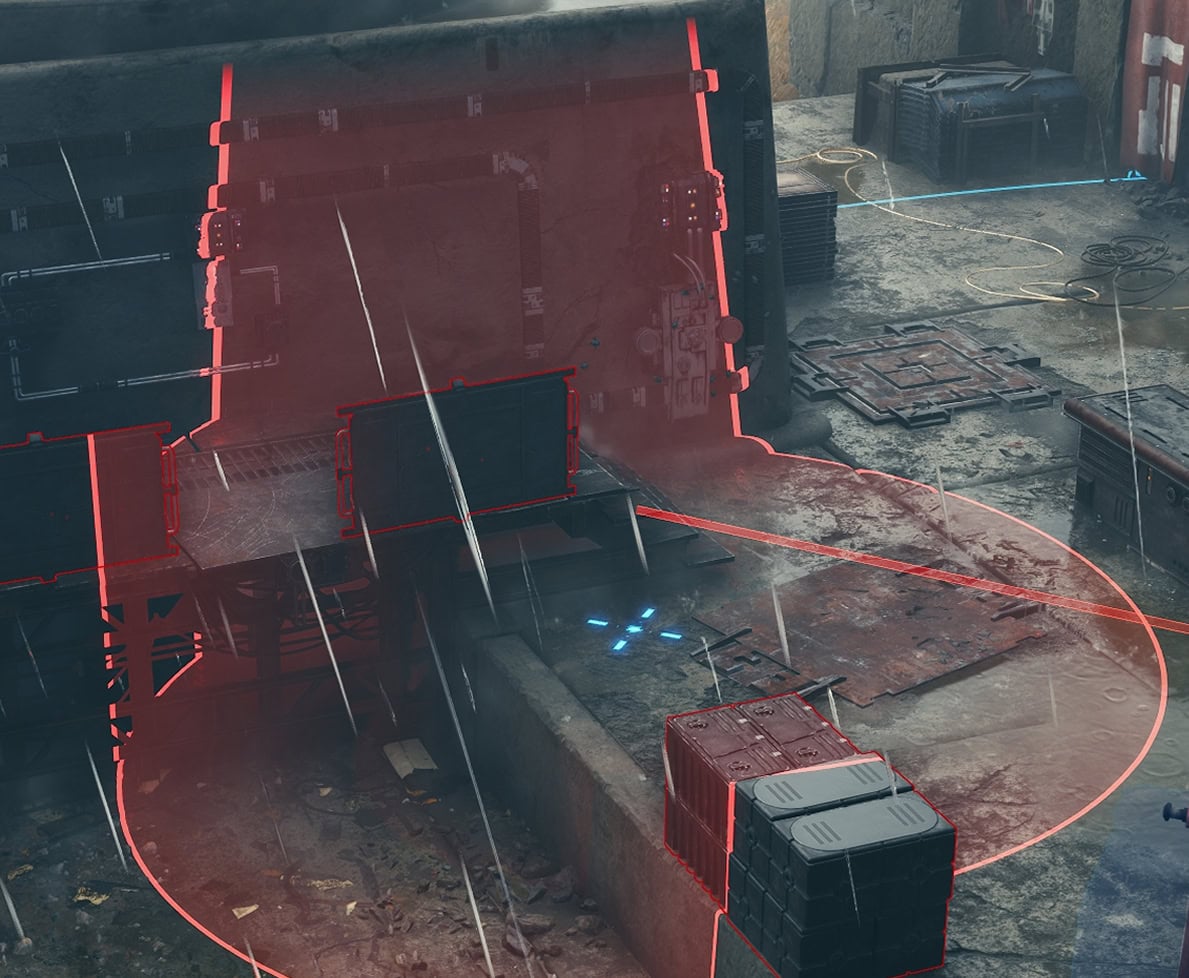
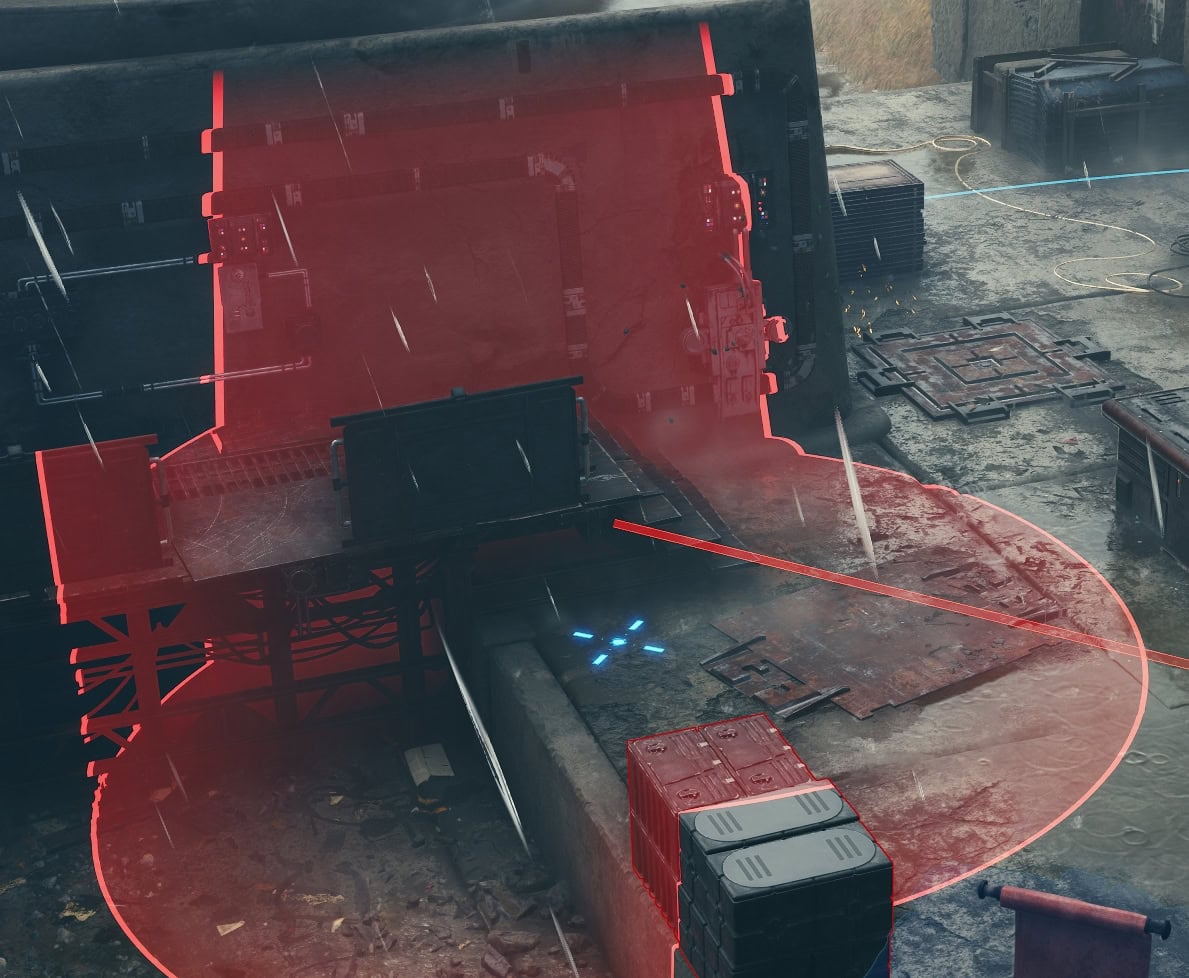
Highlight Destructible Cover
When you’re using explosives or other destructive abilities, they’ll have red area of effects to show their effective range. With this setting toggled on, terrain and objects that can be destroyed by the blast will have a red outline. This outline will not appear if this feature is toggled off.
Warn For Early End Turn
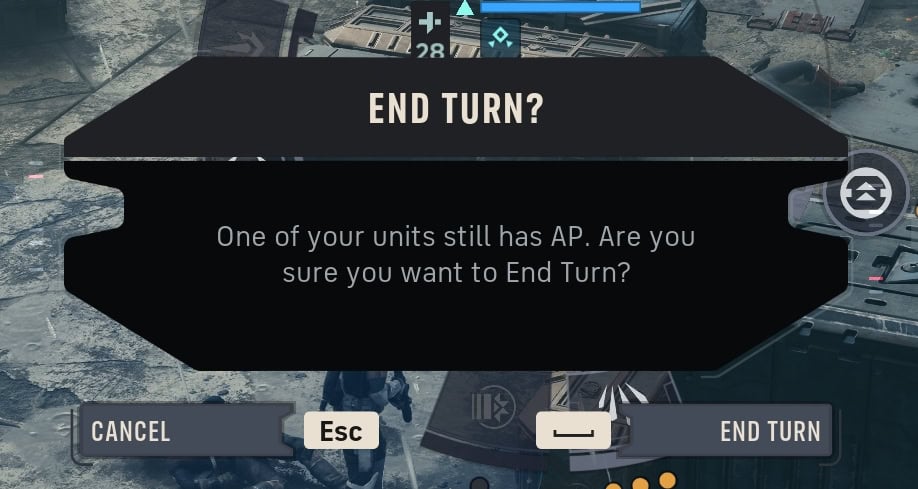
With this option toggled on, a pop up will appear when you attempt to end a turn with a unit that still has Action Points available. You can turn this off once you get a better feel for the game or if you’re experienced with tactical games.
Action Camera
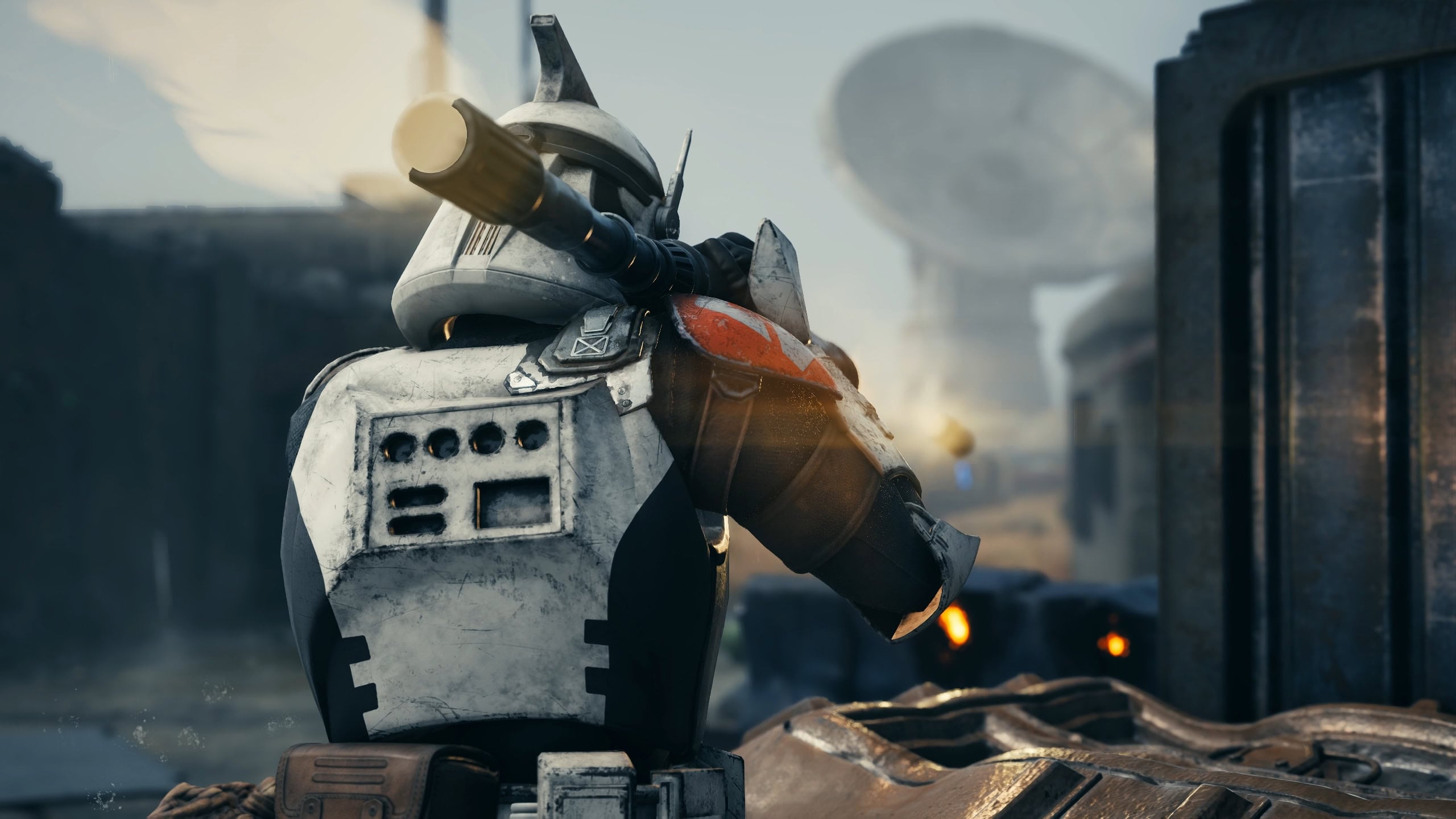
The Action Camera allows for special abilities to cut to a more cinematic angle as the animation plays. By default it’s on with its chance set to “More”. You can adjust the frequency of when this occurs from Off, Few, Some, More, and Always.
When toggled off, the camera will not cut into the special abilities. Instead, you’ll see them from the Overhead view.
Ability Selection Style
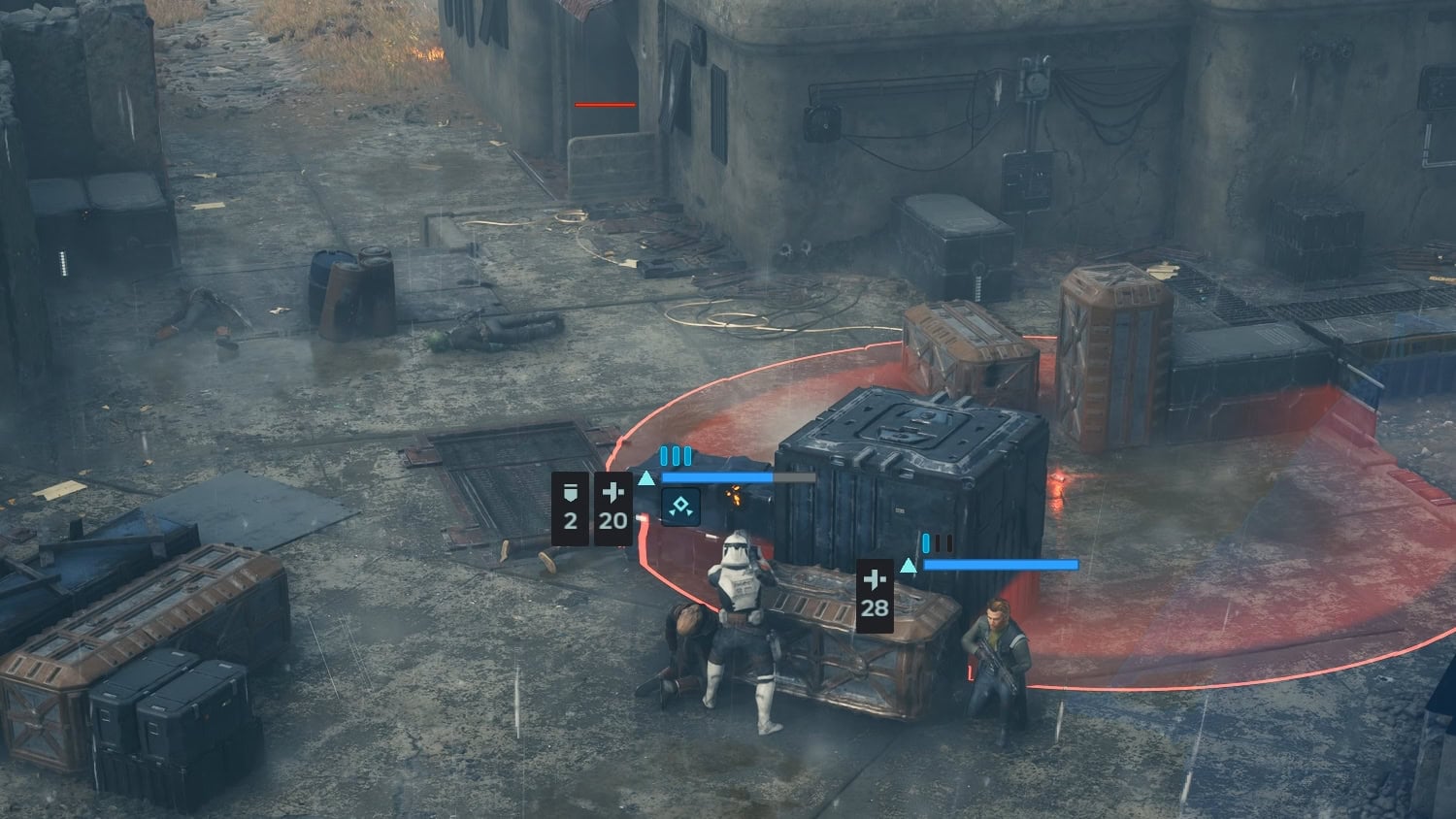
You can change your Ability Selection Style between Radial, Linear, or Hybrid. By default, this is set to Radial.
Radial Selection Style
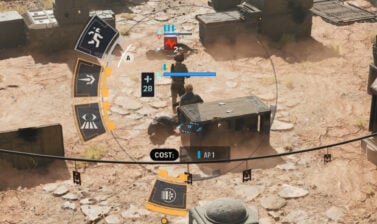
When a unit is selected, a radial menu will appear over them allowing you to select which action to use. The Radial Selection Style is better suited for controllers.
Linear Selection Style
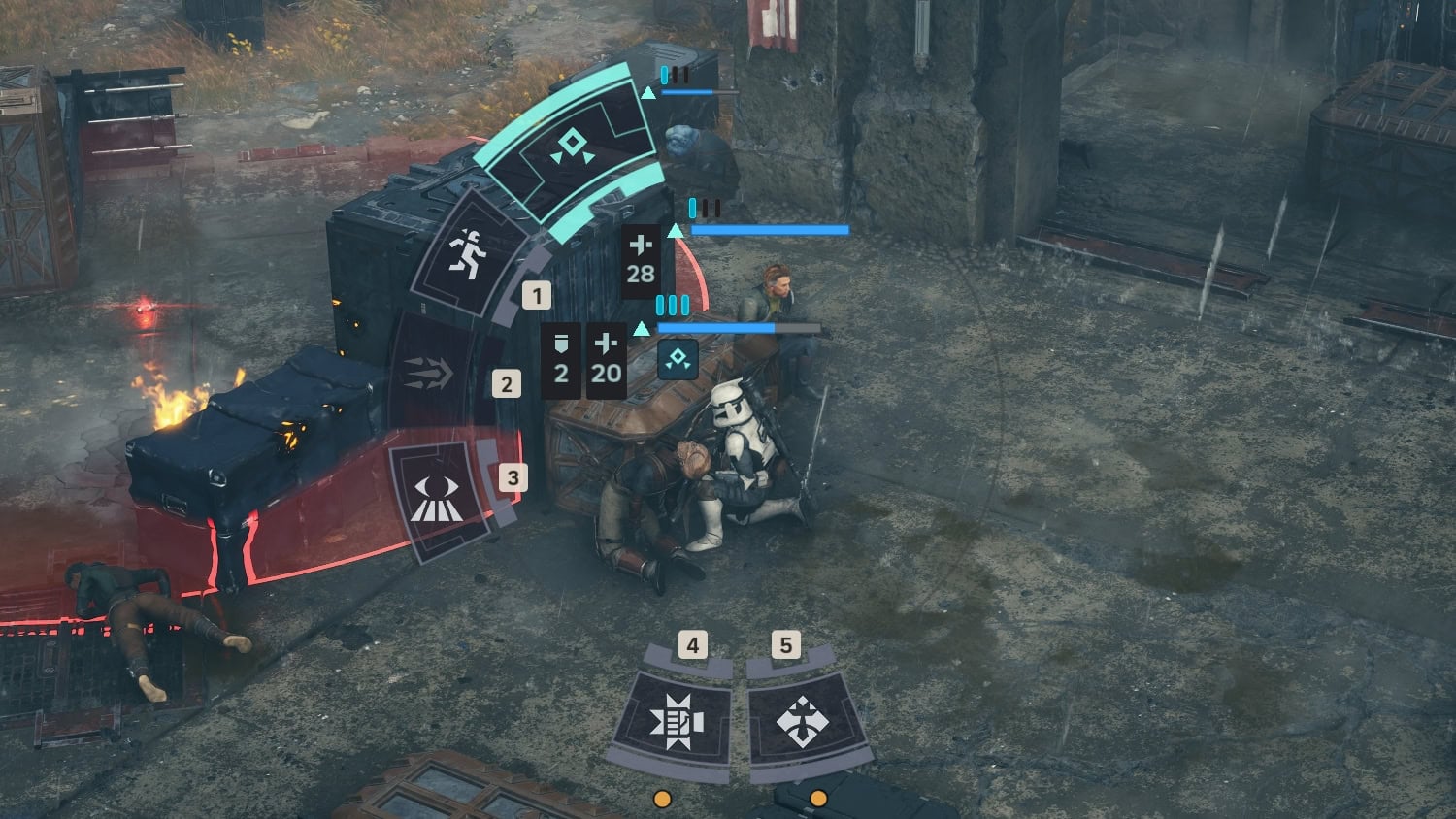
Linear Selection Style will have a unit’s abilities at the bottom of the screen, allowing you to press a hotkey to the corresponding ability to use it. This is catered for Keyboard and Mouse gameplay as the linear style will be replaced by the radial style if you attempt to use a controller.
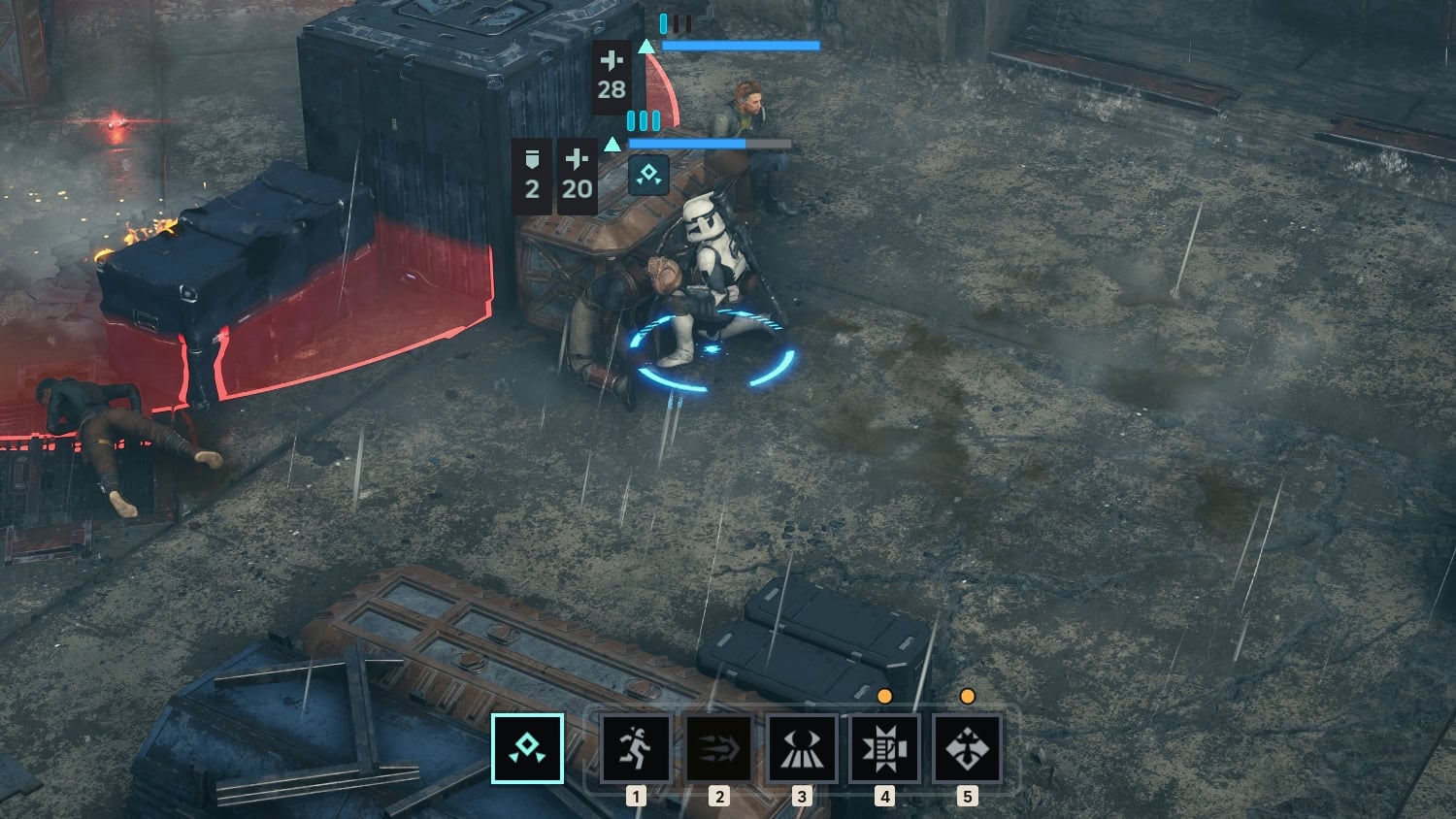
Hybrid Selection Style
Hybrid Style combines both Radial and Linear. The radial menu will appear when you select a unit, but exiting the radial menu will display the linear menu if you still wish to use the ability hotkeys at a moment’s notice.
Graphics Settings
You’ll find your standard graphics settings in the Graphics tab. You can adjust overall or individual settings between Low, Medium, High, and Ultra.
Be sure to adjust your Anti-Aliasing and Upscaling to suit your needs. If you’re using a 40 or 50 series NVIDIA GPU, you can take advantage of the NVIDIA DLSS for Anti-Aliasing and Frame Generation.
Adjusting your Interface
There are five options you can adjust in the Interface tab. These are Text Language, Spoken Language, Text Size, Stabilizing UI Dot, and Subtitles.
Language
There are far more Text Language options than there are Spoken Language options for Star Wars Zero Company. Text Language offers the following options:
- English
- Spanish
- French
- German
- Italian
- Japanese
- Korean
- Polish
- Brazilian Portuguese
- Simplified Chinese
- Traditional Chinese
The only Spoken Language options offered are English and German. As the VULKK team has members around the globe, we confirmed this to be the case. Whether it’s in the United States, Mexico, or Bulgaria, English and German are the only spoken languages offered.
Display
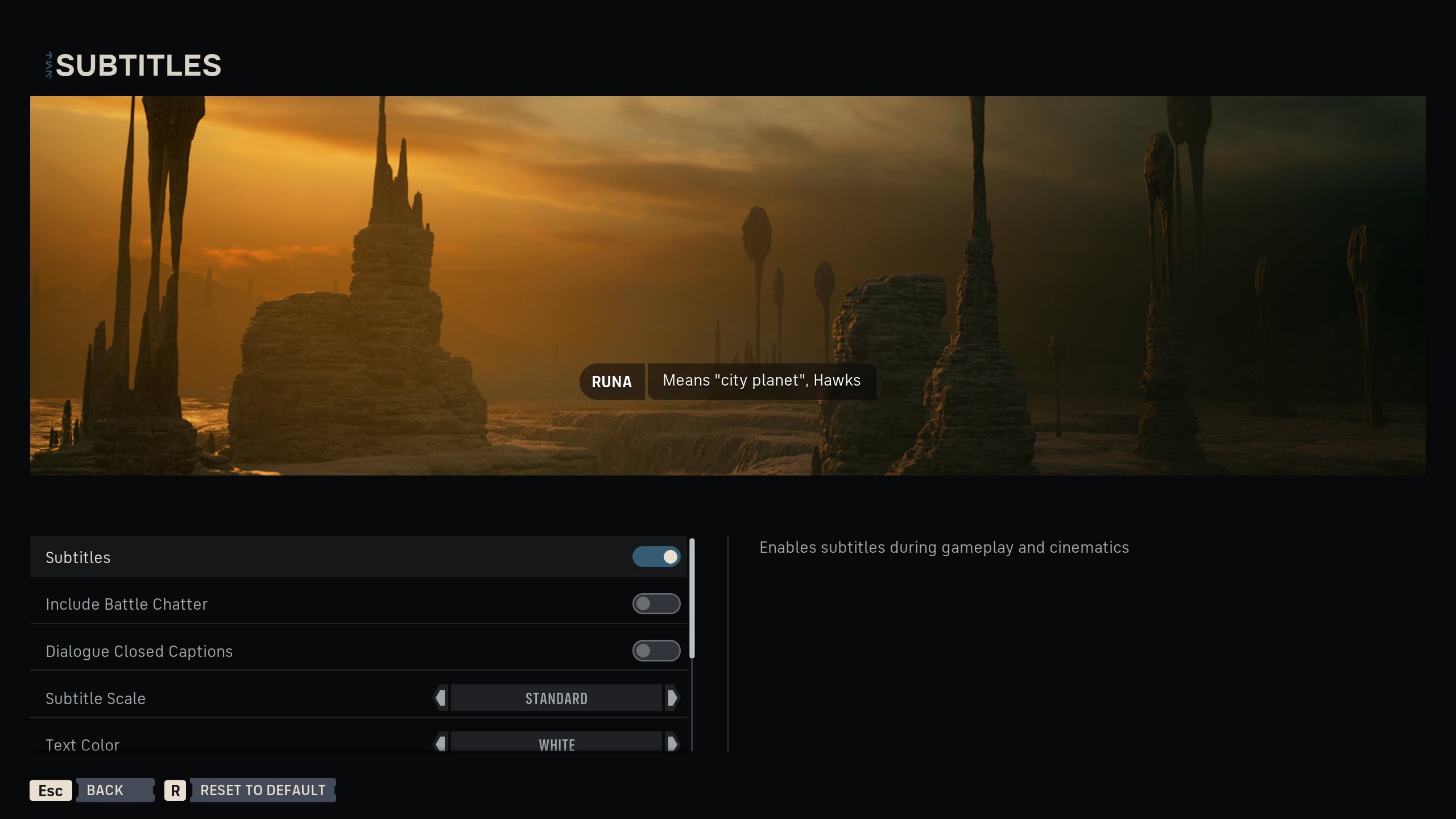
You’ll be unable to adjust UI elements for the most part. The only things you can adjust is the Text Size, add a Stabilizing UI Dot, or Subtitle Options.
Adjusting Subtitles will bring you to a new menu where you can change the subtitle settings to suit to your needs.
Audio
The Audio Menu will let you change the spoken language between English or German, or adjust the following volume options:
- Main Volume
- Music Volume
- Ambient Volume
- Sound Effects Volume
- Dialogue Volume
Voice Boost is an option that is toggled off by default. If turned on, the audio mix will be altered to allow you to better hear what someone is saying. This can be useful as it can be hard to hear people when there’s an ongoing battle happening.
Customize the Controls
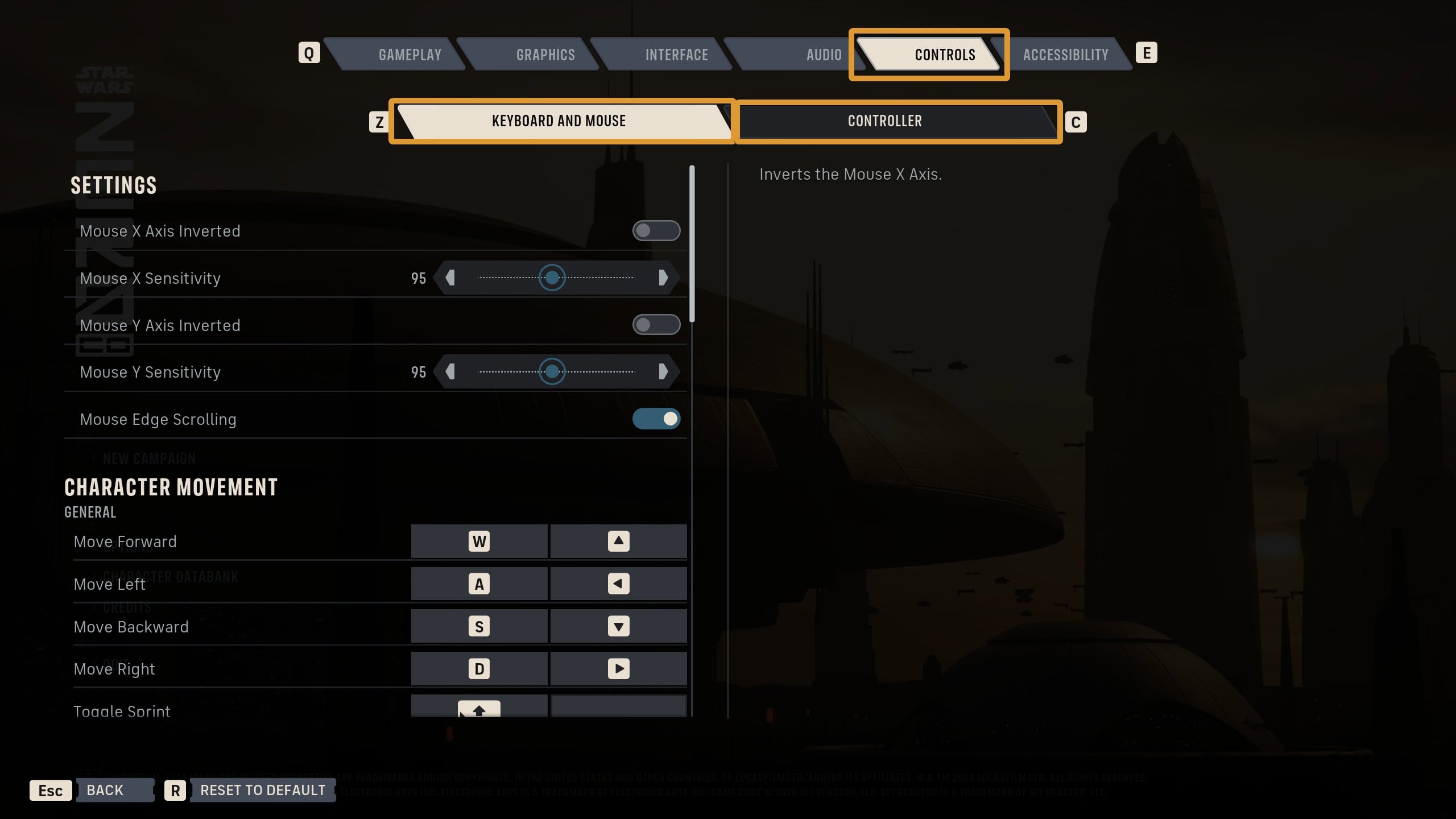
You can customize the controls for either Keyboard and Mouse or Console Controllers in the Controls tab. Each input can have up to two binds and you’ll be able to adjust your X and Y axis sensitivity here as well.
Accessibility Features
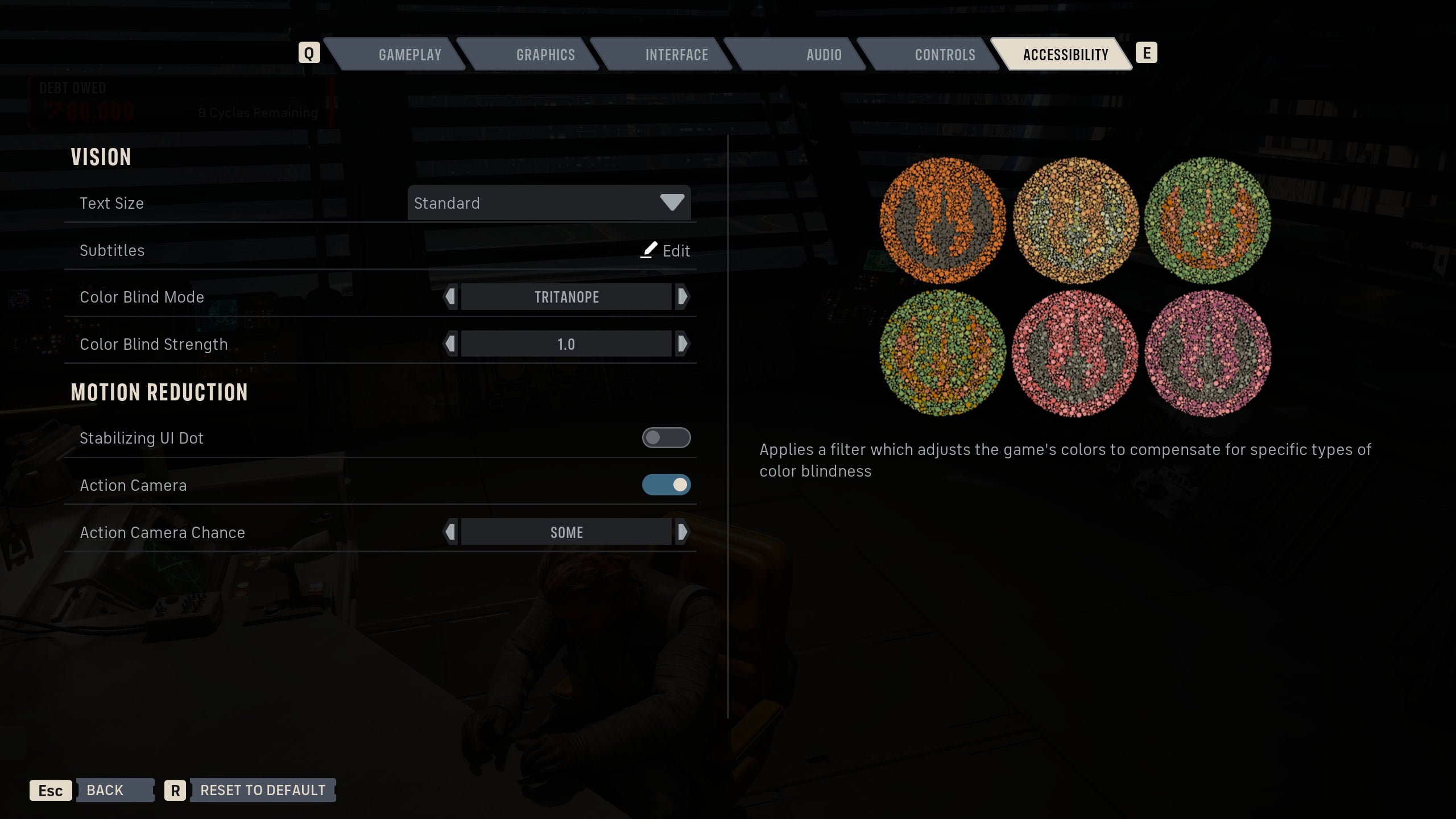
Zero Company looks to be as accessible as it can for those of you who may have some form of visual impairment. Some options offered here along with previously mention tabs include Text Size, Subtitles, Action Camera, and the Stabilizing UI Dot. There’s also Color Blind Mode which features three forms of Color Blindness accommodations.
Colorblind Mode
Color Blind Mode is turned off by default. When toggled on, you can adjust the Color Blind Strength at 0.1 increments between 0.0 and 1.0. It offers the following options:
- Deuteranope
- Protanope
- Tritanope
Stabilizing UI Dot
If you experience motion-sickness or have a visual impairment that requires a focal point, the Stabilizing UI dot can be toggled on to provide said focal point. Given the action and sudden camera shifts with the Action Camera, a consistent spot on the screen can help ground you.
This dot will appear at the center of your screen whether you’re in Combat Mode, or Third Person Mode when you’re at The Den or between combat encounters.
Now that you are familiar with all of the game’s settings and have tweaked them per our recommendations and your personal desires, we will show you how to build a strong and balanced team of Operators in the early game.
Best Early Game Team Composition in Star Wars Zero Company