Everything you need to know about Star Wars Zero Company’s control setup for Keyboard and Mouse, and XBOX/PS Controllers: settings, keybindings, and customizations.
How to access and Customize Keybinds
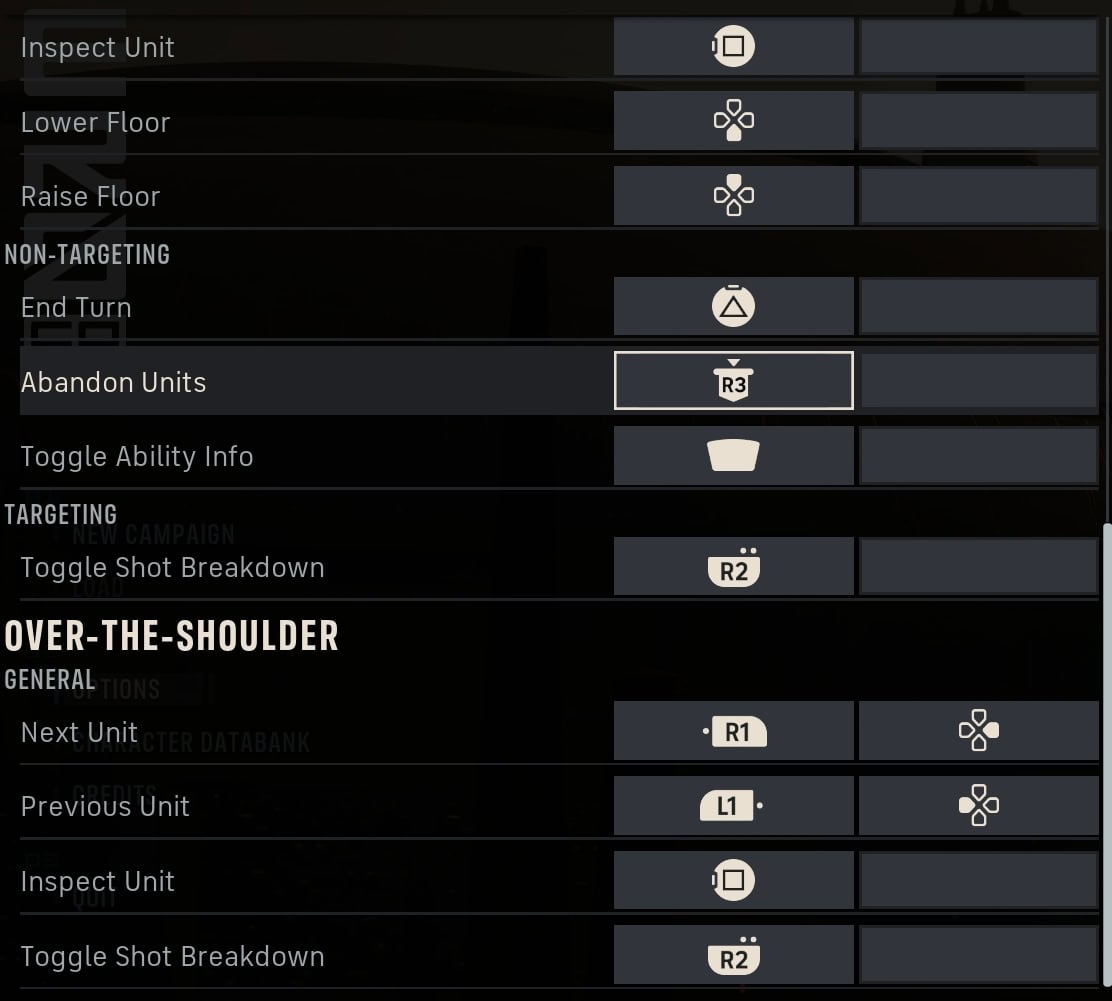
To see and customize your keybinds, go to the Options menu and switch to the Controls tab. From here, you can select Keyboard and Mouse or Controller to see the presets there, adjusting them to your liking if desired.
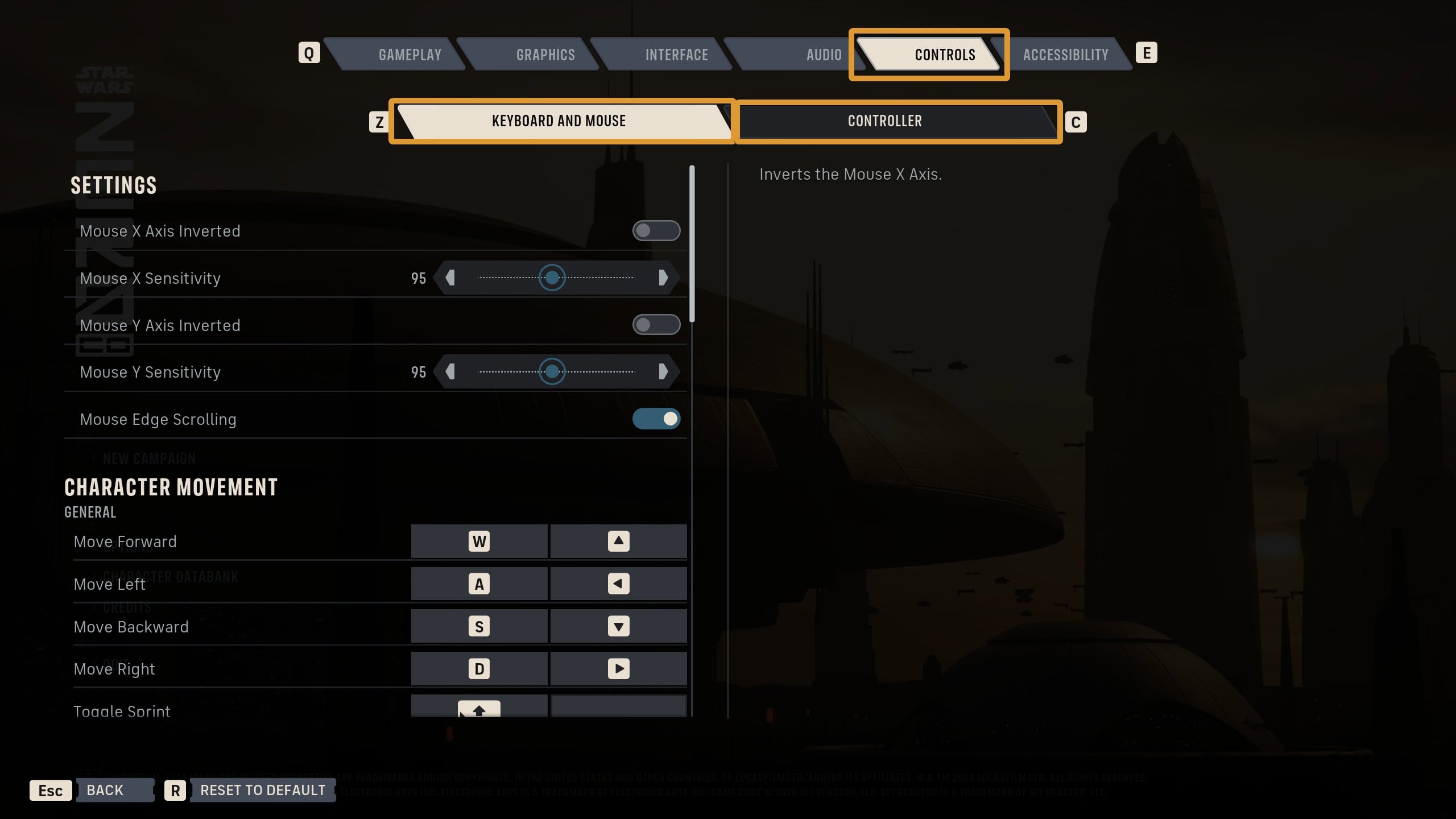
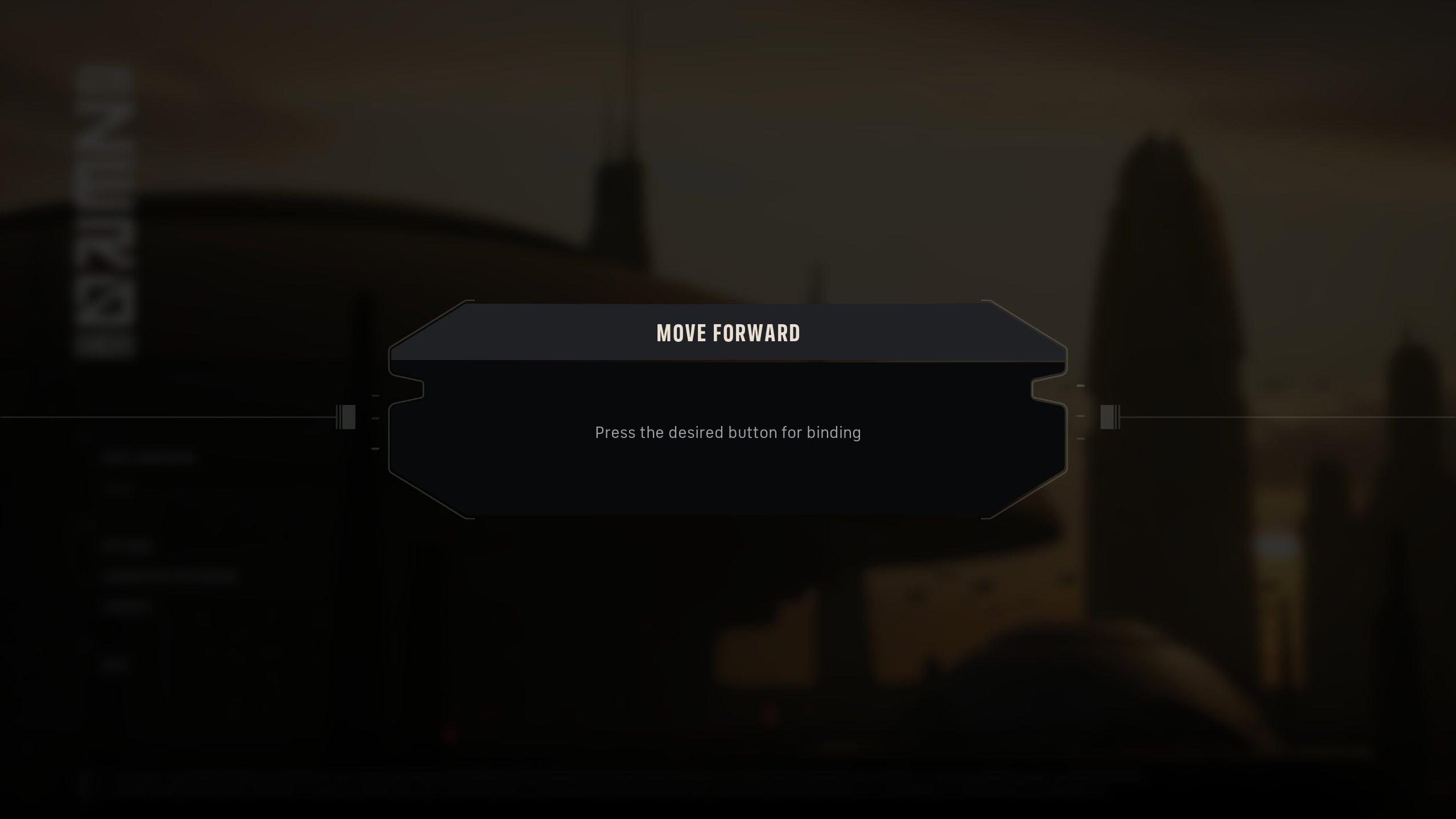
To customize a keybind, select one of the two cells to the right of an action. A pop-up will appear asking you for a new keybind. Enter your desired key or button to customize it.
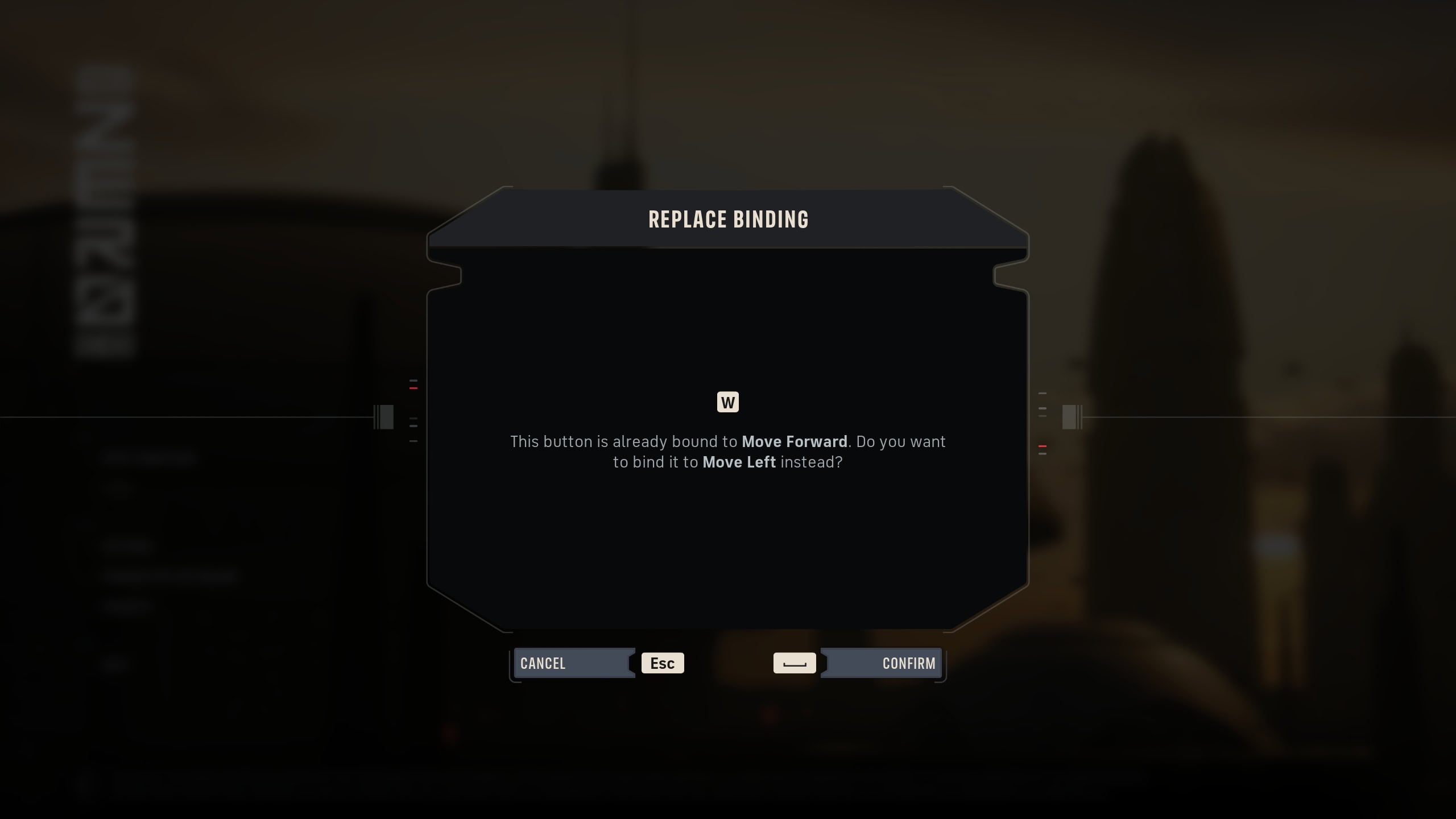
If the game detects a duplicate keybind, you’ll receive a popup stating what that key is currently bound to, and if you want to confirm it to another bind instead. This will replace the changed keybind to avoid duplicate inputs.
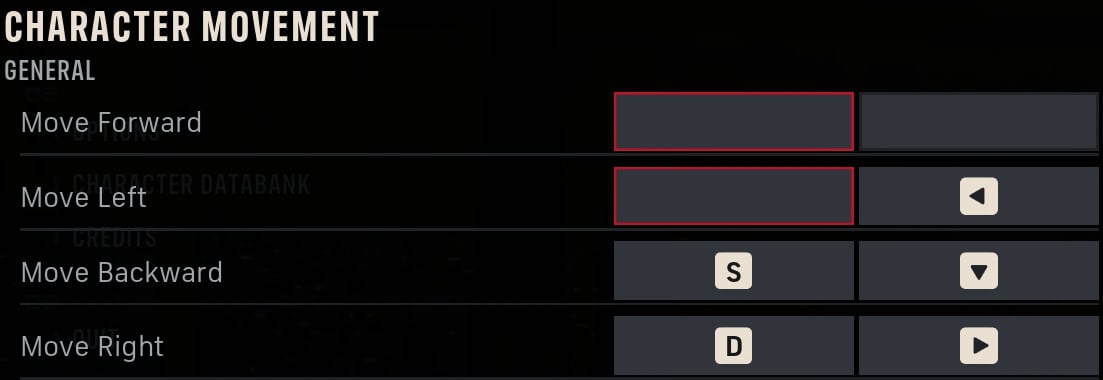
Missing Keybinds will have their first cell highlighted red. These appear if you reassigned a keybind they previously had to another bind option. Avoid having missing keybinds so you can properly play the game.
PC Keyboard and Mouse Controls
You’ll be able to adjust settings for Mouse Sensitivity and Keybinds for Keyboard and Mouse in Star Wars Zero Company.
Mouse Settings
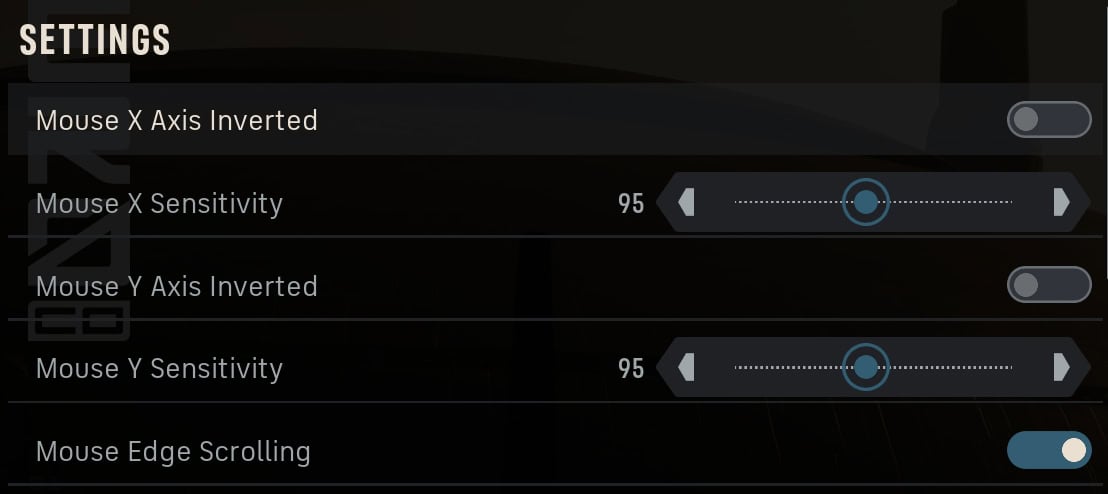
The Mouse Settings feature a few options, it is your standard X and Y Axis Inversion, Sensitivity, and Mouse Edge Scrolling. By default, both the X and Y Mouse Sensitivity is set to 95.
Keybind Settings
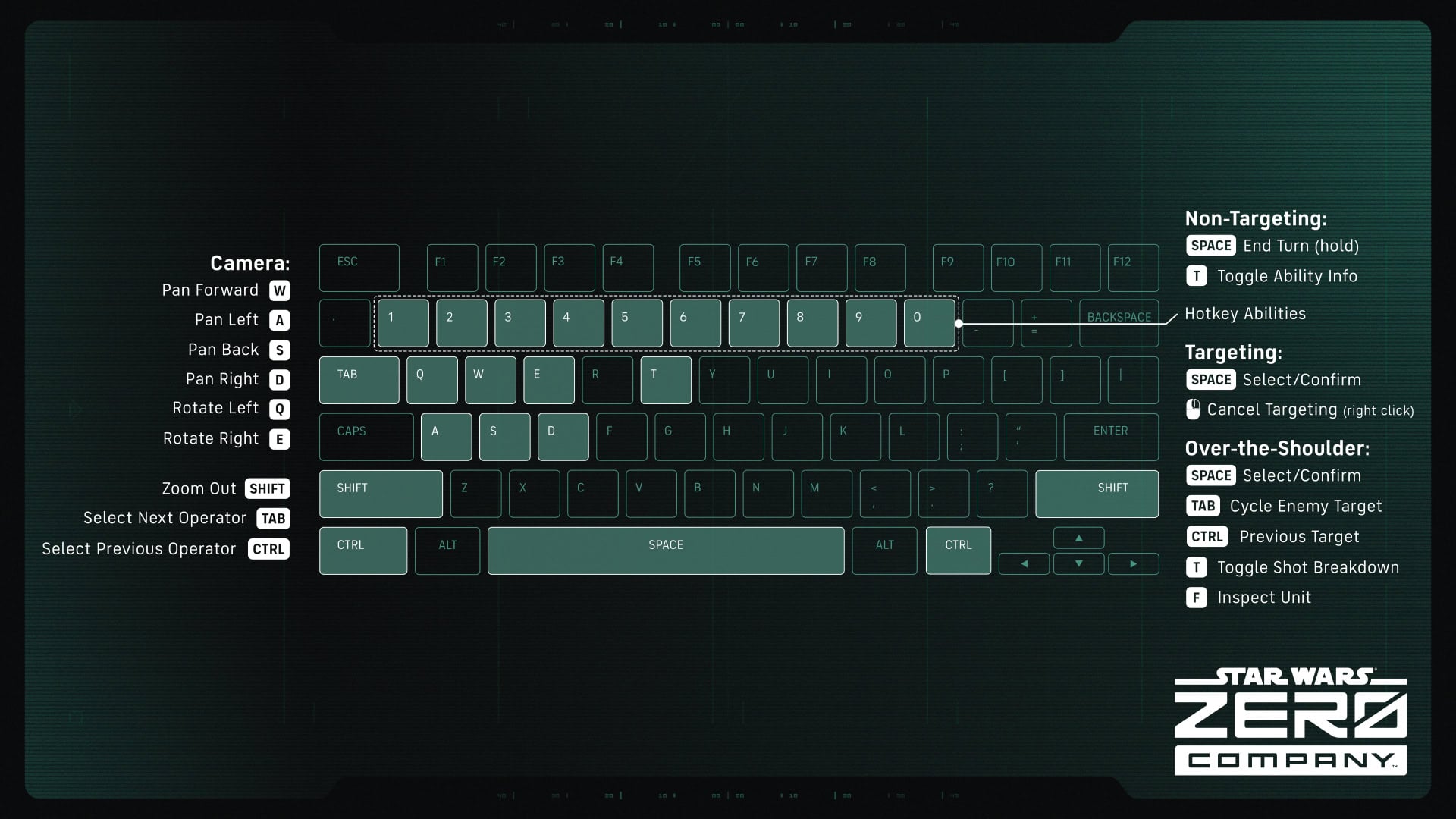
Each keybind can have two inputs you can use for an action. The following table will show you the default inputs.
| Action | Button | Input | Category |
|---|---|---|---|
| Move Forward | W / Up Key | Press | Character Movement |
| Move Left | A / Left Key | Press | Character Movement |
| Move Backward | S / Down Key | Press | Character Movement |
| Move Right | D / Right Key | Press | Character Movement |
| Toggle Sprint | Shift | Press | Character Movement |
| Interact | E | Press | Character Movement |
| Toggle Details | T | Press | Character Movement |
| Open Map | M | Press | Character Movement |
| Move Camera Forward | W | Press | Overhead |
| Move Camera Left | A | Press | Overhead |
| Move Camera Back | S | Press | Overhead |
| Move Camera Right | D | Press | Overhead |
| Rotate Camera Clockwise | Q | Press | Overhead |
| Rotate Camera Counter-Clockwise | E | Press | Overhead |
| Zoom Out | Shift | Hold | Overhead |
| Next Unit | Tab | Press | Overhead |
| Previous Unit | Ctrl | Press | Overhead |
| Inspect Unit | F | Press | Overhead |
| Lower Floor | V | Press | Overhead |
| Raise Floor | R | Press | Overhead |
| Abandon Units | K | Press | Non-Targeting |
| End Turn | Space | Hold | Non-Targeting |
| Toggle Ability Info | T | Press | Non-Targeting |
| Hotkey 1 | 1 | Press | Non-Targeting |
| Hotkey 2 | 2 | Press | Non-Targeting |
| Hotkey 3 | 3 | Press | Non-Targeting |
| Hotkey 4 | 4 | Press | Non-Targeting |
| Hotkey 5 | 5 | Press | Non-Targeting |
| Hotkey 6 | 6 | Press | Non-Targeting |
| Hotkey 7 | 7 | Press | Non-Targeting |
| Hotkey 8 | 8 | Press | Non-Targeting |
| Hotkey 9 | 9 | Press | Non-Targeting |
| Hotkey 10 | 0 | Press | Non-Targeting |
| Select/Confirm | Space / Enter | Press | Targeting |
| Toggle Shot Breakdown | T | Press | Targeting |
| Cancel Targeting* | RMB | Press | Targeting |
| Select/Confirm | Space / Enter | Press | Over-the-Shoulder |
| Next Unit | Tab | Press | Over-the-Shoulder |
| Previous Unit | Tab | Press | Over-the-Shoulder |
| Inspect Unit | Ctrl | Press | Over-the-Shoulder |
| Toggle Shot Breakdown | T | Press | Over-the-Shoulder |
* Cancel Targeting cannot be reassigned to a different keybind. The controls menu does not list it as an option, but it appears on the KBM controls diagram provided outside the game.
Controller Setups
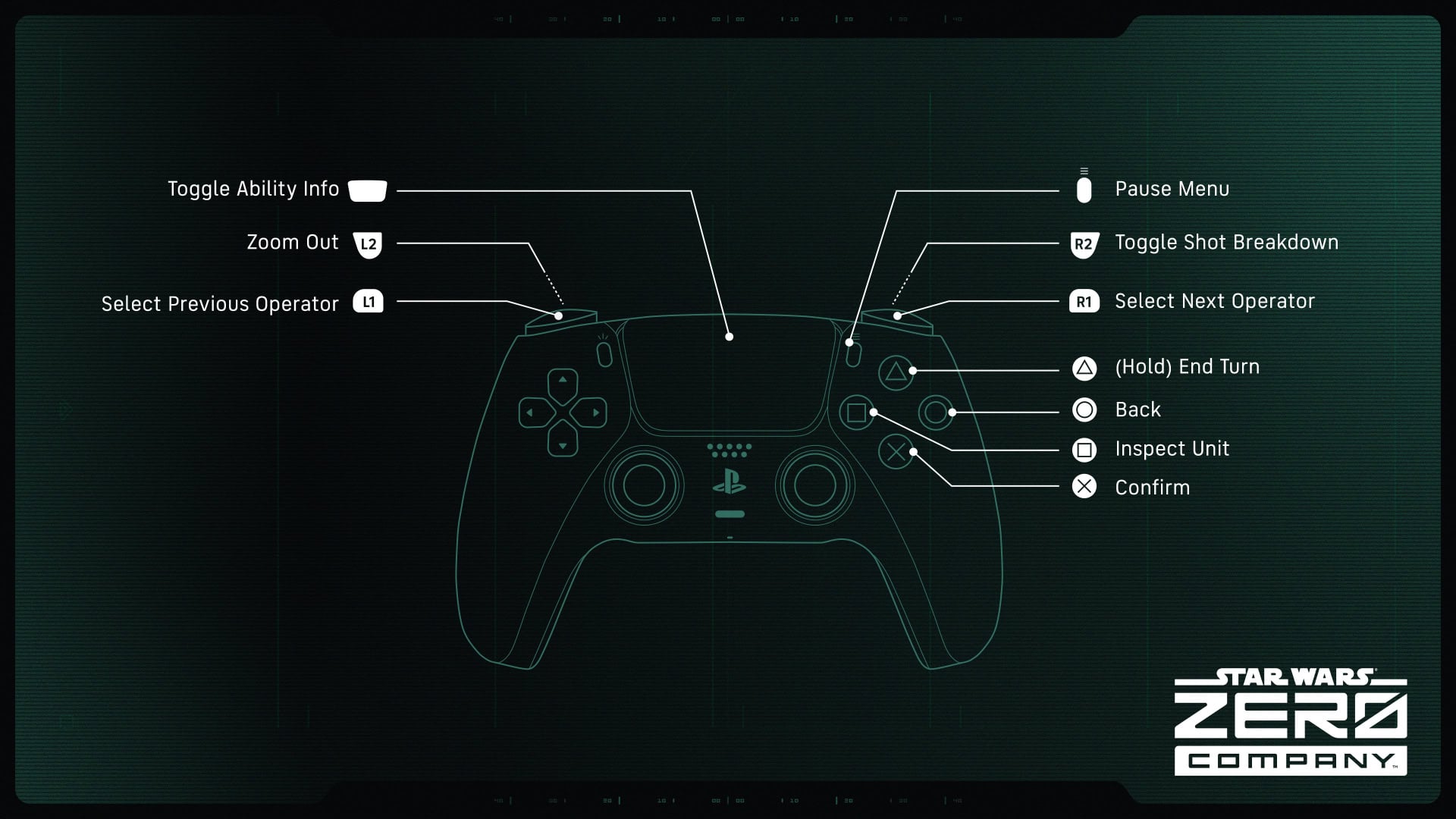
You can find and compare controller setups in a table format here. You’ll be able to adjust your Controller’s X and Y Axis settings and customize button inputs.
Controller Settings
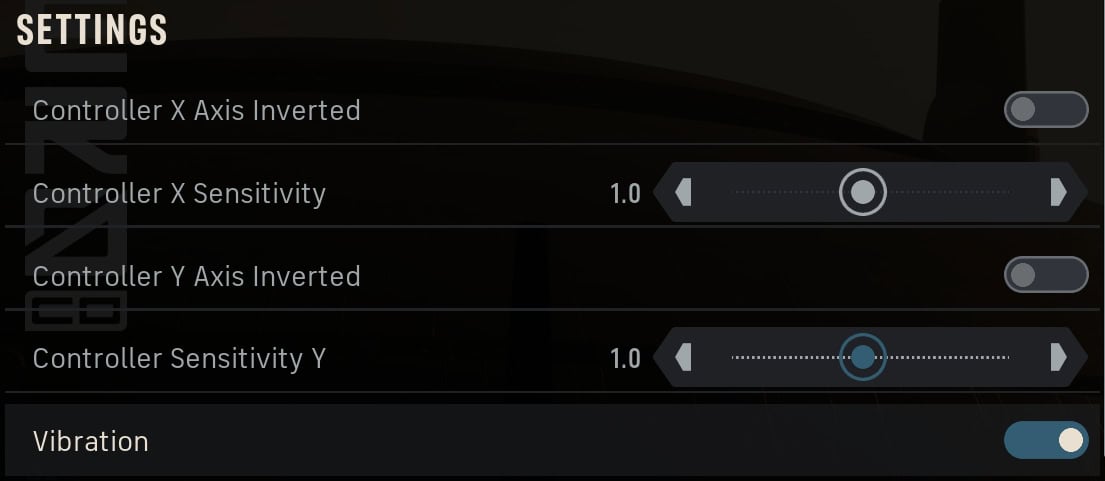
You can invert the X and Y Axis on your controller, adjust X and Y Sensitivity, and toggle Vibration for your controller. By default, the X and Y sensitivity is set to 1.0.
Controller Inputs
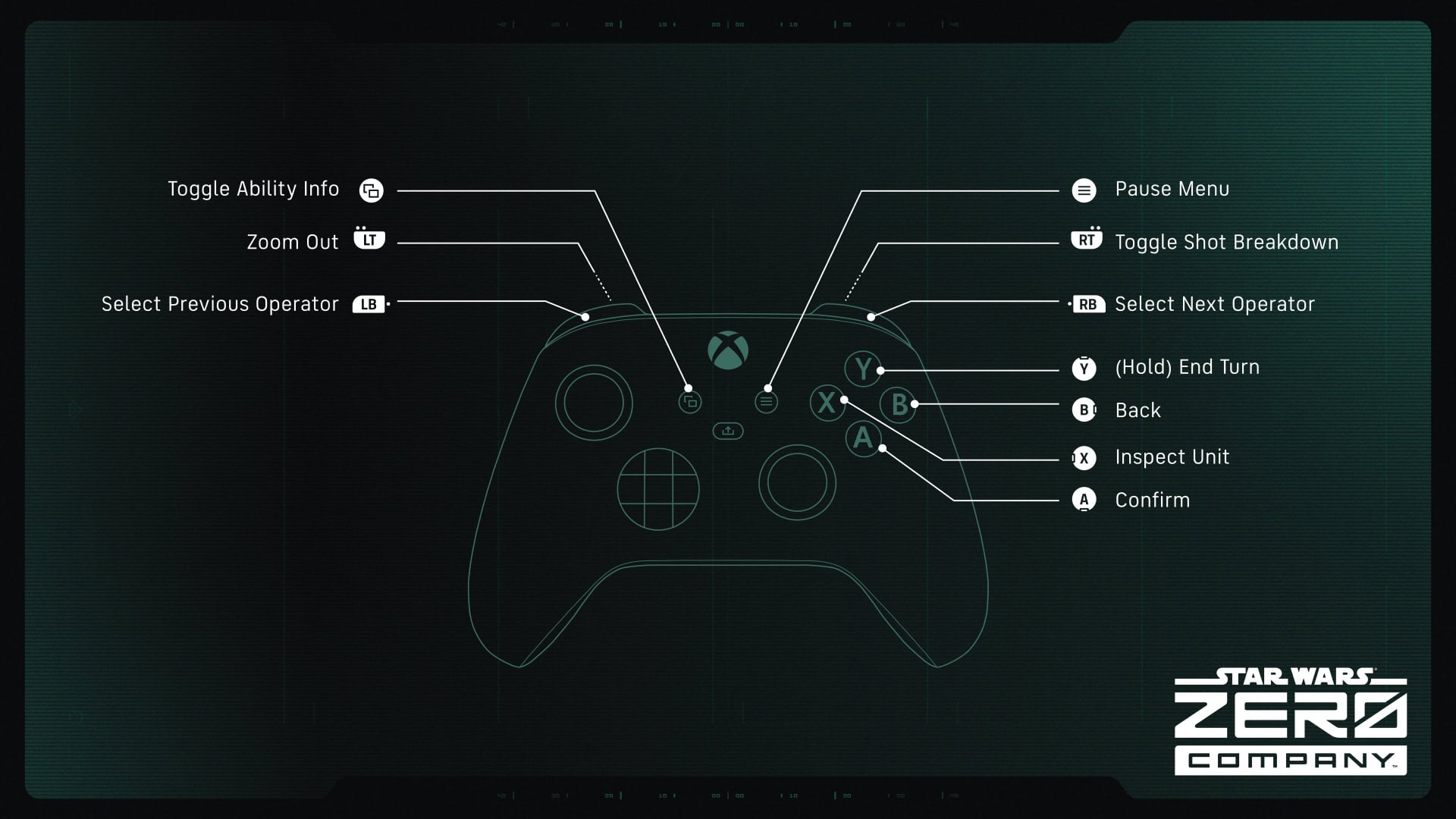
Each action can share up to two inputs on the controller. If you wish to customize your controller inputs, choose wisely as there are less buttons for it than the Keyboard.
| Action | Xbox | PlayStation | Category |
|---|---|---|---|
| Toggle Sprint | LS (Press) | L3 | Character Movement |
| Toggle Details | Y | △ | Character Movement |
| Open Map | View | Touch Pad | Character Movement |
| Pause Menu* | Menu | Options | Overhead |
| Zoom Out | LT | L2 | Overhead |
| Next Unit | RB | R1 | Overhead |
| Previous Unit | LB | L1 | Overhead |
| Inspect Unit | X | ☐ | Overhead |
| Lower Floor | D-Pad Down | D-Pad Down | Overhead |
| Raise Floor | D-Pad Up | D-Pad Up | Overhead |
| End Turn | Y (Hold) | △ (Hold) | Overhead |
| Back* | B | ⭘ | Overhead |
| Abandon Units | RS (Press) | R3 | Overhead |
| Toggle Ability Info | View | Touch Pad | Overhead |
| Toggle Shot Breakdown | RT | R2 | Overhead |
| Next Unit | RB / D-Pad Right | R1 | Over-the-Shoulder |
| Previous Unit | LB / D-Pad Left | L1 | Over-the-Shoulder |
| Inspect Unit | X | ☐ | Over-the-Shoulder |
| Toggle Shot Breakdown | RT | R2 | Over-the-Shoulder |
*Pause Menu and Back cannot be reassigned to a different input. The controls menu does not list them as an option, but they appear on the control diagrams provided outside the game.
Steam Input Translation
Star Wars Zero Company offers built-in support for the Xbox and PlayStation Dualsense controllers. If Steam Input Translation is toggled on and you’re using a PS5 controller, the glyphs may instead show the Xbox inputs instead. Toggle this option off on Steam so you can view PlayStation inputs on the PC.
Unique Actions
If you’re new to this genre of game, then it’ll be good to know how some of the more unique actions function and why they can be helpful.
Mouse Edge Scrolling
Mouse Edge Scrolling allows you to move the screen when you place the mouse at the edge of the screen. If you’ve played 2D strategy games before, this should be nothing new to you.
Do note that if you’re using Borderless Window mode and have multiple monitors on PC, you may end up leaving the game window when attempting to Edge Scroll near the edge that leads into another monitor. You can still use this feature on that edge, just don’t move it all the way through.
Zoom Out
By default, Star Wars Zero Company has a set camera distance. If you want to get a better view of the area, you’ll need to hold down the Zoom Out button. Once released, the game will revert to its default zoom level.
You can set this to either Hold or Toggle in the Gameplay Options. If set to Toggle, you’ll remained zoomed out until you use Zoom Out again. By default, it is set to Hold.
Shot Breakdown
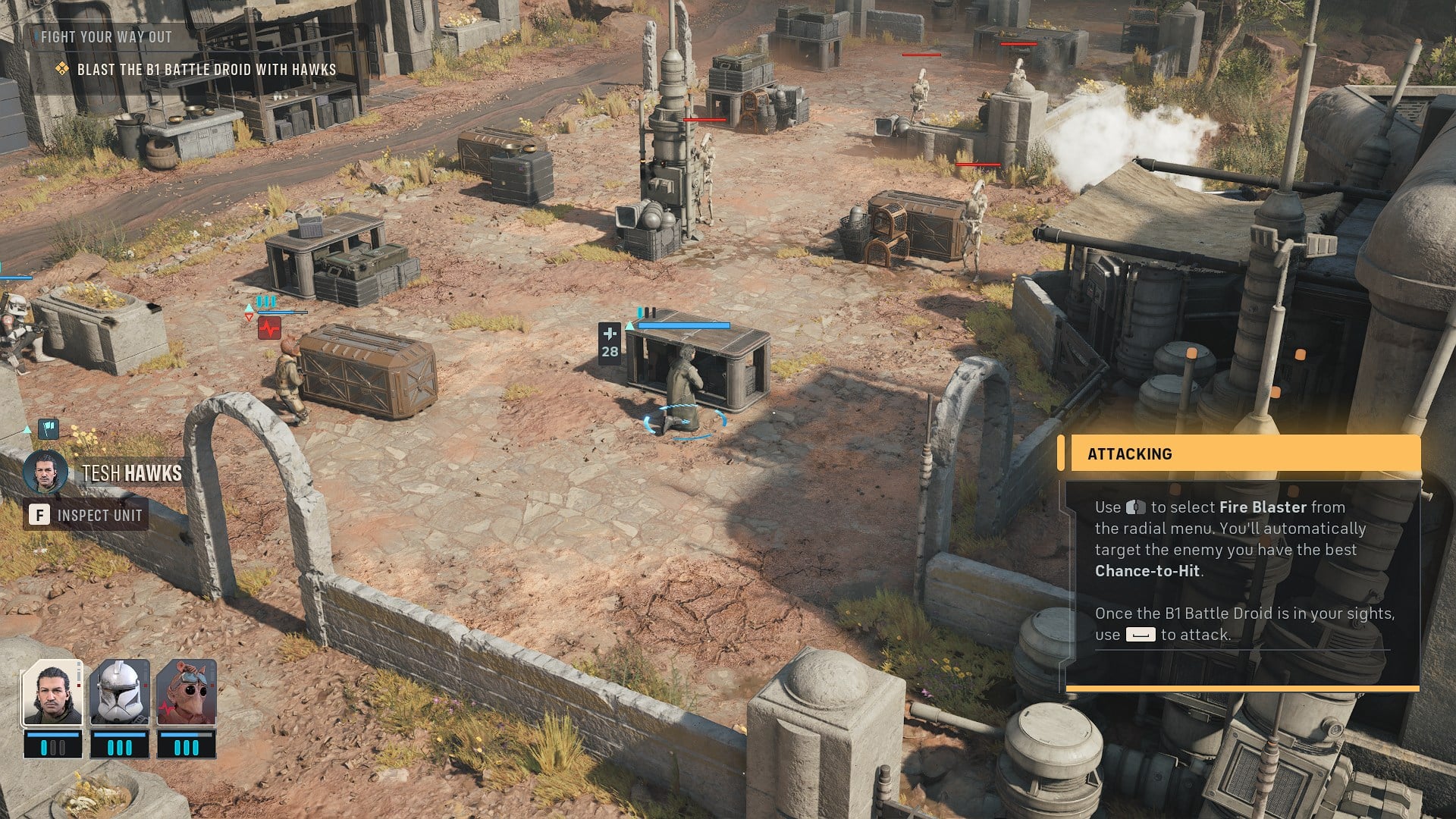
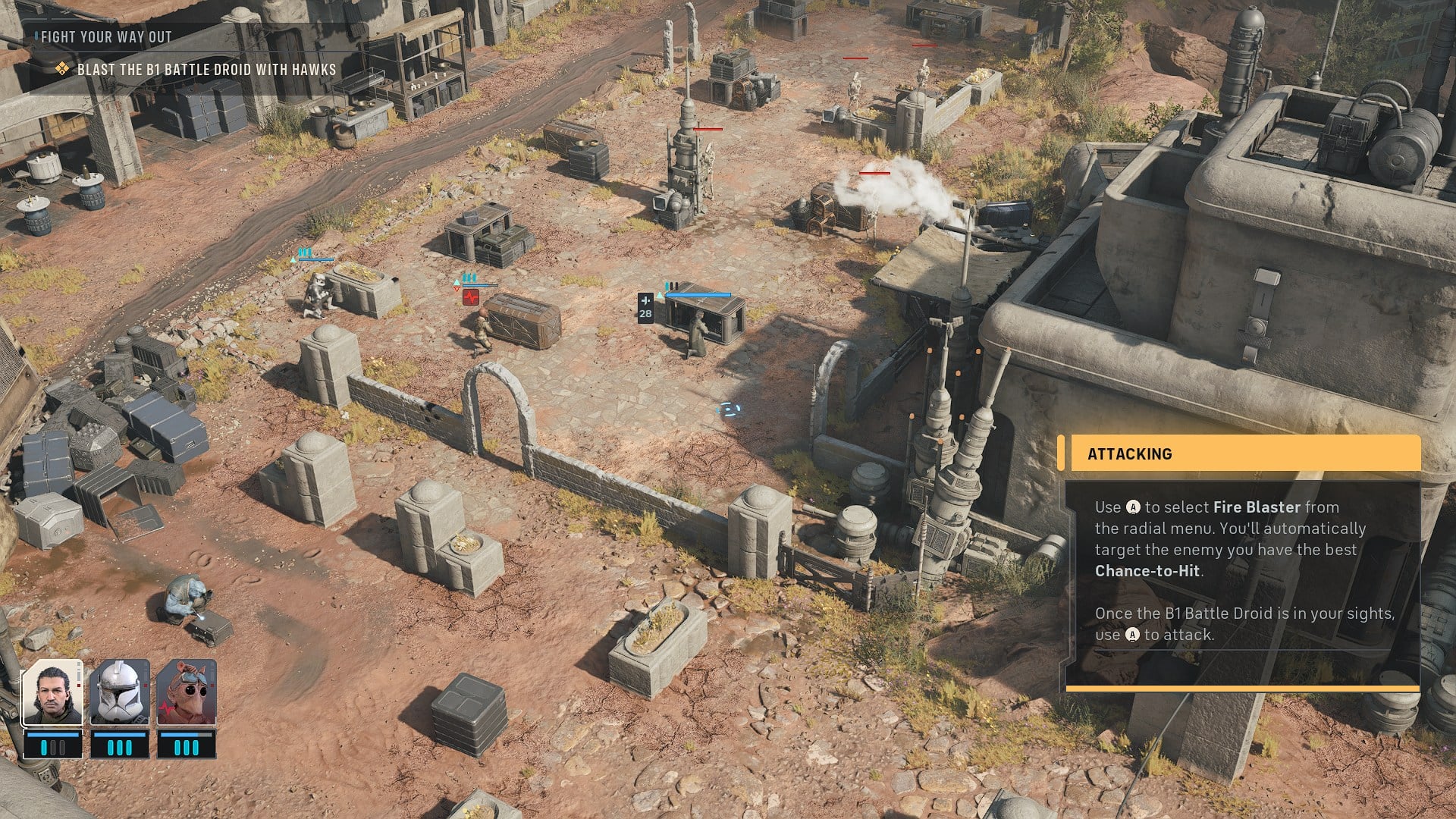
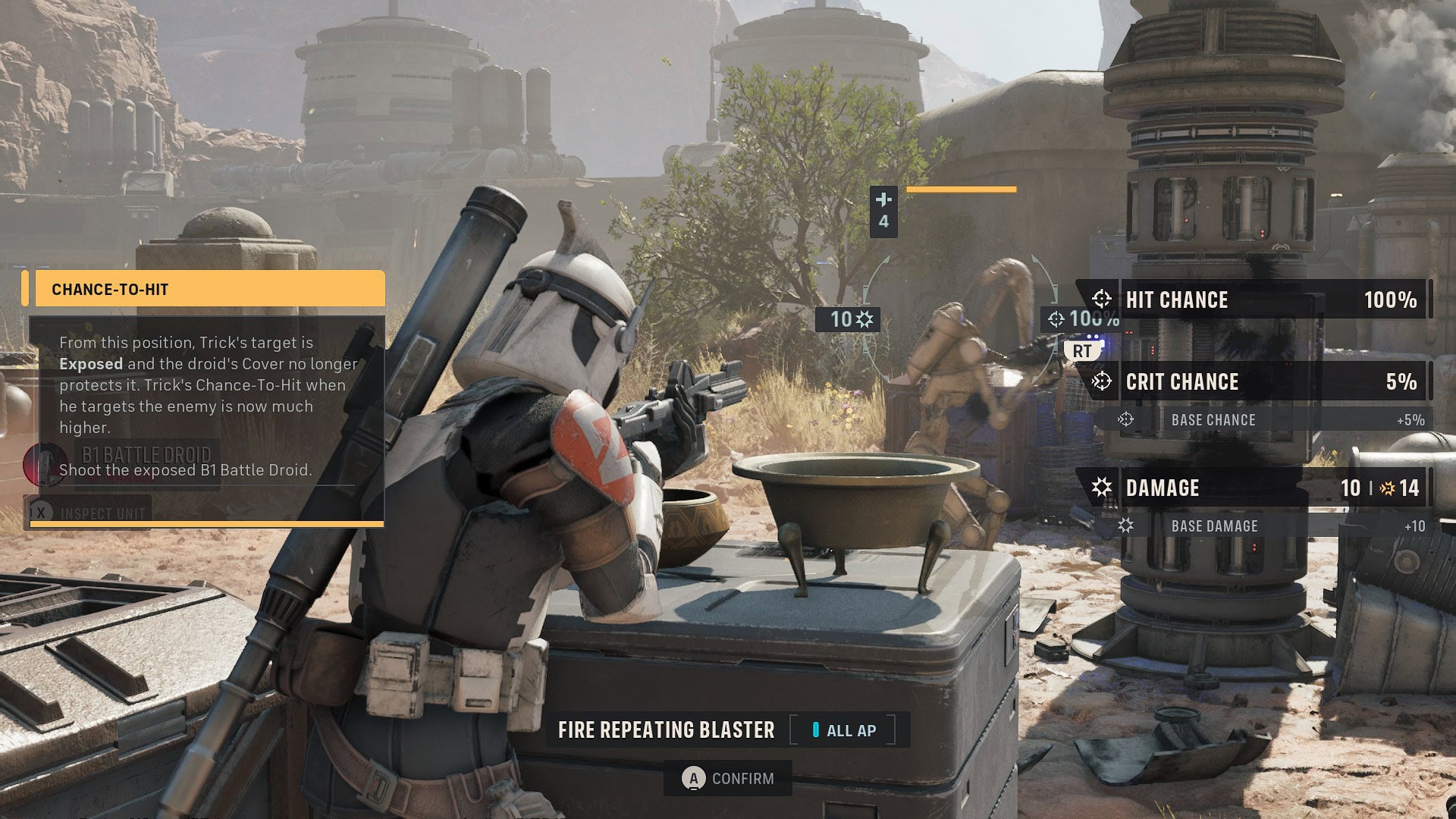
When you toggle Shot Breakdown, you’ll be able to see your selected unit’s Hit Chance, Crit Chance, and Damage. Use this to determine if a risky shot is worth taken given your current circumstances.
Now that you are familiar with the game’s controls and have customized them to your liking, it’s time to turn a little more attention to the various settings you can tweak to make your gameplay better.
Star Wars Zero Company: Settings and Accessibility Features