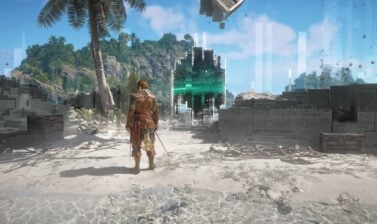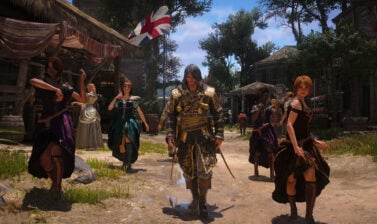
Photo Mode in Assassin’s Creed Black Flag Resynced is one of the new additions compared to the Original game. It allows you to take full advantage of the gorgeous environments Edward gets to explore.
We’ve seen several iterations of this tool ever since the release of Assassin’s Creed Origins back in 2017, making this the first time we can natively capture in-game screenshots for this specific setting in the Assassin’s Creed franchise.
What is Photo Mode?
Photo Mode is an in-game tool that stops the game at any given point during your playthrough, letting you take high-quality, customizable screenshots.
The most notable feature of Photo Mode is the ability to freely move the camera within an area around Edward or the Jackdaw, allowing you to take interesting and dynamic shots from perspectives you don’t see during your regular playthrough.
How to Use Photo Mode?
First, you want to make sure Photo Mode is enabled. For this, from the start menu, go into System → Options, and in Options, you want to navigate to the Gameplay tab. Here, scroll down to the Playstyle section to find Photo Mode and set it to “On” by checking it.
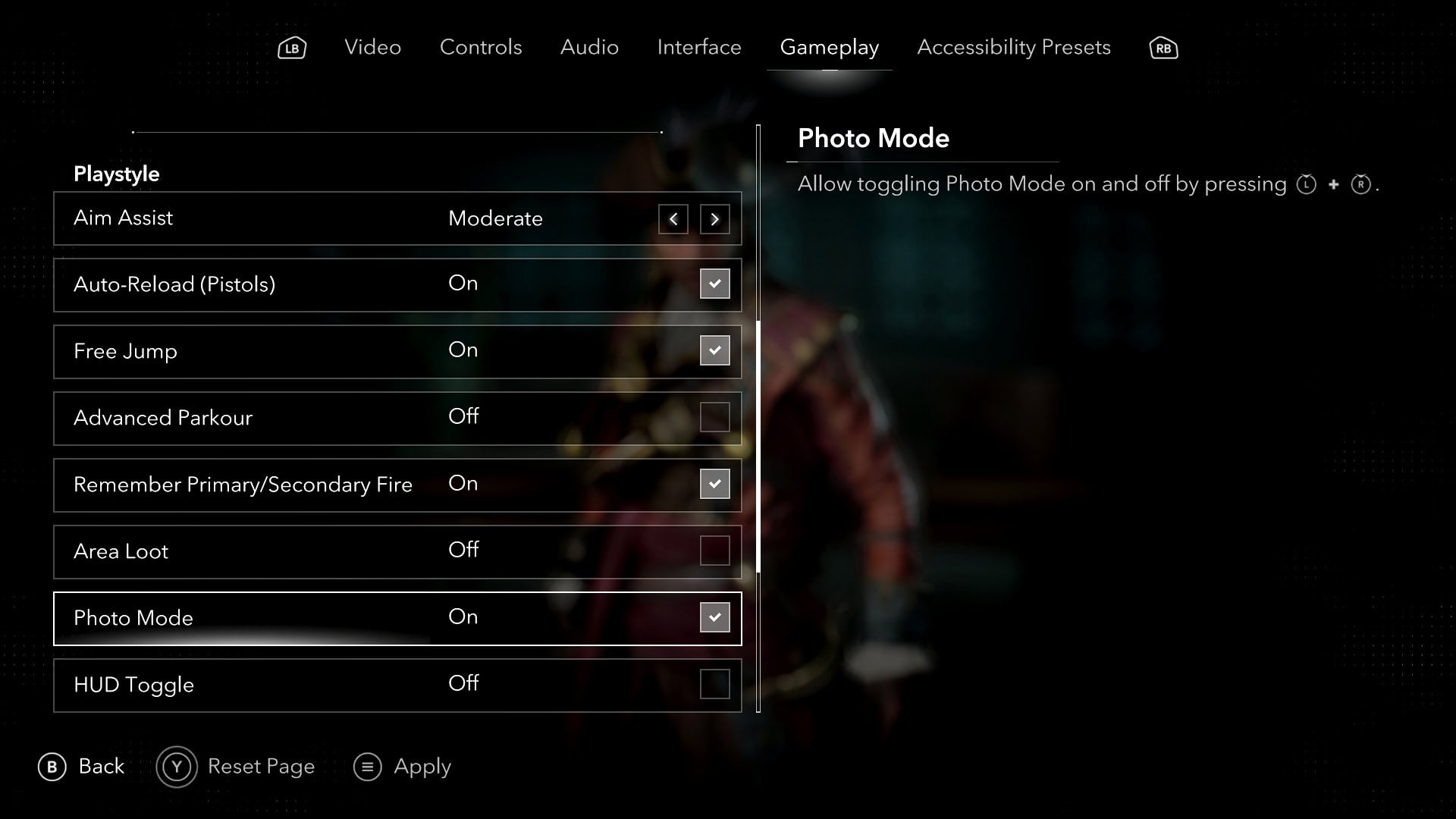
Now that Photo Mode is enabled, to enter Photo Mode, press F3 on your keyboard or, if you’re using a controller, press both joysticks at the same time.
Photo Mode UI and Settings
When you go into Photo Mode, you will see the menu with the available settings on the bottom right side of the screen. On the bottom left side of the screen, you’ll find the camera controls.
At any point, you can use the Preview button to hide the UI and see your image before taking the photo.
The settings menu is divided into four different tabs: Camera, Lens, Filters, and Decorations. To get a more detailed explanation for every option, click the Show Information button.
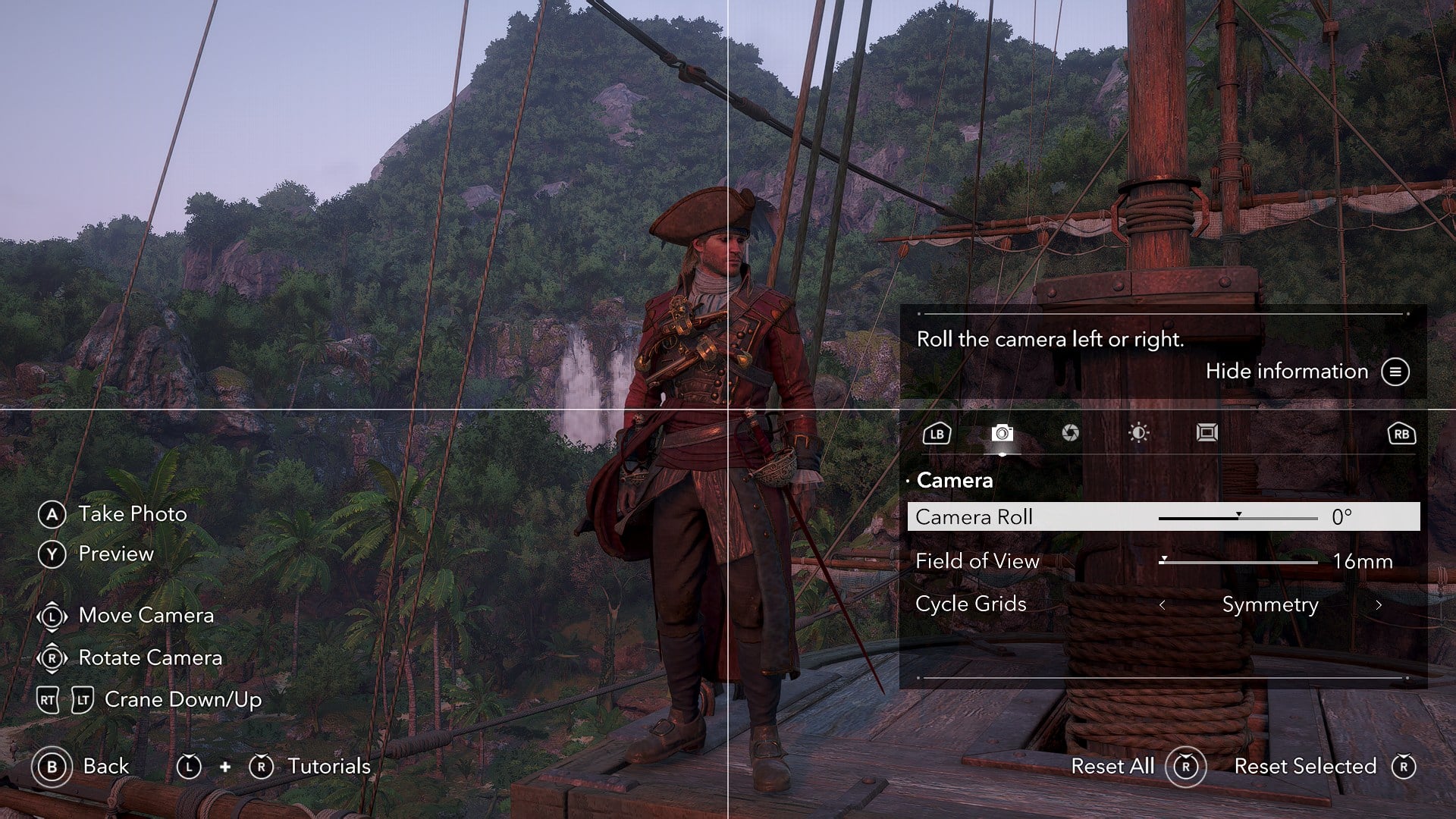
Camera
Inside this tab, you’ll be able to rotate the camera 90 degrees to either side with the Camera Roll option; you can zoom the image in and out with the Field of View option, and set up on-screen composition grids to help you capture the best image possible.
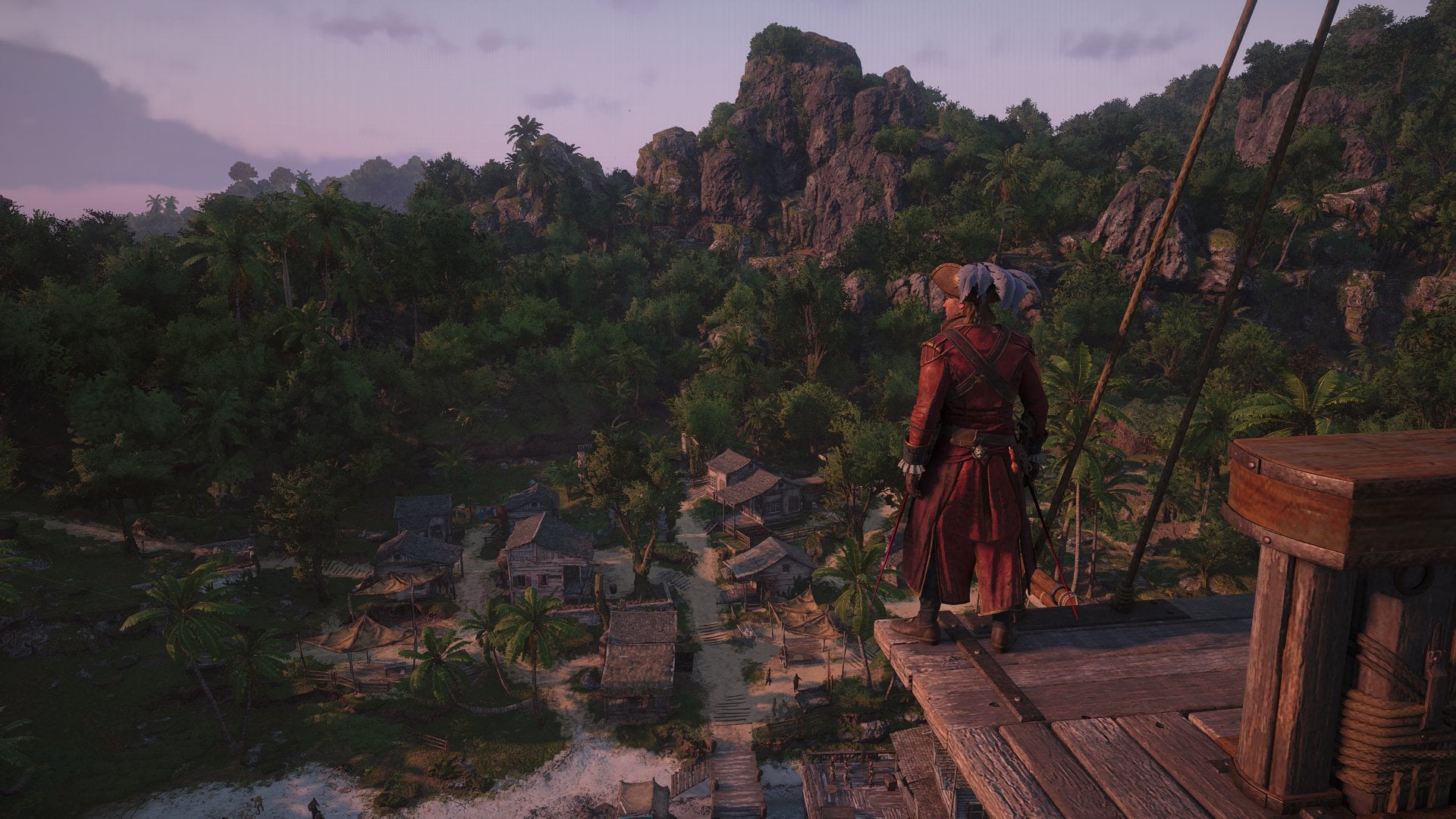
Lens
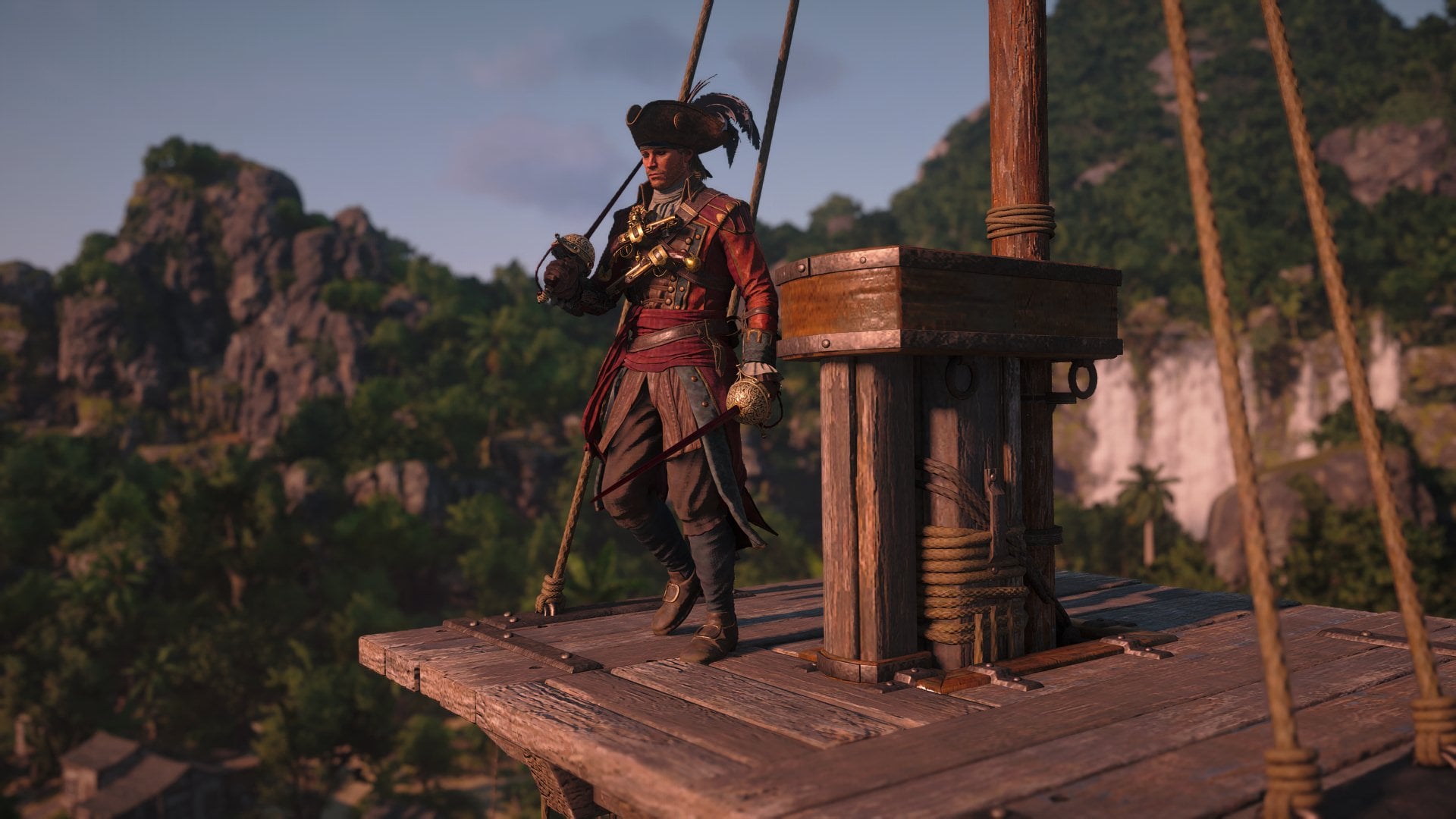
With the Depth of Field, Aperture, and Focal distance, you can manipulate the level of background blur and set the focus on whatever object or character you are trying to capture.
To make this process simpler, there’s the Auto-Focus option that sets these things for you. It’s worth noting that this option will automatically focus on Edward or the Jackdaw, so if you want to focus on a different character or object, you’ll need to manually do it.
There are also the Grain and Grain Intensity options, which set a film grain effect on the image and let you control how strong this effect is going to be.
Filters
Here you’ll be able to apply a variety of pre-selected filters to your image; there are two different kinds: VFX filters and Preset filters.
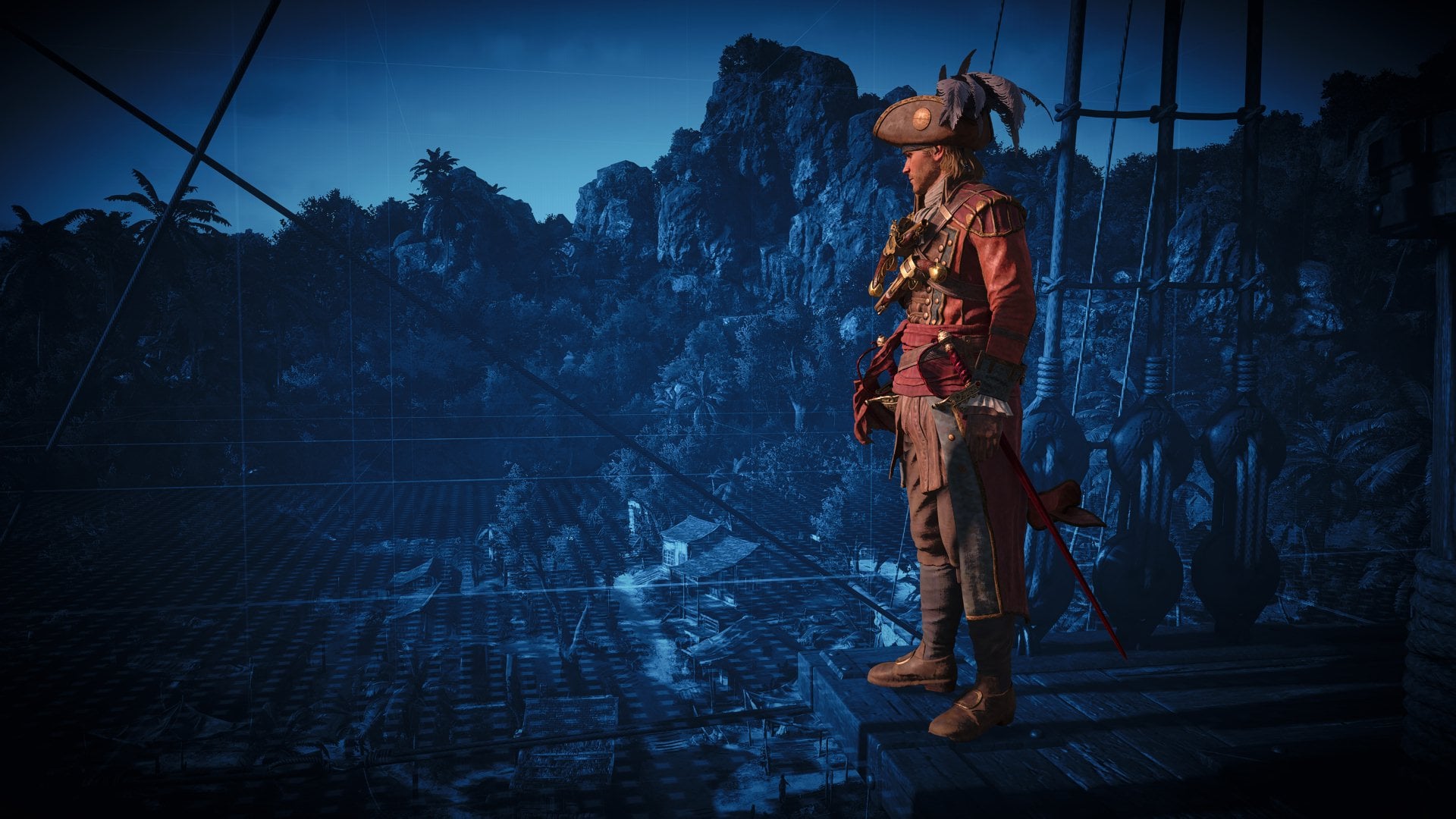
VFX filters are within the FX Effects option. These filters are stronger with some additional visuals, most notably, the animus filter shows the digital 3D grid visible in loading screens and animus sequences. These filters cannot be modified.
Preset filters are within the Filters option; these are more common filters, such as the warm and cold temperature filters. You can use these filters as a baseline and modify them to your liking or set up a fully custom filter using the brightness, exposure, temperature, tint, saturation, and contrast sliders.
Decorations
Here you’ll find options to set up vignette intensity and size; a vignette is an effect that darkens the edges of the image.
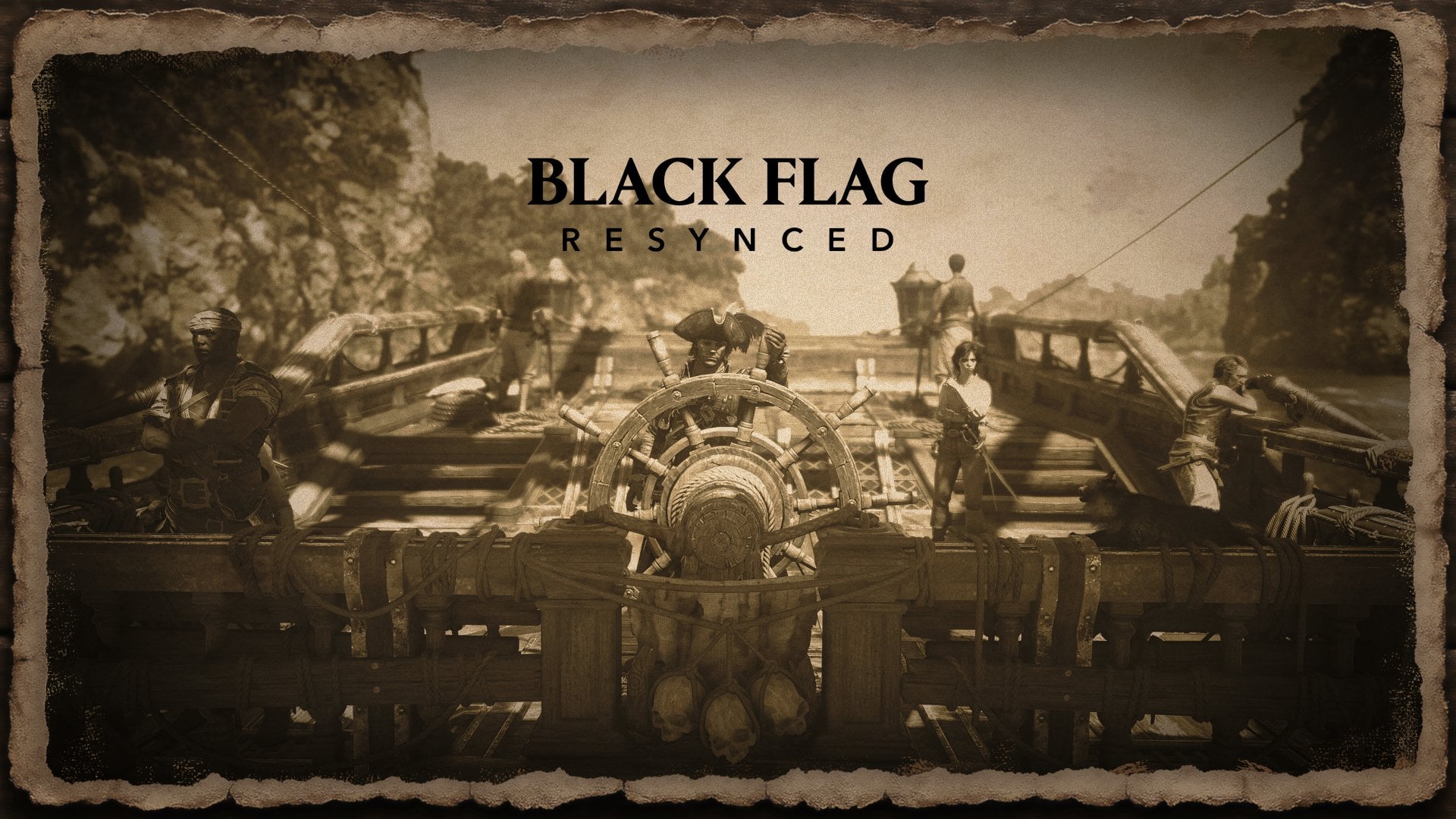
Frames for designs you can apply to your image, such as a wood or paper frame, and Stickers where you can choose among three different designs and modify their size, position, and color.
Tips & Tricks: How to make the best photos
Setting up a good image that really takes advantage of the capabilities of the photo mode can be a bit daunting specially if you don’t have much experience with these types of features, so to let you enjoy photo mode to its fullest, here are a couple of tips you can very easily implement in your own pictures to make them more interesting.
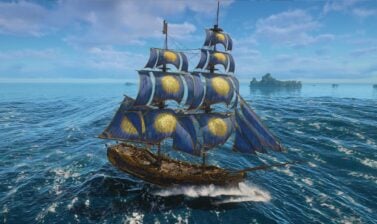
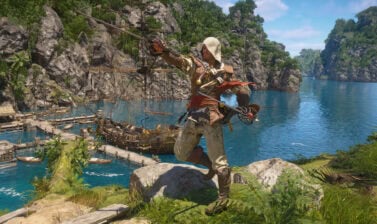
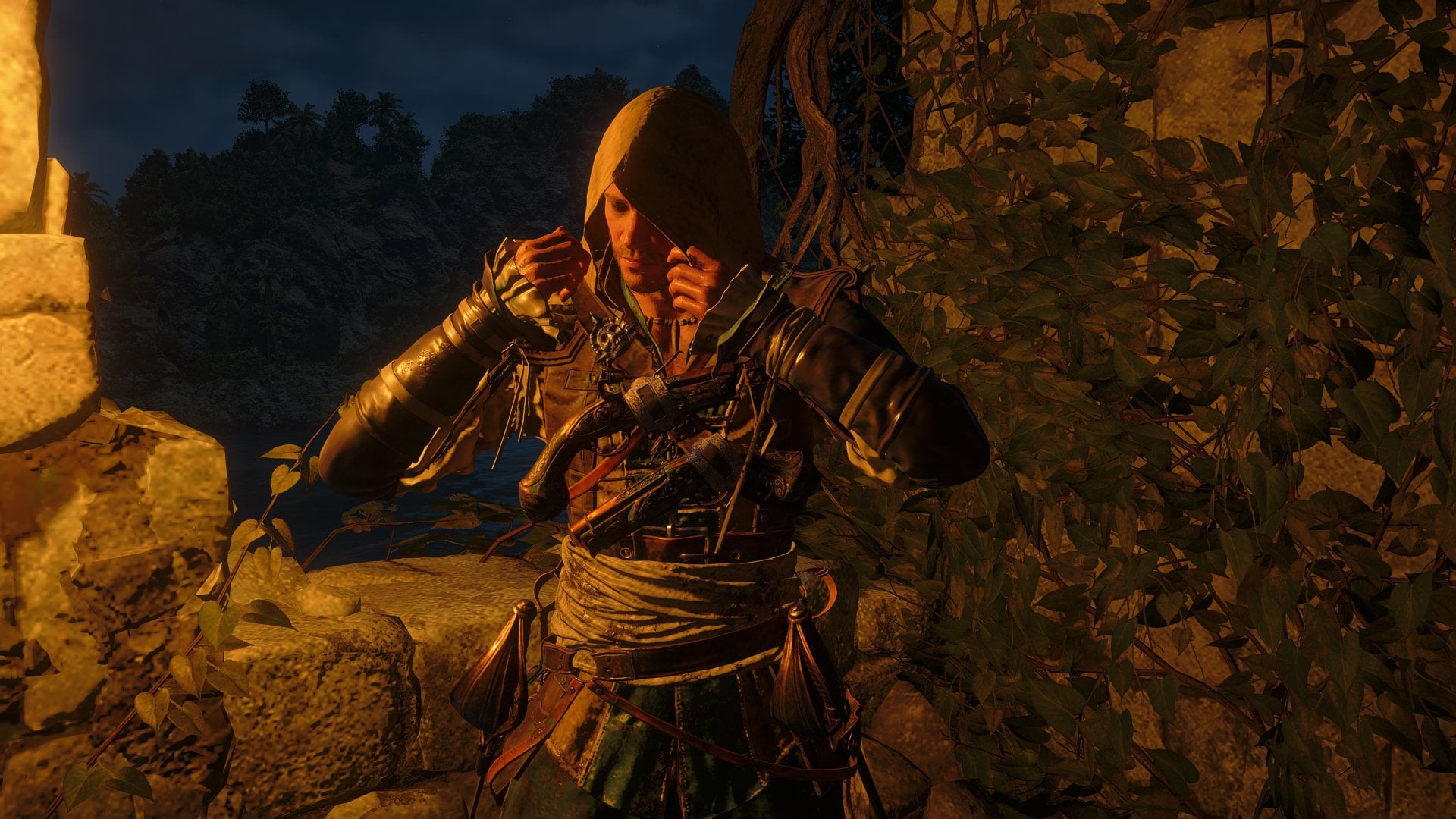
- Use repeatable actions such as putting on Edward’s hood, parrying, unsheathing your swords, or drawing your gun to get some cool poses you can capture. (Photo 1 below)
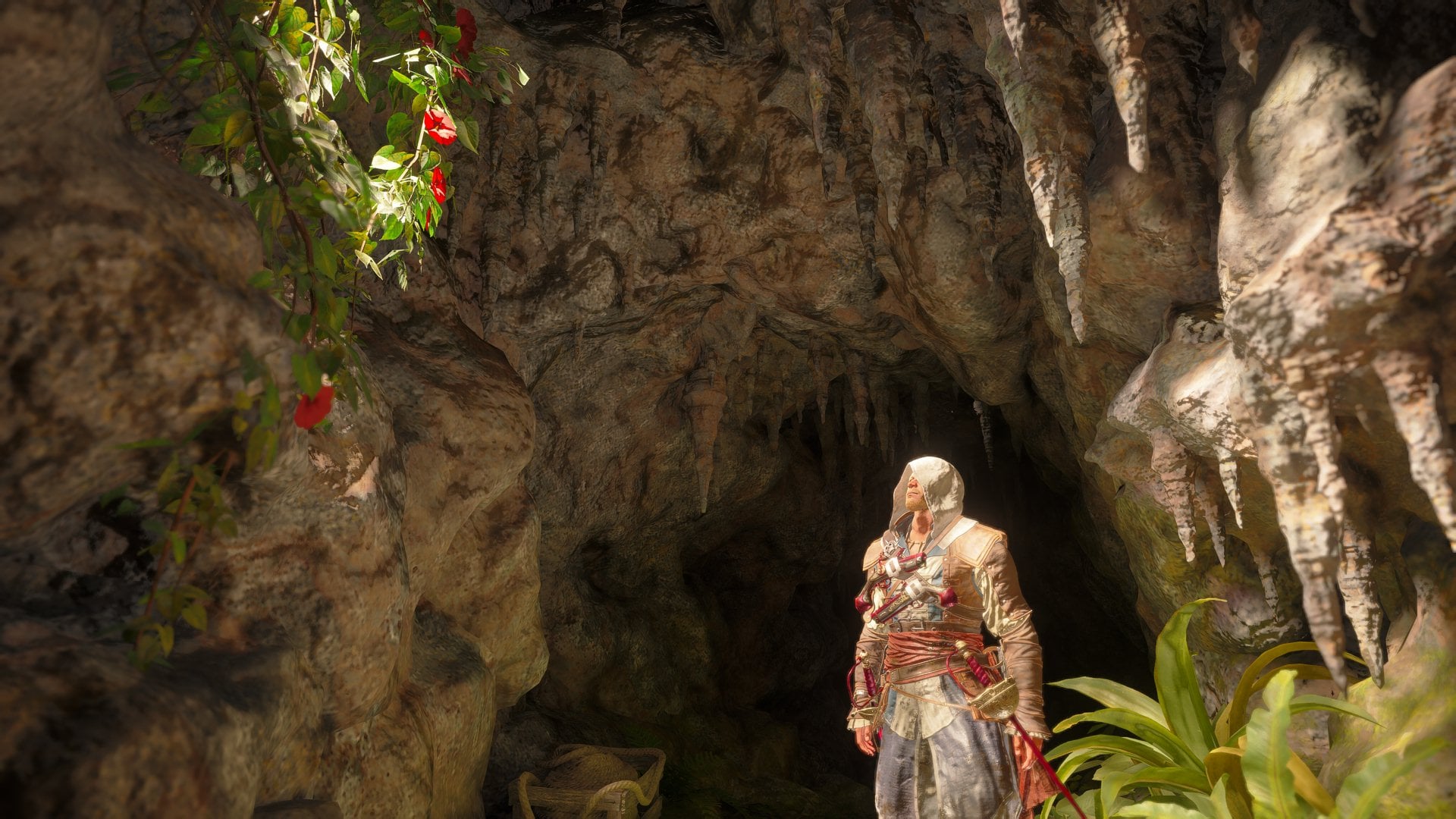
- Use the Observe mechanic to make Edward look towards the direction that best suits your photo. (Photo 2)
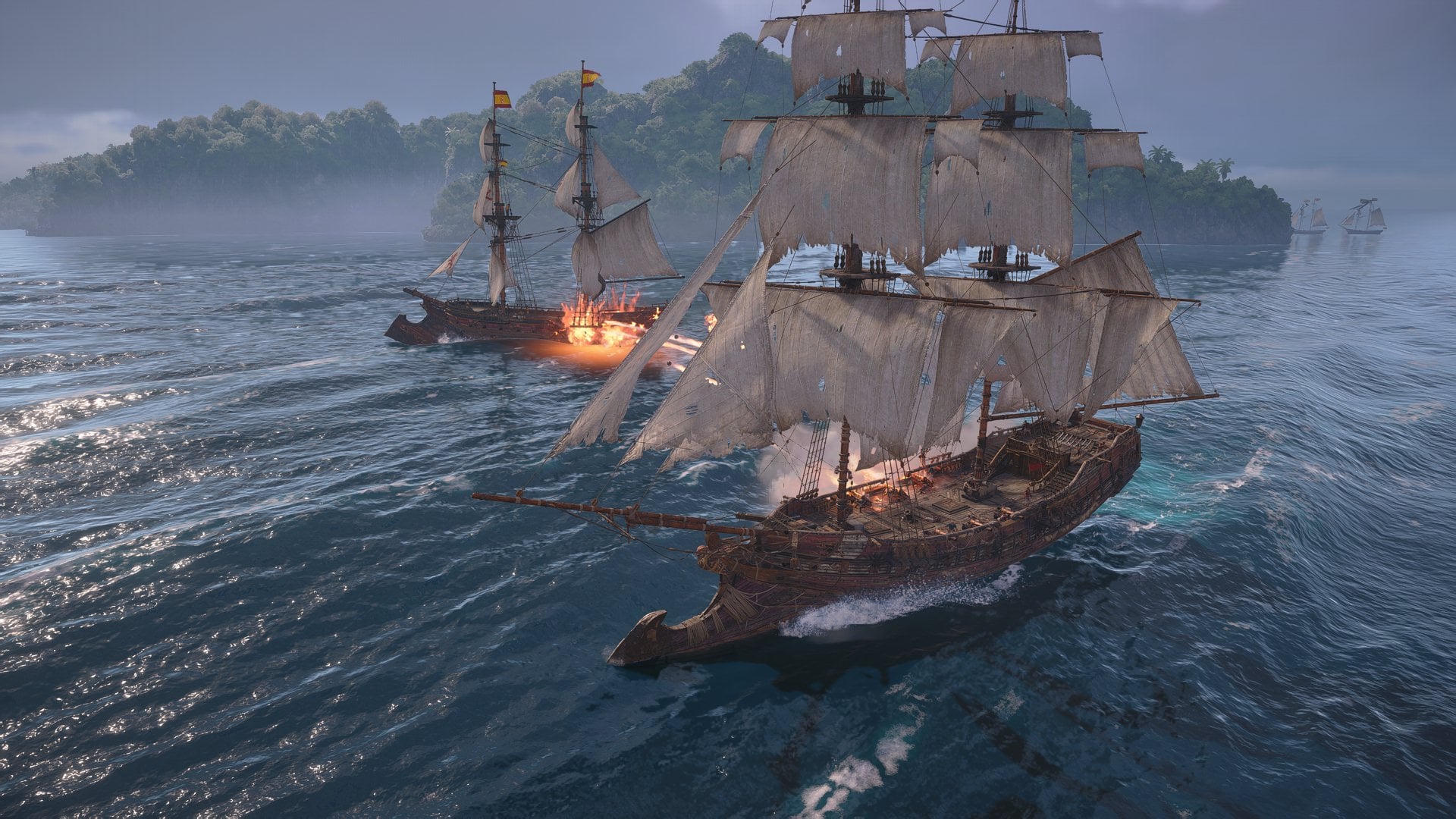
- To capture full pictures of the Jackdaw, you have to be moving at sailing speed, which is the fastest the ship can go. This will draw the camera back, allowing you to take the entirety of the ship in your picture. (Photo 3)
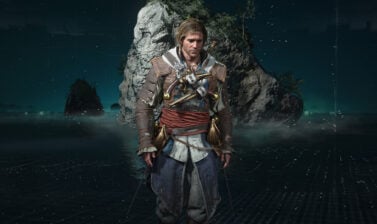
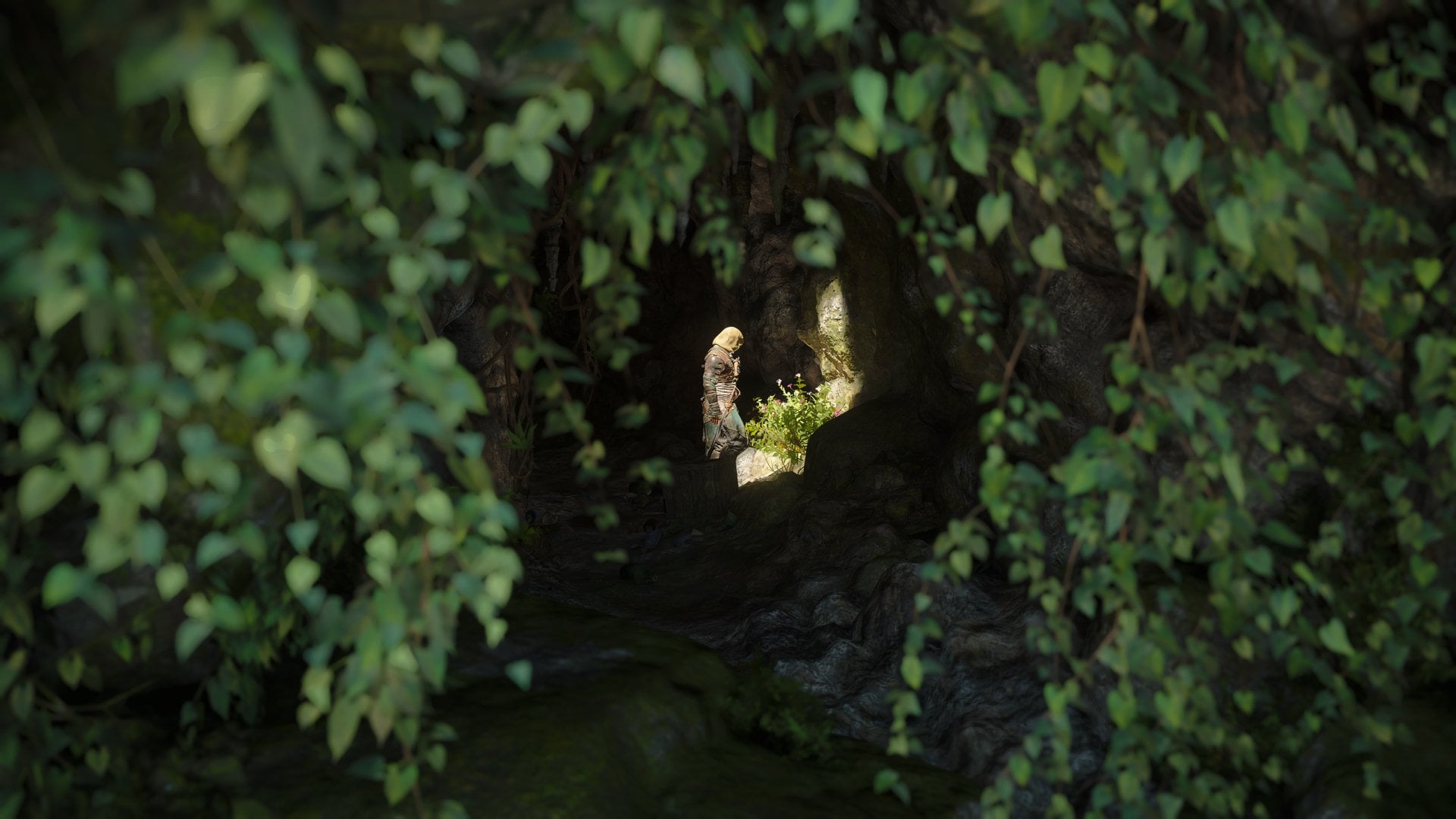
- Frame your pictures using entrances found in the world and search for interesting light sources such as light filtering through caves or torches in towns. (Photo 4)
Where To Find Your Screenshots?
Depending on the platform you’re playing on, the photos will be stored in a specific route:
- Xbox: Go into Settings, find the Capture & Share section, and search All Captures.
- PlayStation: On the homescreen, navigate to your Game Library and open the Media Gallery app. Here, go to the Albums tab and search for the Assassin’s Creed Resynced folder.
- PC: Follow this path C:\Users\UserName\Documents\Assassin’s Creed Black Flag Resynced\photos.
Bugs and Future Updates
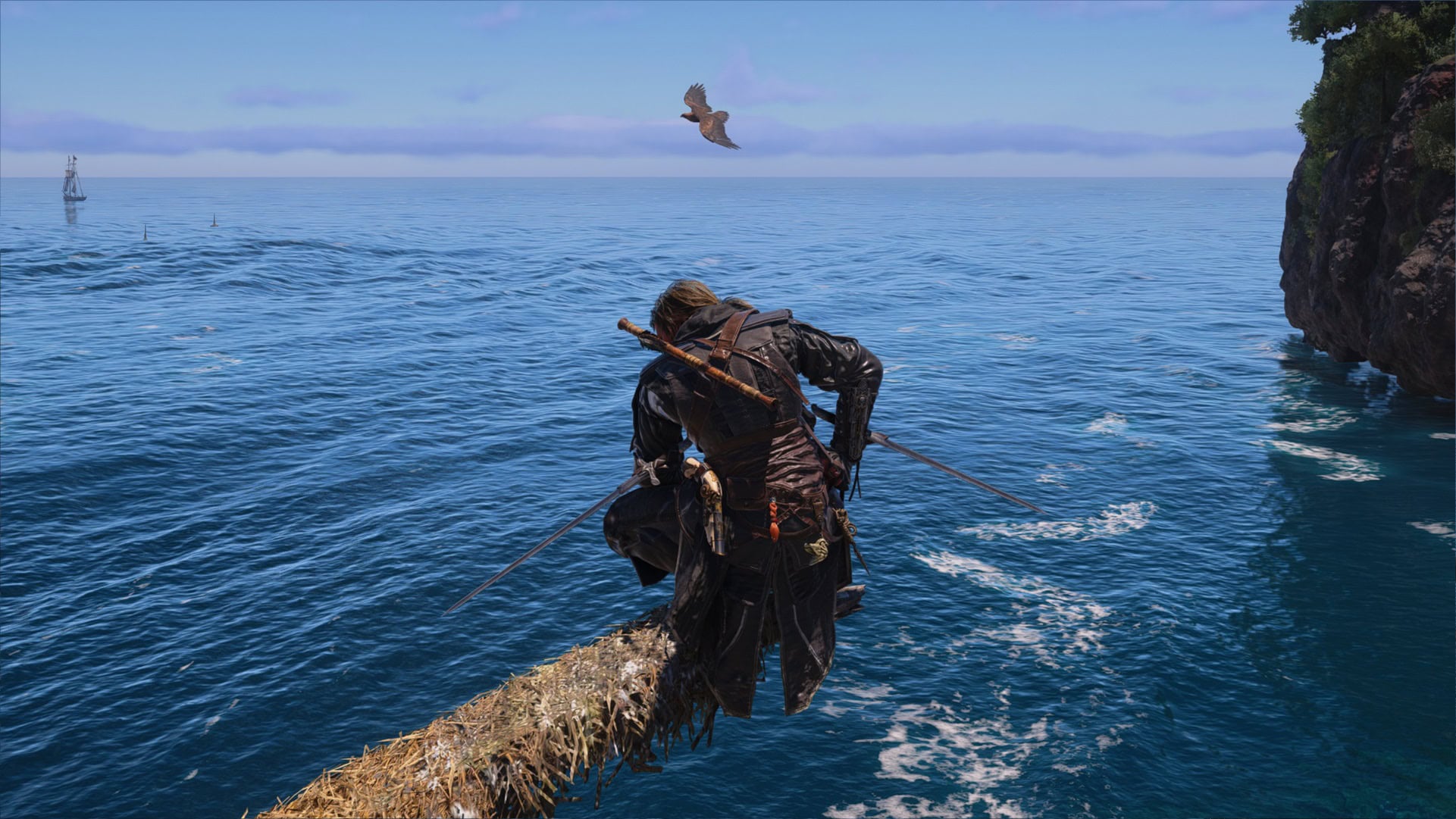
One notable bug that is happening at the time of writing this article is that if you’re on a perch or crouching, at the moment of going into Photo Mode, your blades will flare out and stay in a very awkward position.
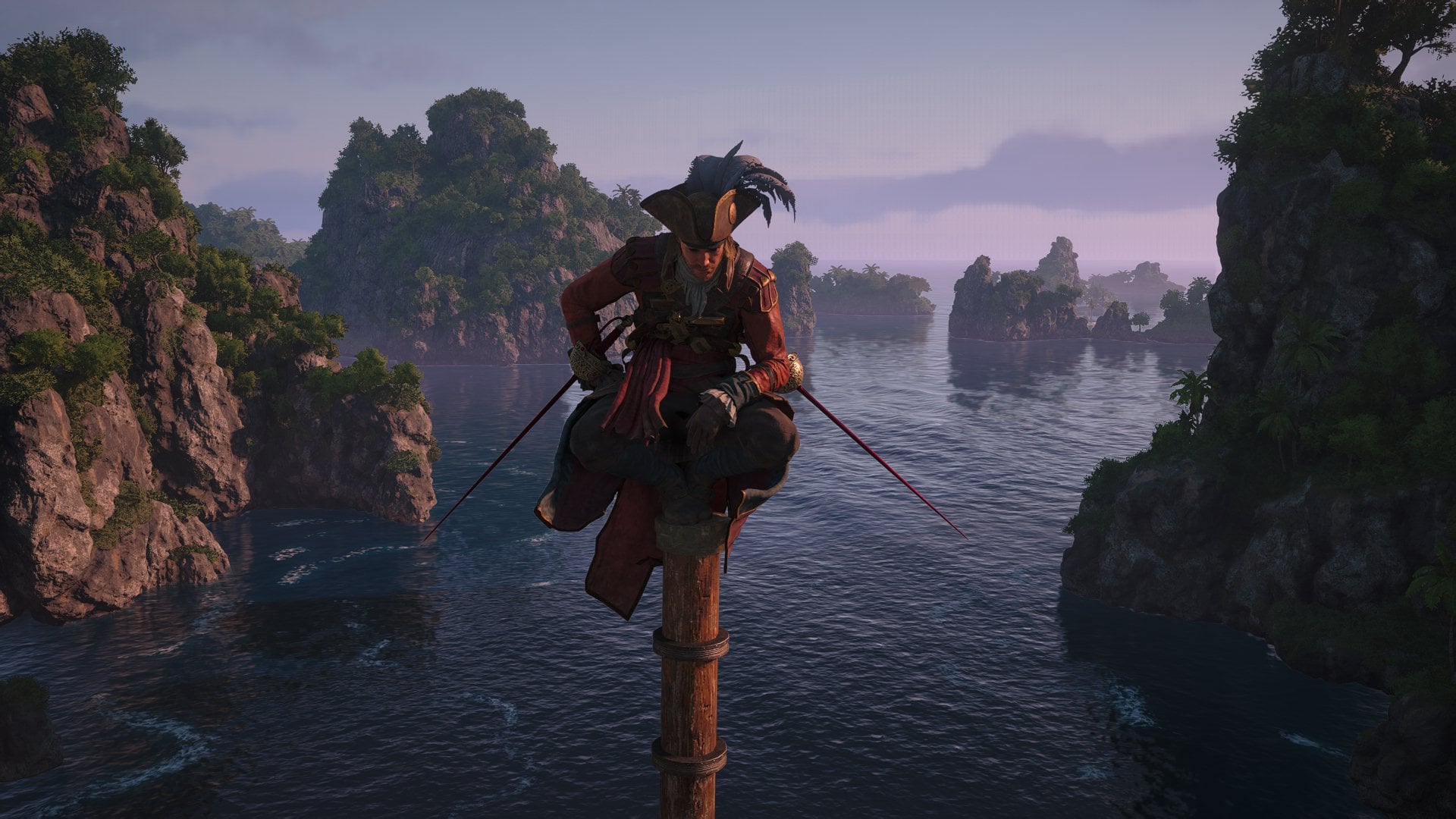
Some notable features missing compared to the Assassin’s Creed Shadows Photo Mode are the characters and world tabs; these allowed you to change poses, expressions, headgear, time and climate.
It’s still possible that Ubisoft could add these features in a future update. Whenever this happens, make sure to come back and check for our coverage of any future updates.
In the meantime, make sure to check out our wide variety of guides for Assassin’s Creed Black Flag Resynced. Walkthroughs, Legendary Items, how to get specific sets, and more!