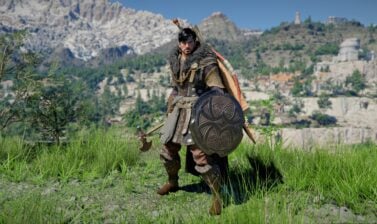
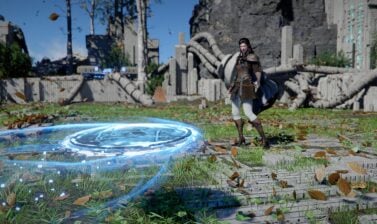
Crimson Desert’s Update 1.02.00 introduced a new setting, allowing you to completely or contextually hide the helmet of your character. This guide will show you how.
Where to find the Display Headgear Setting
Update 1.02.00 brought one of the most requested features from the early days of Crimson Desert’s post release cycle: the ability to hide the character’s headgear. Here’s how to do it.
- Open Main Menu
Open the Main Menu of the game by pressing ESC on keyboard or the Menu / Option button on your controller.
- Open Language and Gameplay
Go through the Others → Settings → Language and Gameplay
- Choose Display Headgear Option
Choose one of the four available options to hide your headgear.
What are the different options to hide headgear
There are four distinct options you can select for hiding your headgear in Crimson Desert. Most of you would likely pick the last one, but let’s get through them first:
- Always Show: This is the default setting and the one that was the only option at release. Your headgear is visible everywhere, all the time.
- Show in Combat: The headgear will be displayed only while in combat. It will be hidden when you are not fighting and during cutscenes.
- Hide in Cutscenes: This setting will hide the headgear item when you are watching a cutscene, but it will leave it on and visible during normal gameplay, which includes exploration and combat.
- Always Hide: This option will hide the headgear all the time, everywhere, in every scenario.
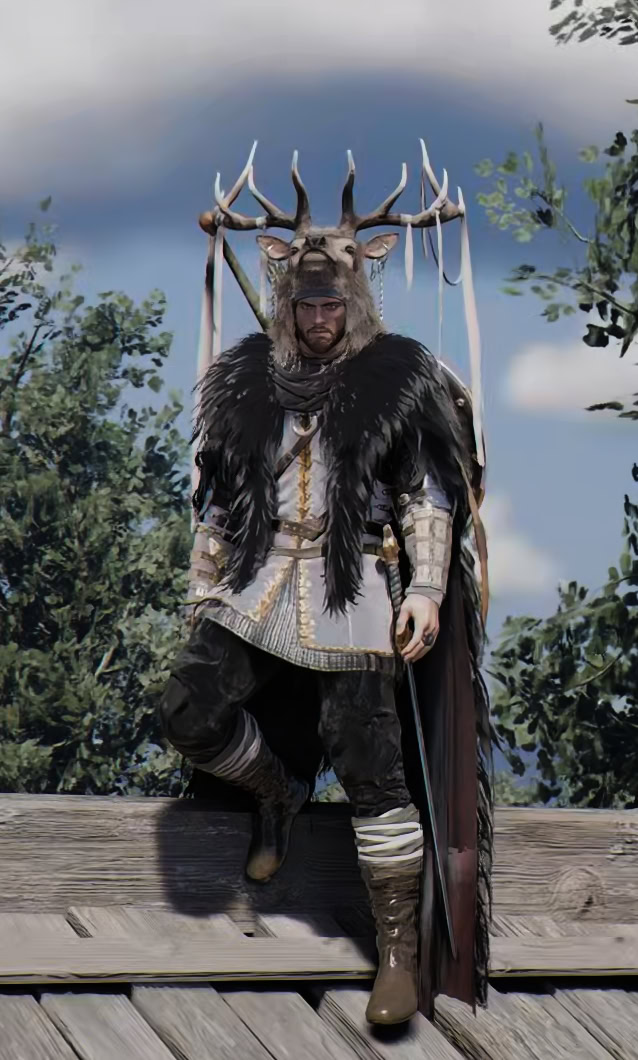
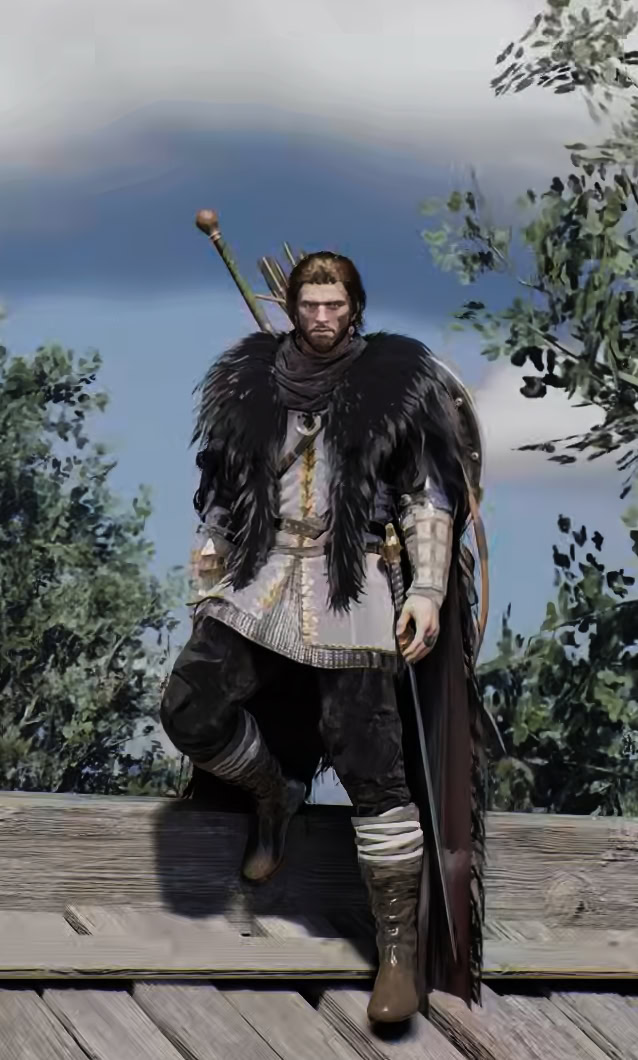
Benefits and drawbacks of Hiding Headgear
Some of the gear pieces you will find later in the game look amazing and you may enjoy them in full display. Many of the early-game hats, caps and helmets look quite ugly. You may want to hide them, especially for cutscenes where your character’s face would show expression and help you immerse yourself into what they are saying or doing.
There are no stat-drawbacks to hiding the headgear. This is purely a cosmetic feature. Prior to patch 1.02.00, if you didn’t want to stare at an ugly piece of gear on your head, your only option was to sacrifice stats. Even worse, you would miss out on customizing your build with extra Abyss Gear.
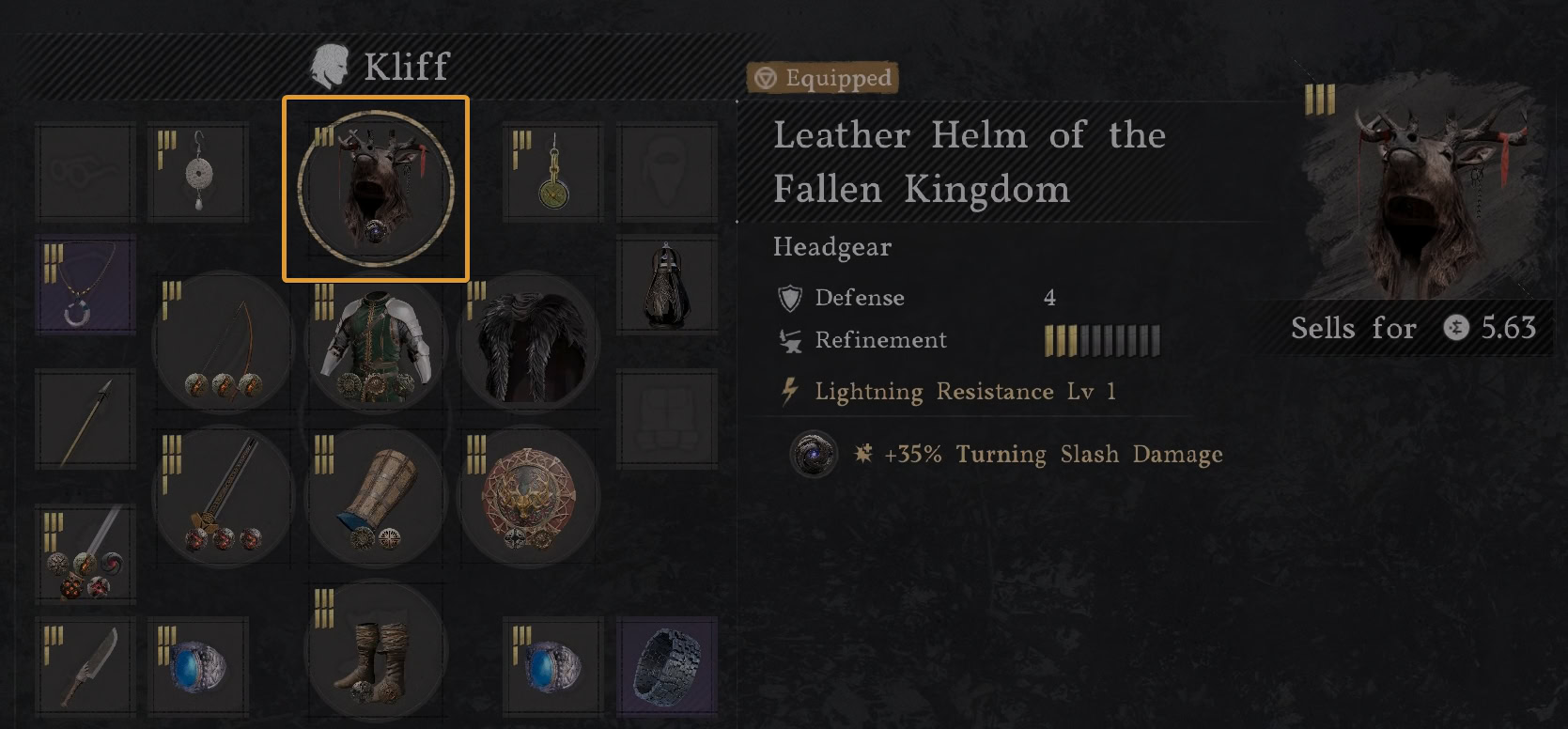
Now all this is gone and you can choose to look cool without a helmet while retaining the stats you get from the one slotted in your headgear slot.
We have many more Crimson Desert Tips for Early Game Secrets, Combat, Exploration. Check them out.
How to hide Accessories
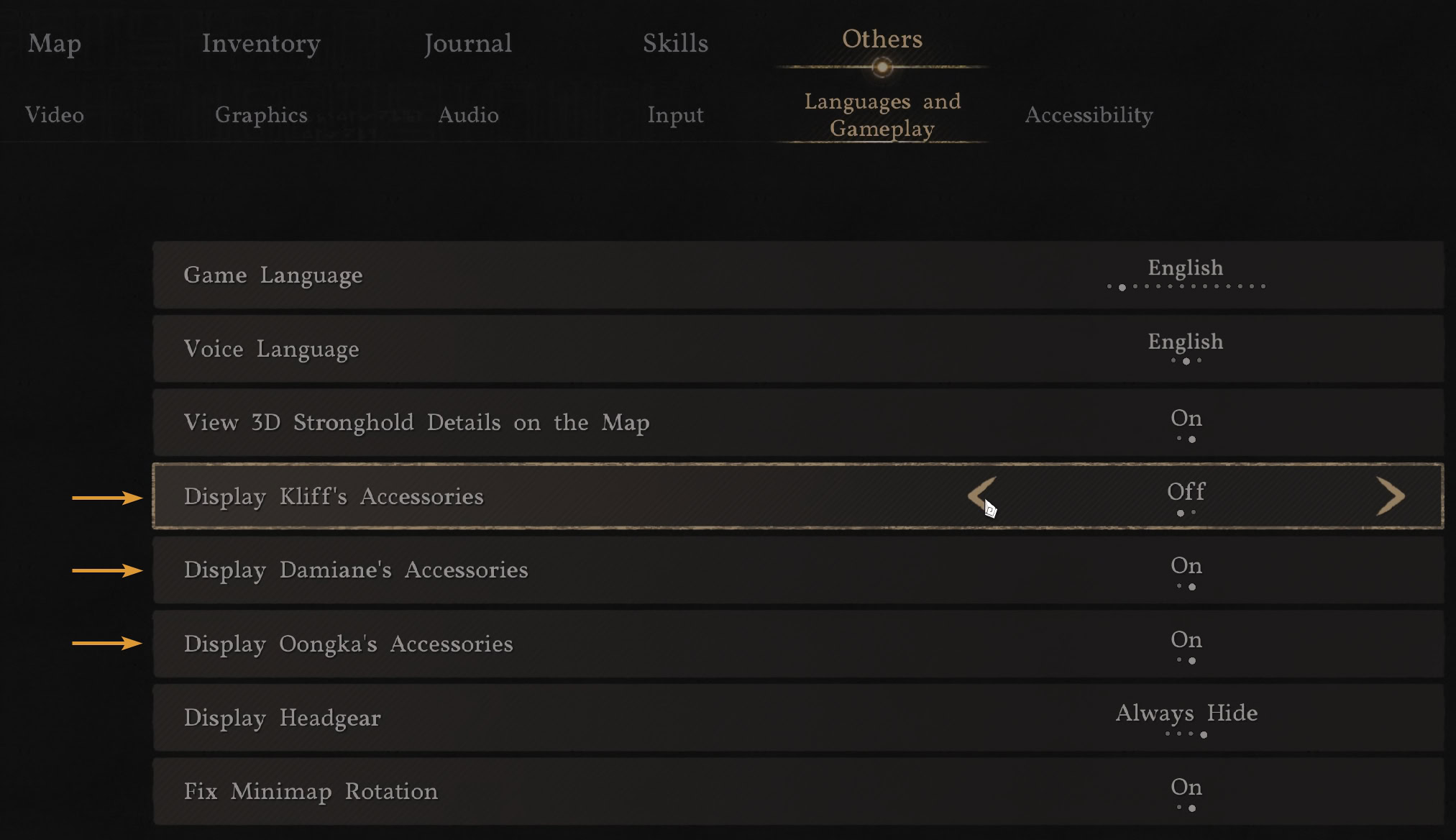
If you are wearing ugly jewelry or just simply don’t want to display accessories on your character’s face, there’s an option for that too. It’s been in the game since release.
In the Languages and Gameplay Menu, you have individual options to turn on of off accessories for each playable character: Kliff, Oongka, and Damiane. This only applies to accessories on the face, such as the earrings.
How to toggle Hoods and Visors
Did you know that you can toggle the visor of your helmet on or off? Same with the hood from your cloak. Open the armor wheel, hover over the item slot and let go. Your character will then toggle the hood or visor. The feature works even if you have both a hood and a helmet with a visor.
Even better, this is animated. Your character actually performs an action of putting on or off a hood and sliding down or up the visor. This feature isn’t new from 1.02.00, by the way. But it is something not many players know, because the game doesn’t explain it.
What’s next?
Pearl Abyss announced plans to add a similar feature to hide the weapons on your character’s back. They are still working on this and it didn’t make it into 1.02.00. We will update this guide when the feature is added to the game.
UPDATE: Patch 1.03.00 added the functionality to hide the Melee and Ranged Weapons on your back!
How to Hide your Weapons in Crimson Desert