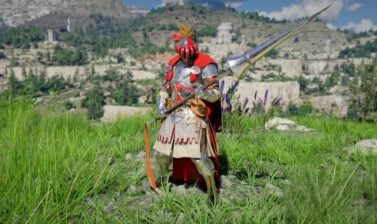
Everything you need to know about Crimson Desert controls setup for Keyboard and Mouse, and Controllers: settings, keybindings, customizations, tips and tricks.
Use the Table of Contents, located in the left panel (top left button on the mobile menu) to navigate through this long guide more easily and quickly.
Keyboard and Mouse Controls List
Below are the default controls for Crimson Desert while using Keyboard and Mouse.
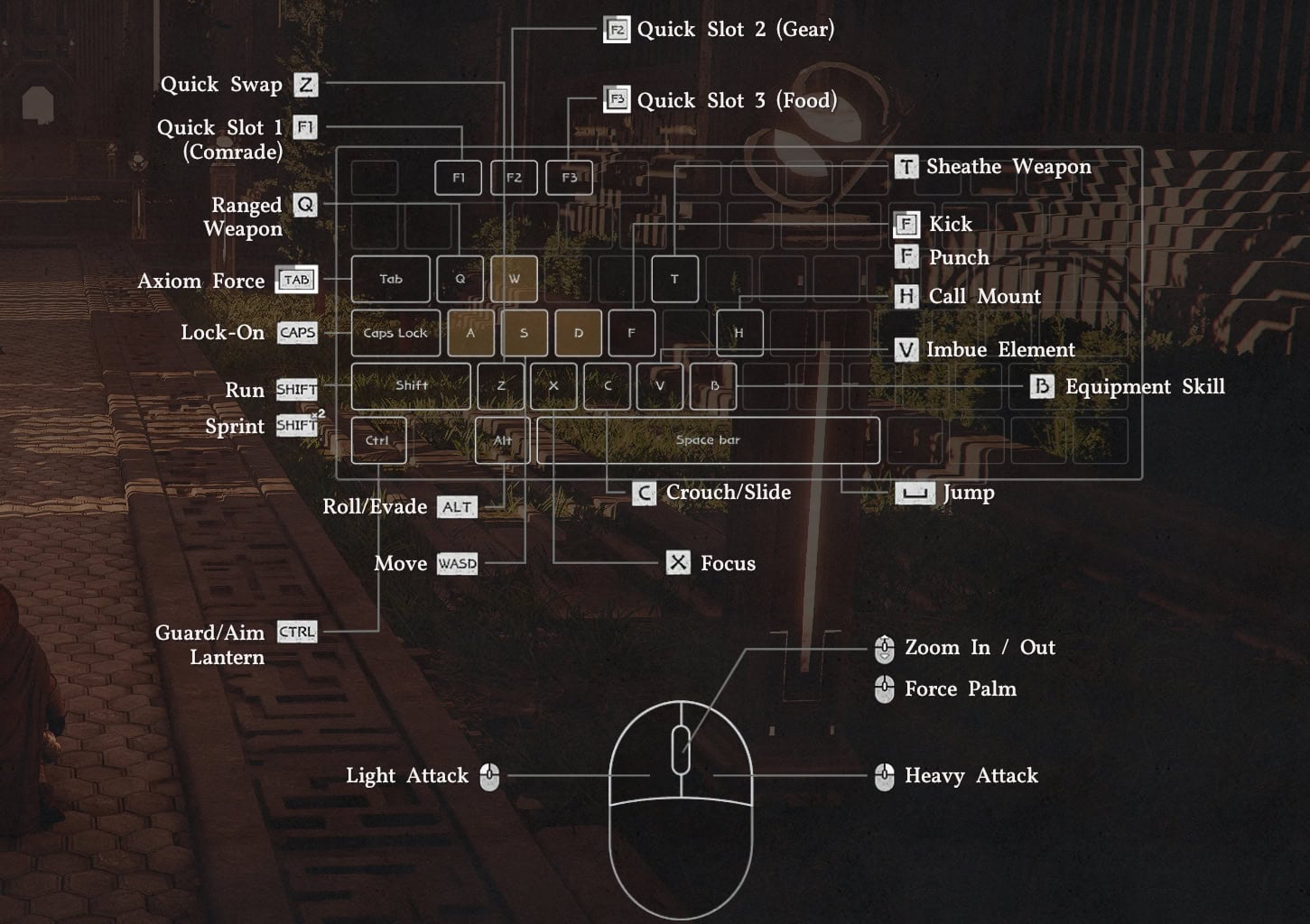
Note: For Combat, Skill Inputs remain consistent between weapons, but perform different skills based on the actively equipped weapon.
| Action | Classic | Default | Input | Type |
|---|---|---|---|---|
| Move Camera | Mouse | Mouse | Motion | Movement and Camera |
| Camera Zoom In/Out | Mouse Wheel Up/Down | Mouse Wheel Up/Down | Scroll | Movement and Camera |
| Lock-on | Control | MMB | Press | Movement and Camera |
| Move | WASD | WASD | Hold | Movement and Camera |
| Run | Shift | Shift | Double Press (Toggle) | Movement and Camera |
| Crouch | C | C | Hold | Movement and Camera |
| Slide | C | C | Hold (While Running) | Movement and Camera |
| Jump | Space | Space | Press | Movement and Camera |
| Precision Jump | Control + Space | Caps or MB4 + Space | Jump while holding | Movement and Camera |
| Double Jump (When Unlocked) | Space | Space | Press (While Mid-air) | Movement and Camera |
| Mantle | Space | Space | Press (Near Ledge) | Movement and Camera |
| Climb | Space + WASD | Space + WASD | Jump Towards Wall | Movement and Camera |
| Roll | Alt | Alt | Press | Movement and Camera |
| Evade | Alt | Alt | Double Press | Movement and Camera |
| (Sub) Evade | Mouse 5 | Mouse 5 | Press | Movement and Camera |
| Action | Button(s) | Type | Basic Controls | |
| Quick Menu (Last) | Esc | Esc | Press | Basic Controls |
| Scroll Menu | Esc | Esc | Hold | Basic Controls |
| Inventory | I | I | Press | Basic Controls |
| Skills | K | K | Press | Basic Controls |
| Journal | J | J | Press | Basic Controls |
| Map | M | M | Press | Basic Controls |
| Use Gear | B | B | Press/Hold | Basic Controls |
| Force Palm | MMB | Q | Press | Basic Controls |
| Dismount / Put Down Held Item | R | R | Press | Basic Controls |
| Cancel | E | E | Press | Basic Controls |
| Comrade Quick Slot | F1 | 1 | Hold | Basic Controls |
| Call Mount | H | 1 | Press | Basic Controls |
| Gear Quick Slot | F2 | 2 | Hold | Basic Controls |
| Draw/Stow Weapon | T | 2 | Press | Basic Controls |
| Food Quick Slot | F3 | 3 | Hold | Basic Controls |
| Loot Item / Enemy | E | E | Hold | Interaction |
| Interact | Control | Caps | Hold | Interaction |
| (Sub) Interact | Mouse 4 | Mouse 4 | Hold | Interaction |
| Interaction 1 | E | E | Press (While Interacting) | Interaction |
| Interaction 2 | R | R | Press (While Interacting) | Interaction |
| Interaction 3 | T | T | Press (While Interacting) | Interaction |
| Inteaction 4 | G | G | Press (While Interacting) | Interaction |
| Previous | Q | Q | Press | Interaction |
| Next | E | E | Press | Interaction |
| Lift Object | E | E | Press (While Interacting) | Interaction |
| Place Object | R | R | Press (While Interacting) | Interaction |
| Push | LMB | LMB | Hold | Interaction |
| Pull | RMB | RMB | Hold | Interaction |
| Light Attack | LMB | LMB | Press Repeatedly or Hold to Combo | Combat |
| Heavy Attack | RMB | RMB | Press Repeatedly or Hold to Combo | Combat |
| Punch/Kick | F | F | Press | Combat |
| Aim / Guard / Focus Light | Control | Caps | Press | Combat |
| Aim / Guard / Focus Light | Mouse 4 | Mouse 4 | Press | Combat |
| Fire | LMB | LMB | Press (While Aiming) | Combat |
| Focus | X | X | Press | Combat |
| Axiom Force | Tab | Tab | Press | Combat |
| Skill 1 | RMB + LMB | RMB + LMB | Combo Press | Combat |
| Skill 2 | RMB + Control | RMB + Caps | Combo Press | Combat |
| Skill 3 | RMB + L. Shift | LMB + L. Shift | Combo Press | Combat |
| Skill 4 | LMB + Alt | Space + RMB | Combo Press | Combat |
| Skill 5 | LMB + Shift | Space + LMB | Combo Press | Combat |
| Skill 6 | LMB+ Space | F + LMB | Combo Press | Combat |
| Skill 7 | LMB + Control | F + RMB | Combo Press | Combat |
| Weapon Swap | Z | Z | Press | Combat |
| Grappling: Throw | F + LMB | F + LMB | Combo Press | Combat |
| Grappling: Lariat | F + RMB | F + RMB | Combo Press | Combat |
| Enemy Vault | Space + LMB | Space + LMB | Combo Press | Combat |
| Imbue Element | V | V | Press, During Skill Cast | Combat |
| Skill: Selected Element | 1 | 4 | Press | Combat |
| Skill: Flame | 1 | 4 | Press | Combat |
| Skill: Frost | 2 | 5 | Press | Combat |
| Skill: Lightning | 3 | 6 | Press | Combat |
| Skill: Wind | 4 | 7 | Press | Combat |
PlayStation Controls List
Below are the predefined Controls for Crimson Desert while using a Playstation Controller.
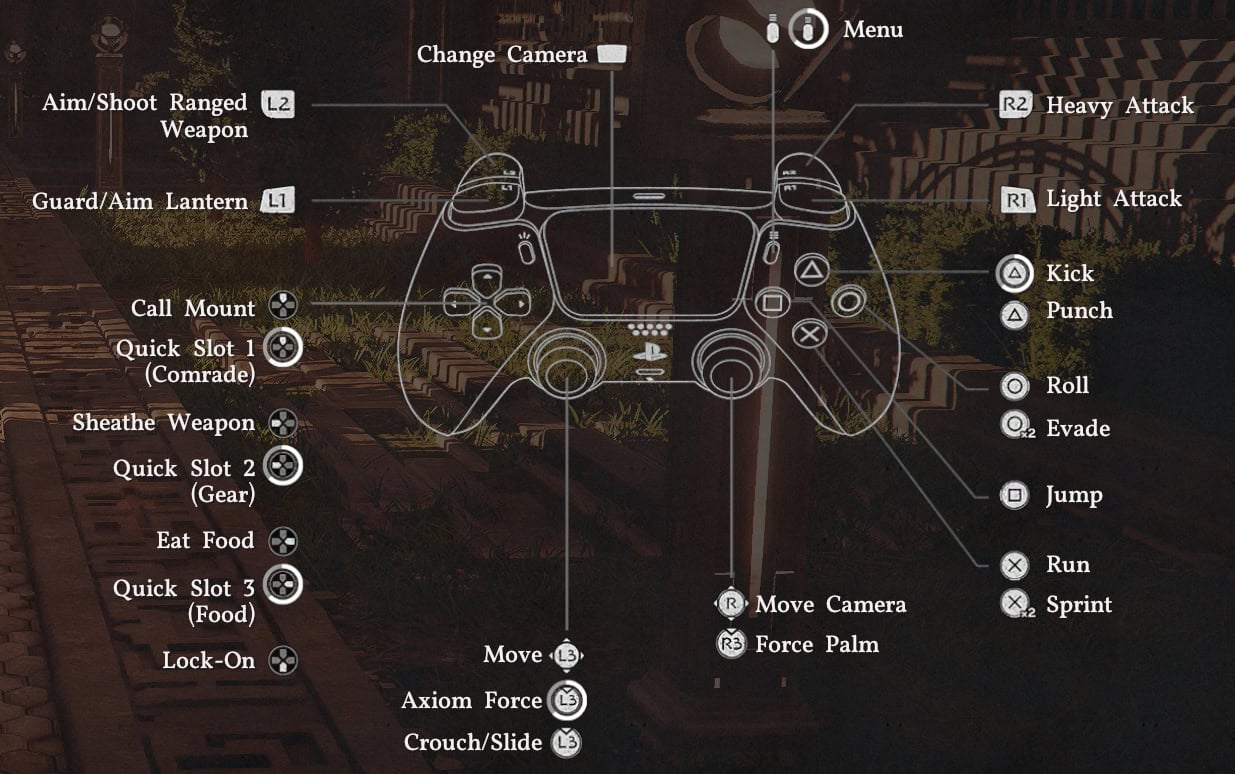
Note: for Combat. Skill Inputs remain consistent between weapons, but perform different skills based on the actively equipped weapon.
| Action | Classic | Default | Input | Category |
|---|---|---|---|---|
| Move Camera | RS | RS | Tilt | Movement and Camera |
| Camera Zoom In/Out | Trackpad | Trackpad | Press | Movement and Camera |
| Lock-on | D-Pad Down | D-Pad Down | Press | Movement and Camera |
| Move | LS | LS | Tilt | Movement and Camera |
| Run | X | X | Hold | Movement and Camera |
| Sprint | X | X | Double Press (Toggle) | Movement and Camera |
| Crouch | L3 | L3 | Press (Toggle) | Movement and Camera |
| Slide | L3 | L3 | Press (While Running) | Movement and Camera |
| Jump | ☐ | ☐ | Press | Movement and Camera |
| Precision Jump | L1 + ☐ | L1 + ☐ | Hold Control, then Press | Movement and Camera |
| Double Jump (When Unlocked) | ☐ | ☐ | Press (While Mid-air) | Movement and Camera |
| Mantle | ☐ | ☐ | Press (Near Ledge) | Movement and Camera |
| Climb | ☐ + LS | ☐ + LS | Jump Towards Wall | Movement and Camera |
| Roll | ⭘ | ⭘ | Press | Movement and Camera |
| Evade | ⭘ | ⭘ | Double Press | Movement and Camera |
| Quick Menu (Last) | Option | Option | Press | Basic Controls |
| Scroll Menu | Option | Option | Hold | Basic Controls |
| Force Palm | R3 | R3 | Press | Basic Controls |
| Dismount / Put Down Held Item | △ | △ | Press | Basic Controls |
| Use Gear | L2 + R2 | L2 + R2 | Press | Basic Controls |
| Comrade Quick Slot | D-Pad Up | D-Pad Up | Hold | Basic Controls |
| Call Mount | D-Pad Up | D-Pad Up | Press | Basic Controls |
| Gear Quick Slot | D-Pad Left | D-Pad Left | Hold | Basic Controls |
| Stow Weapon | D-Pad Left | D-Pad Left | Press | Basic Controls |
| Food Quick Slot | D-Pad Right | D-Pad Right | Hold | Basic Controls |
| Push | R1 | R1 | Hold | Basic Controls |
| Pull | R2 | R2 | Hold | Basic Controls |
| Loot Item / Enemy | ☐ | △ | Press / Hold | Interaction |
| Default Interaction | L1 | △ | Press / Hold | Interaction |
| Interaction 2 | ⭘ | ☐ | Press / Hold | Interaction |
| Interaction 3 | ☐ | X | Press / Hold | Interaction |
| Interaction 4 | △ | ⭘ | Press / Hold | Interaction |
| Confirm | X | X | Press / Hold | Interaction |
| Cancel | ⭘ | ⭘ | Press / Hold | Interaction |
| (Reversed) Confirm | ⭘ | ⭘ | Press / Hold | Interaction |
| (Reversed) Cancel | X | X | Press / Hold | Interaction |
| Examine | L1 | L1 | Hold | Game Mechanic |
| Previous | L2 | L2 | Press | Game Mechanic |
| Next | R2 | R2 | Press | Game Mechanic |
| Mechanic Action 1 | ☐ | ☐ | Press | Game Mechanic |
| Mechanic Action 2 | △ | △ | Press | Game Mechanic |
| Light Attack | R1 | R1 | Press Repeatedly or Hold to Combo | Combat |
| Heavy Attack | R2 | R2 | Press Repeatedly or Hold to Combo | Combat |
| Punch/Kick | △ | R1 + ☐ | Press | Combat |
| Aim | L2 | L2 | Hold | Combat |
| Fire | L2 | L2 | Release (While Aiming) | Combat |
| Focus | L3 + R3 | L3 + R3 | Press | Combat |
| Axiom Force | L3 | L3 | Hold | Combat |
| Block/Parry | L1 | L1 | Press | Combat |
| Skill 1 | R2 + R1 | R2 + R1 | Combo Press | Combat |
| Skill 2 | R2 + L1 | R2 + L1 | Combo Press | Combat |
| Skill 3 | R2 + X | R1 + △ | Combo Press | Combat |
| Skill 4 | R1 + ⭘ | R1 + ⭘ | Combo Press | Combat |
| Skill 5 | R1 + X | R1 + X | Combo Press | Combat |
| Skill 6 | △ + ⭘ | △ + ⭘ | Combo Press | Combat |
| Skill 7 | X + ☐ | X + ☐ | Combo Press | Combat |
| Grappling: Throw | △ + ⭘ | △ + ⭘ | Combo Press | Combat |
| Grappling: Lariat | X + ☐ | X + ☐ | Combo Press | Combat |
| Enemy Vault | ☐ + R1 | ☐ + R1 | Combo Press | Combat |
Xbox Controls List
Below are the predefined Controls for Crimson Desert while using a Playstation Controller.
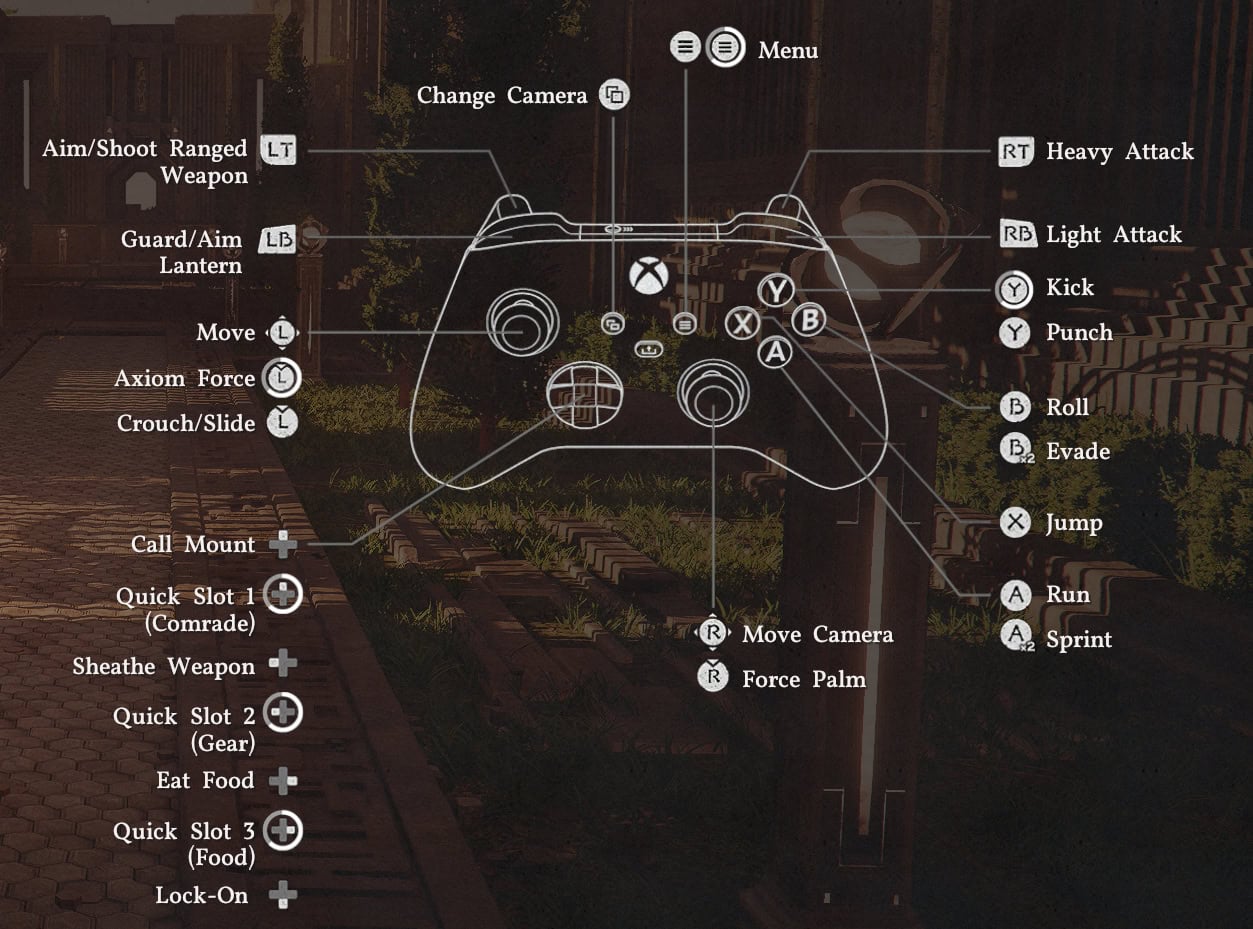
Note: for Combat. Skill Inputs remain consistent between weapons, but perform different skills based on the actively equipped weapon.
| Action | Classic | Default | Input | Category |
|---|---|---|---|---|
| Move Camera | RS | RS | Tilt | Movement and Camera |
| Camera Zoom In/Out | View | View | Press | Movement and Camera |
| Lock-on | D-Pad Down | D-Pad Down | Press | Movement and Camera |
| Move | LS | LS | Tilt | Movement and Camera |
| Run | A | A | Hold | Movement and Camera |
| Sprint | A | A | Double Press (Toggle) | Movement and Camera |
| Crouch | RS | RS | Press (Toggle) | Movement and Camera |
| Slide | RS | RS | Press (While Running) | Movement and Camera |
| Jump | X | X | Press | Movement and Camera |
| Precision Jump | LB + X | LB + X | Hold Control, then Press | Movement and Camera |
| Double Jump (When Unlocked) | X | X | Press (While Mid-air) | Movement and Camera |
| Mantle | X | X | Press (Near Ledge) | Movement and Camera |
| Climb | X + LS Tilt | X + LS Tilt | Jump Towards Wall | Movement and Camera |
| Roll | B | B | Press | Movement and Camera |
| Evade | B | B | Double Press | Movement and Camera |
| Quick Menu (Last) | Menu | Menu | Press | Basic Controls |
| Scroll Menu | Menu + D-Pad Up/Down | Menu + D-Pad Up/Down | Hold | Basic Controls |
| Force Palm | RS | RS | Press | Basic Controls |
| Dismount / Put Down Held Item | Y | Y | Press | Basic Controls |
| Use Gear | LT +RT | LT + RT | Press | Basic Controls |
| Comrade Quick Slot | D-Pad Up | D-Pad Up | Hold | Basic Controls |
| Call Mount | D-Pad Up | D-Pad Up | Press | Basic Controls |
| Gear Quick Slot | D-Pad Left | D-Pad Left | Hold | Basic Controls |
| Stow Weapon | D-Pad Left | D-Pad Left | Press | Basic Controls |
| Food Quick Slot | D-Pad Right | D-Pad Right | Hold | Basic Controls |
| Push | RB | RB | Hold | Basic Controls |
| Pull | RT | RT | Hold | Basic Controls |
| Loot Item / Enemy | X | Y | Press / Hold | Interaction |
| Default Interaction | X | Y | Press / Hold | Interaction |
| Interaction 2 | A | X | Press / Hold | Interaction |
| Interaction 3 | Y | A | Press / Hold | Interaction |
| Interaction 4 | B | B | Press / Hold | Interaction |
| Confirm | A | A | Press / Hold | Interaction |
| Cancel | B | B | Press / Hold | Interaction |
| (Reversed) Confirm | B | B | Press / Hold | Interaction |
| (Reversed) Cancel | A | A | Press / Hold | Interaction |
| Examine | LB | LB | Hold | Game Mechanic |
| Previous | LT | LT | Press | Game Mechanic |
| Next | RT | RT | Press | Game Mechanic |
| Mechanic Action 1 | X | X | Press | Game Mechanic |
| Mechanic Action 2 | Y | Y | Press | Game Mechanic |
| Light Attack | RB | RB | Press Repeatedly or Hold to Combo | Combat |
| Heavy Attack | RT | RT | Press Repeatedly or Hold to Combo | Combat |
| Punch/Kick | Y | RB + X | Press | Combat |
| Aim | LT | LT | Hold | Combat |
| Fire | LT | LT | Release (While Aiming) | Combat |
| Focus | LS + RS | LS + RS | Press | Combat |
| Axiom Force | LS (Press) | LS (Press) | Hold | Combat |
| Block/Parry | LB | LB | Press | Combat |
| Skill 1 | RB + RT | RB + RT | Combo Press | Combat |
| Skill 2 | LB + RT | LB + RT | Combo Press | Combat |
| Skill 3 | RB + Y | RB + Y | Combo Press | Combat |
| Skill 4 | RB + B | RB + B | Combo Press | Combat |
| Skill 5 | RB + A | RB + A | Combo Press | Combat |
| Skill 6 | Y + B | Y + B | Combo Press | Combat |
| Skill 7 | A + X | A + X | Combo Press | Combat |
| Grappling: Throw | Y + B | Y + B | Combo Press | Combat |
| Grappling: Lariat | A + X | A + X | Combo Press | Combat |
| Enemy Vault | X + RB | X + RB | Combo Press | Combat |
| Skill: Element (Quick Slot) | RT+ Y | RT + Y | Combo Press | Combat |
| Skill: Flame | RT+ Y | RT+ Y | Combo Press | Combat |
| Skill: Frost | RT + X | RT + X | Combo Press | Combat |
| Skill: Lightning | RT + B | RT + B | Combo Press | Combat |
| Skill: Wind | RT + A | RT + A | Combo Press | Combat |
Control Remapping and Recommendations
As of Patch 1.09, Controls Remapping is available on Keyboard and Mouse as well as on Xbox and PlayStation Controllers!
To access the Control Remapping in Crimson Desert, you’ll need to open Pause Menu → Others → Options → Settings → Input.
At the top of this section are the options for “Keyboard/Mouse Customization Preset” and “Controller Customization Preset”. These can be opened using these inputs:
- PC: Double-Press LMB or Press F
- PS5: Press ☐
- Xbox: Press X
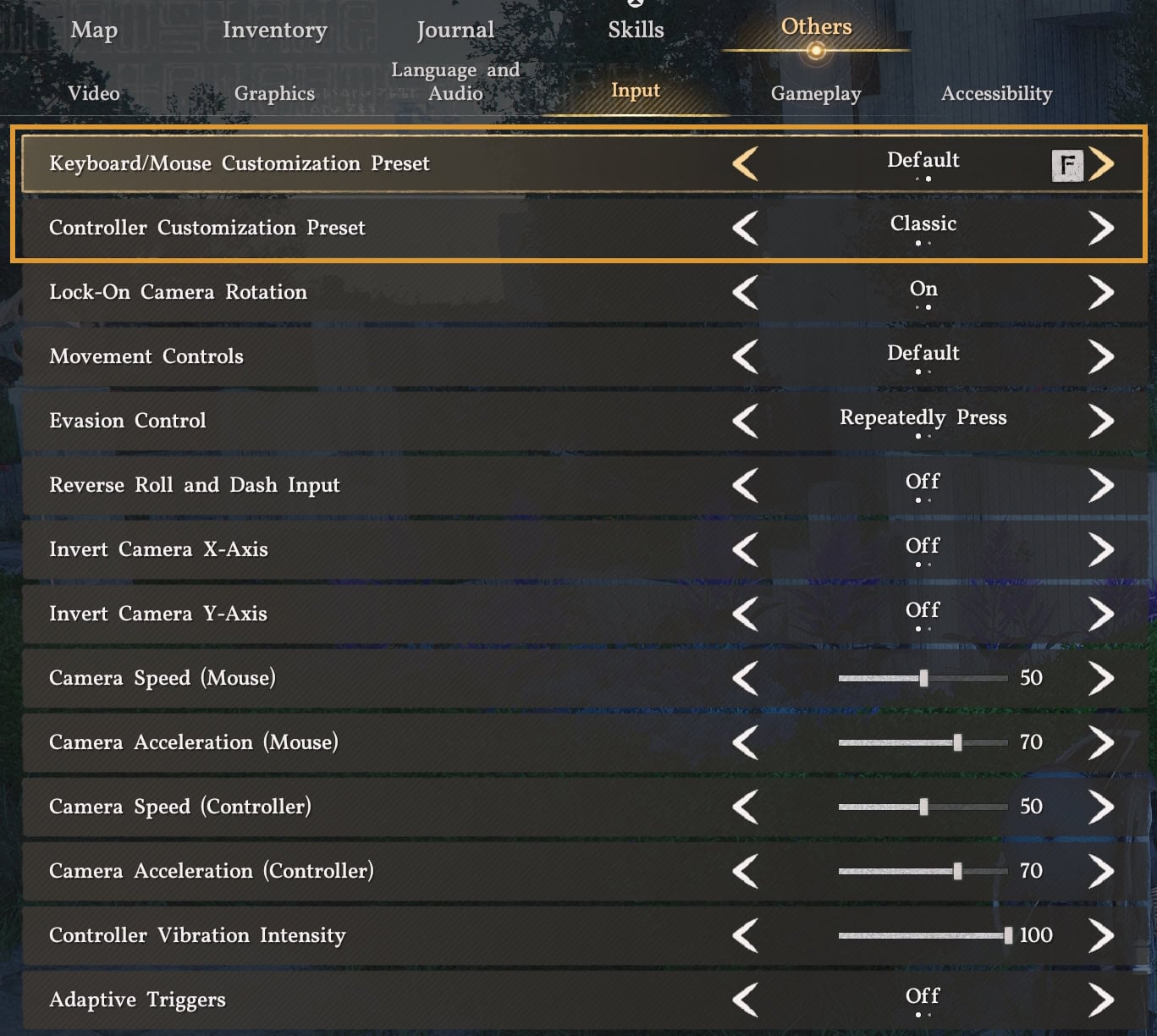
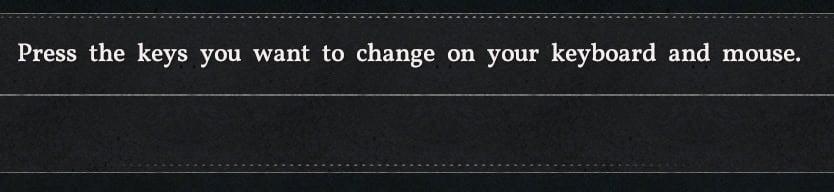
By clicking a Control you want to change, you will be prompted to Pick a New Key Mapping.
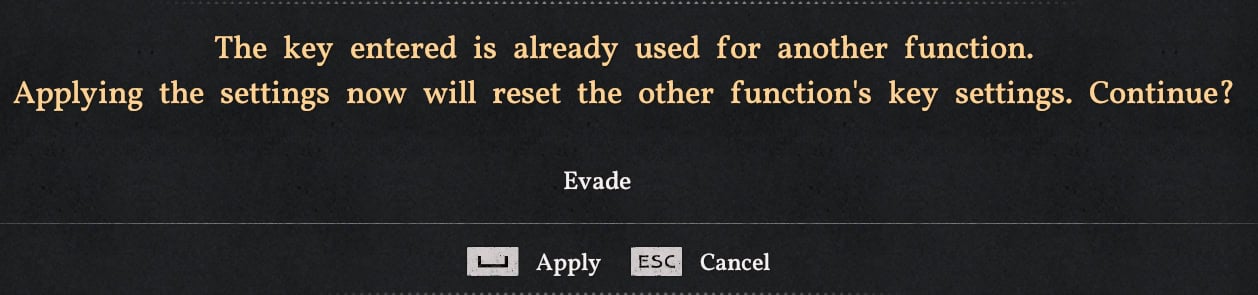
If this overlaps with an existing Key Mapping, you will be prompted to overwrite the existing bind. Some Existing Mappings already overlap, forcing a reset to default to restore them if overwritten, so be careful.
After making all desired changes, press Space once again to apply and save them.
Console Recommendations
As far as Console Controls go, for those who own PlayStation Dualsense Edge or Xbox Elite Controllers, the only swap I’d make is to Run and Jump. Additionally, using the extra rear buttons offered by both controllers, and save your sticks the pain.
Keyboard and Mouse Recommendations
It may be a good idea to give the built-in keybinds a chance to shine. If you can’t get used to them, we have a few remapping alternatives you will most likely be more comfortable using.
There are a bit of a weird remapping restrictions due to initial overlaps, it’s hard to remap multiple controls comfortably.
That said, the main controls we recommend that you remap to an alternative keybinding are Evade (Alt by Default), The majority of keybinds involving CAPS (Caps Lock), and Axiom Force (Tab by Default). These are in fairly awkward locations to press for when they’re needed.
To make them more comfortable, I made the following Swaps. Give them a try for yourself. Or experiment to find other combinations that work for you.
| Action | Starting Key | Remapped Key |
|---|---|---|
| Keybind with CAPS | CAPS | CTRL |
| Evade | Alt | Mouse 5 |
| Guard / Aim (Alt) | Mouse 4 | Unbound |
| Axiom Force | Tab | R |
| Dismount | R | Y |
| Interaction 2 | R | 5 |
| Skill 4 | LMB + Alt | LMB + Mouse 5 |
If you remap Blinding Flash to a single key, you may not be able to complete some of the tricky puzzles that require perfect timing between activating and stopping the light beam (such as the Sanctuum puzzles).
We’re simply shifting around the less comfortable controls here and rebind other things to make space. Dismount and Interaction 2 aren’t critical controls to have super quick access to, so we remap them to allow Axiom Force to use R instead, as it’s part of several attacks and skills and needs to be accessible.
I found Axiom Force on R is a great choice, as we can easily move the mentioned functions above with no combat impact. Blinding Flash was moved to Mouse 4 for ease of use in combat and treasure hunting.
With changes in Update 1.00.03, Evade now has an extra default mapping to Mouse 5, but it’s still worth noting that the evade attack still should be rebound to match. This means we can move something else to Alt and not actually have to remap manually. This also means mapping Blinding Flash to Mouse 4 will unbind the new secondary control for Guard / Aim. The UI will replace this if not bound elsewhere and viewing the menu again, but the chosen bind will take priority.
Additional Control Settings
Update 1.04 added a handful of new options in terms of controls, adding Classic and Default Control Schemes as well as some secondary settings.
Classic and Default Control Schemes
Added in Update 1.04, there are now two different control schemes for both Keyboard and Mouse, and Controllers. Their differences are arguably minimal, but you can decide for yourself which you prefer.
The immediate differences are that the preset will swap the controls for Aim/Guard, Lock-on, Force Palm, and Quick Slots for PC, as well as Skill: Element for both PC and Console. Console also gets Punch/Kick moved to a single-button command.
At least for PC, the Classic Controls are very close to our own manual recommendations above, except having Blinding Flash on Mouse 4 and Axiom Force on R.
As for the Skill: Element input style, this is mostly a non-change, as you can freely swap between using the Element from the Quick Slot, or having them individually bound. In most cases, you’ll want them individually bound on PC, which still aligns with the Classic control scheme.
PC also gets the ability to have the Quick Slot Button share a bind with other actions, such as Comrade Quick Slot calling your Horse, Equipment Quick Slot also being Stow/Draw Weapon, and Food Quick Slot doubling as Consume button. Classic Default this to individual binds, which is our recommendation as well.
Secondary Control Options
This handful of options allows you to slightly adjust the inputs for actions that share a common button, like Roll and Evade, for example. Below are the options and what they do.
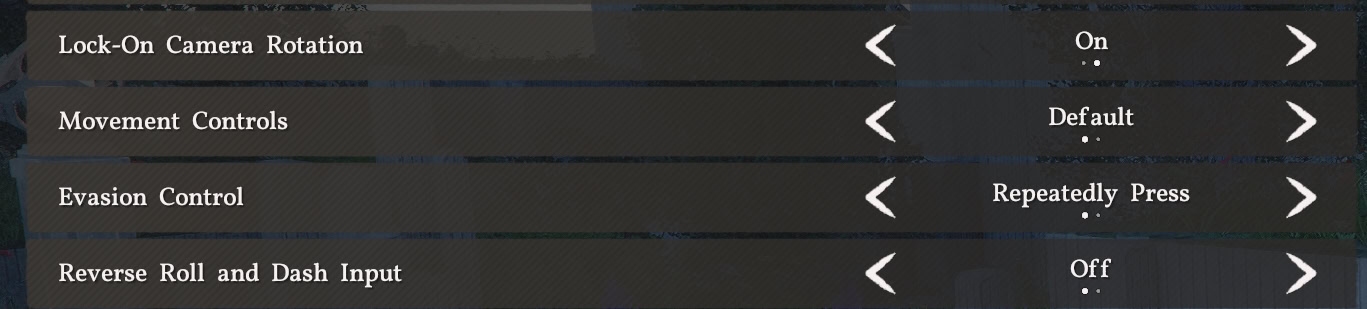
Lock-On Camera Rotation
A Simple On/Off Setting. With this setting Off, you can freely adjust your camera while Locked-On to a target. With the Setting On, your Camera will always be focused on your Locked-On target instead.
Evasion Control
Evasion Control swaps how Roll and Dash work. With the Repeatedly Press option selected, a Single-Press will roll while a Double-Press will Dash. With the Hold Option selected, the initial Press will Roll, while holding it after will perform the Dash.
Reverse Roll and Dash Input
This is a simple On/Off setting. This will swap the input for Roll and Dash, both bound to your Evade Button. When set to Off, Roll will be the single-press action. While set to On, Roll will instead be the secondary action, using Double-Press or Hold based on the Evasion Control Setting above.
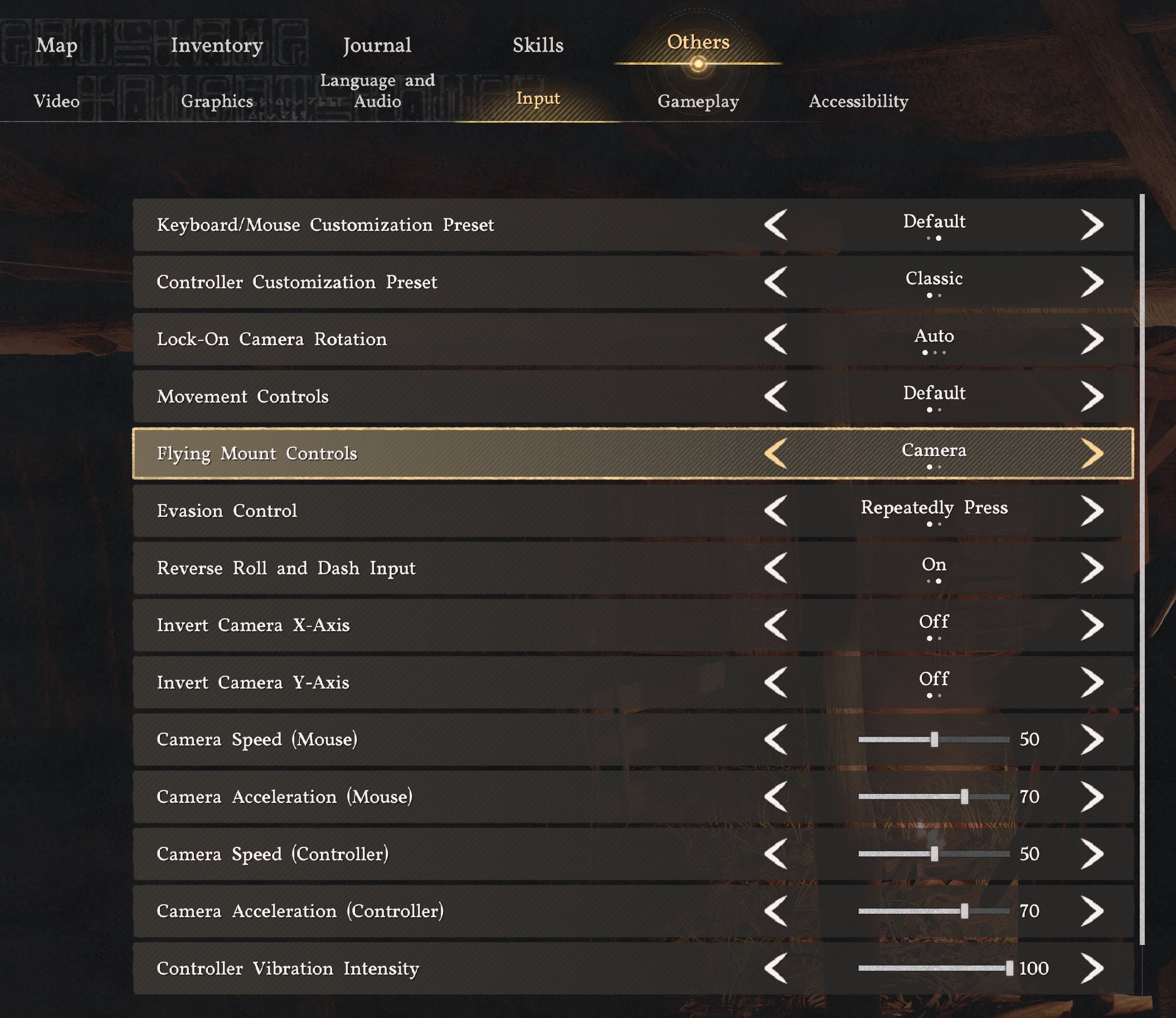
Flying Mount Controls
The Flying Mount Controls feature was added with Update 2.00.00. It allows you to choose between two modes for the camera’s behavior while you are controlling a flying mount:
- Camera – Flying mounts will move in the direction the camera is facing.
- Manual – Ascend and descend are assigned separately. Forward, backward, left, and right movement are separate from vertical movement.
In the late game, you will be able to ride flying mounts. We will not spoil the surprise of how and when this happens for you here, but wanted to warn you that this setting exists for when you need to consider it.
To select between the two camera modes, go to:
Main Menu → Others Settings → Others → Input.
Helpful Tips
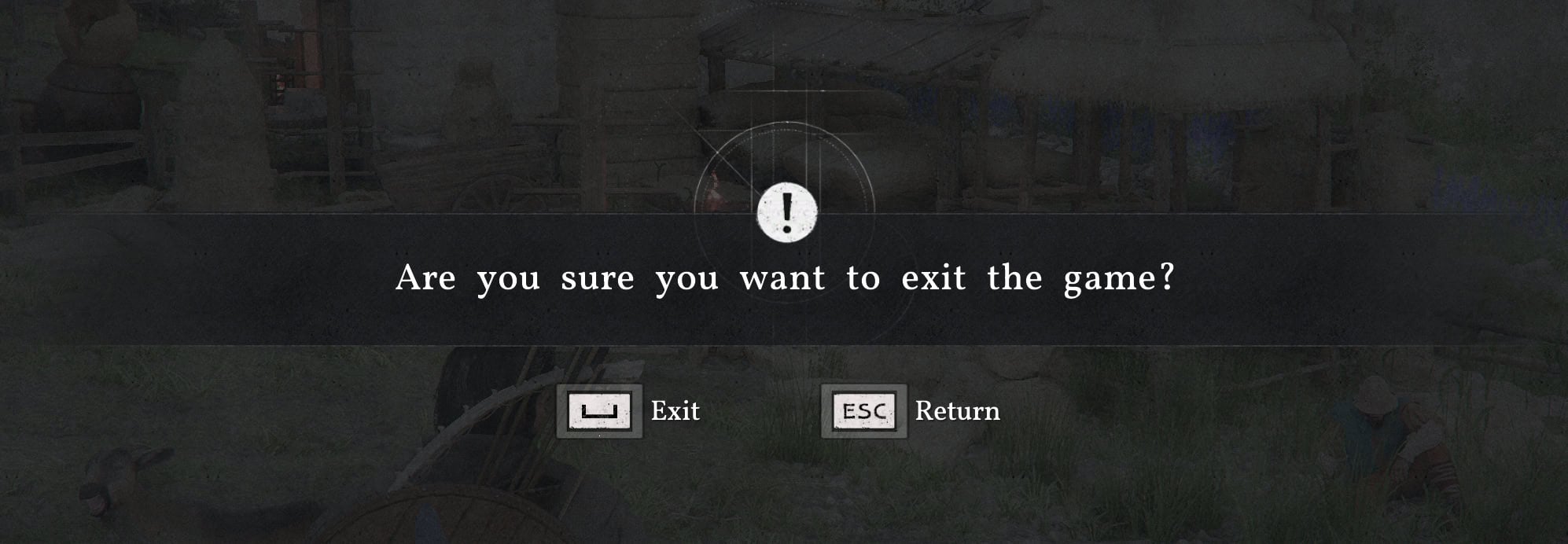
On a PC, you can exit the game directly by pressing ALT+F4. It will bring up a confirmation dialogue asking if you really wanted to exit. This allows you to bypass exiting to Title Screen first and waiting for a couple of animations to play out.
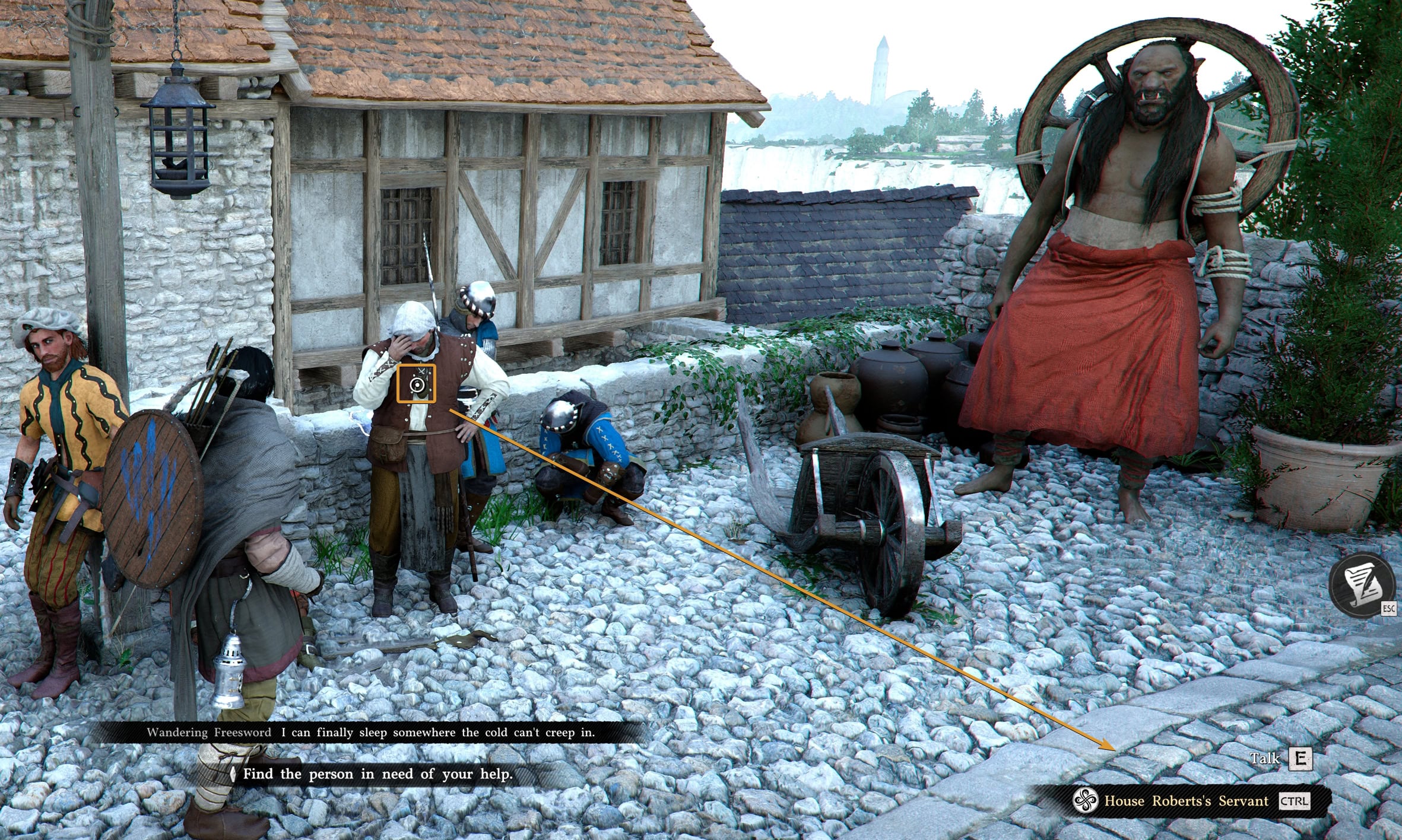
When you have to interact with important NPCs to progress a quest or pick up a new one, you will get a prompt in the bottom right corner when you are near the NPC. On the screen, you will also see a larger circle on the NPC.
Make liberal use of both your Lantern (CTRL / L1 / LB while out of combat) and Blinding Flash (CTRL + LMB / L1 +R1 / LB +RB at any time) to spot nearby points of Interest. This will require line of sight and only works within a limited range. When using the Lantern, an Orange Glow will be seen on the point of interest.
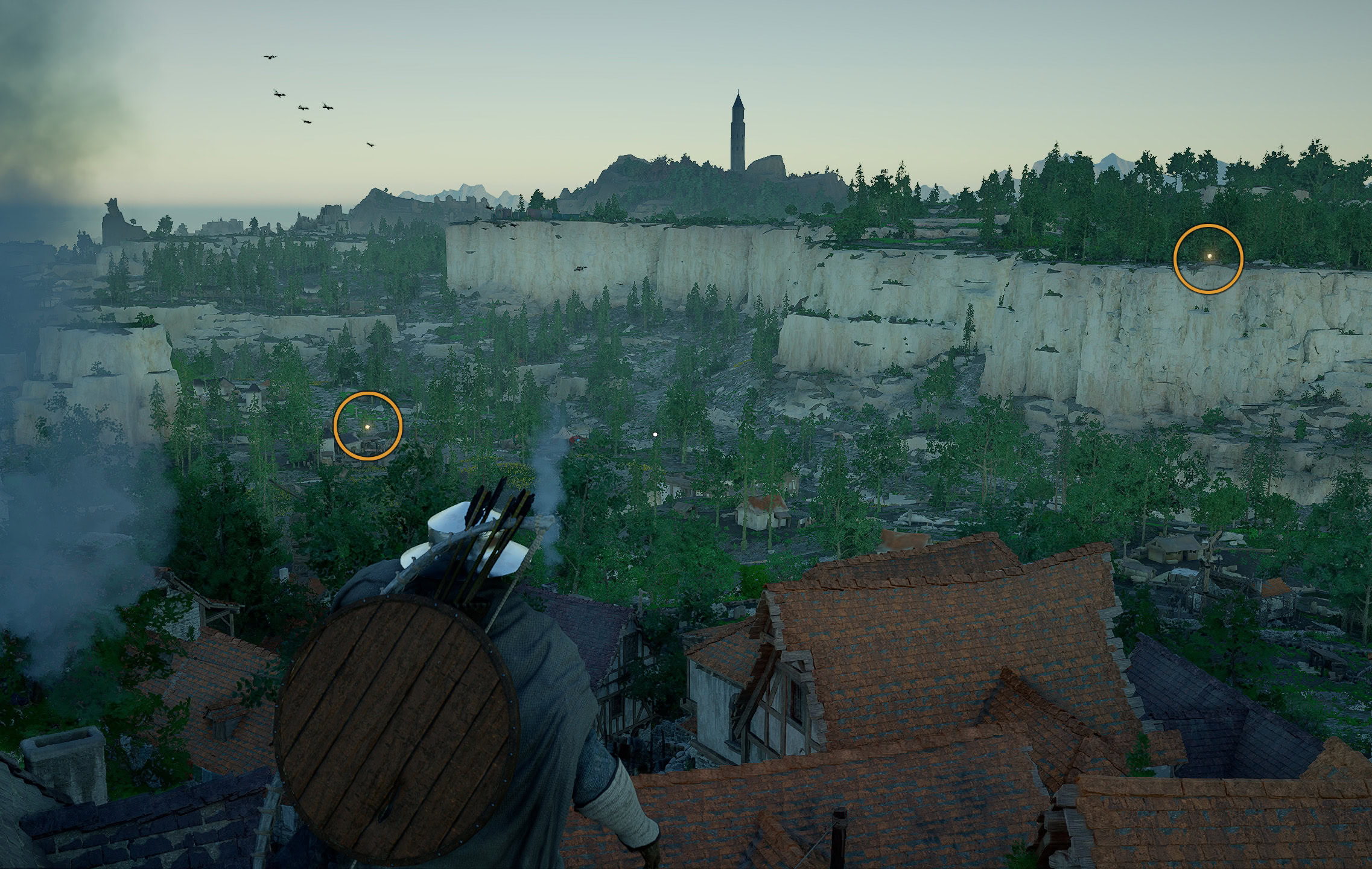
For Blinding Flash, this glow is Blue instead.
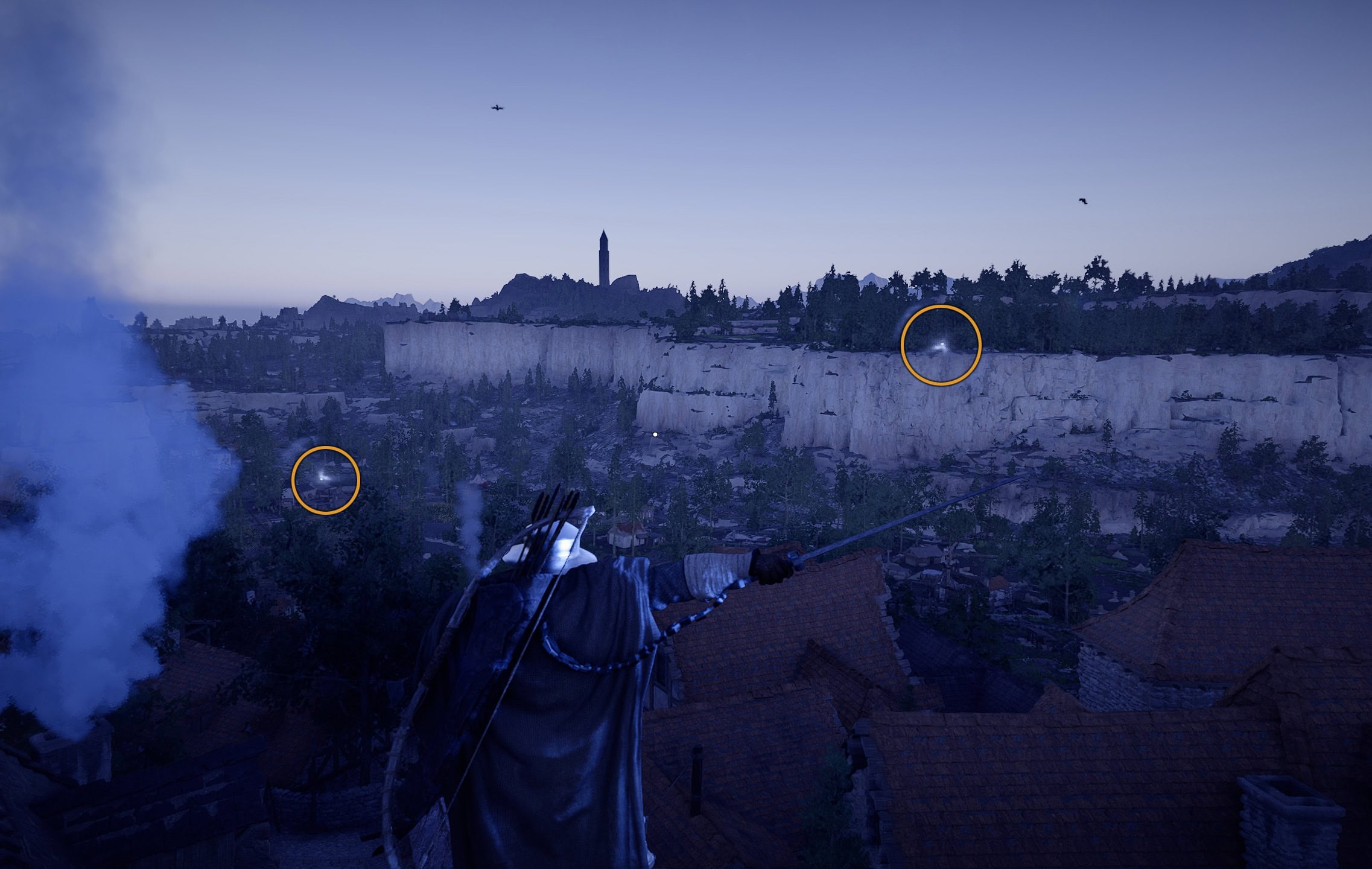
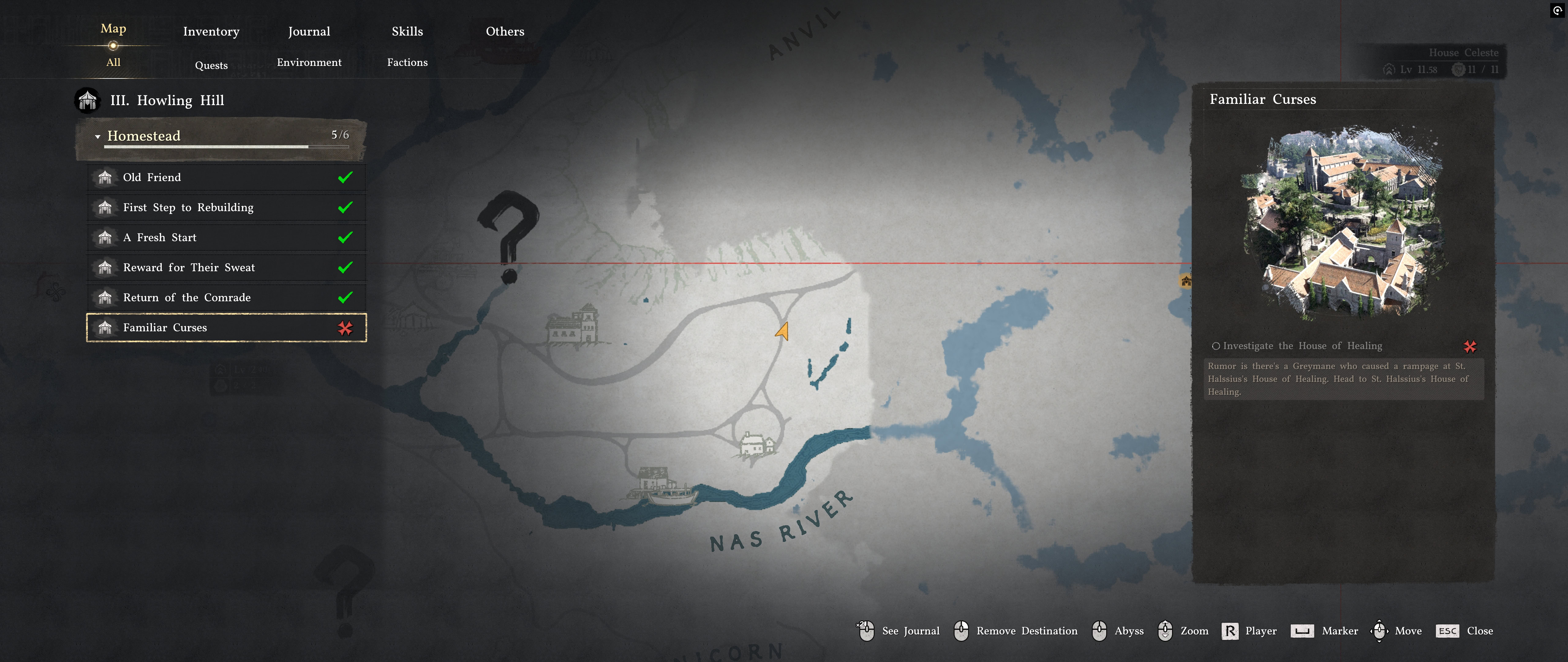
There are additional interactions available in various menus and screens. Pay attention to what the game has to offer when you hover over an object on the map or in the world.
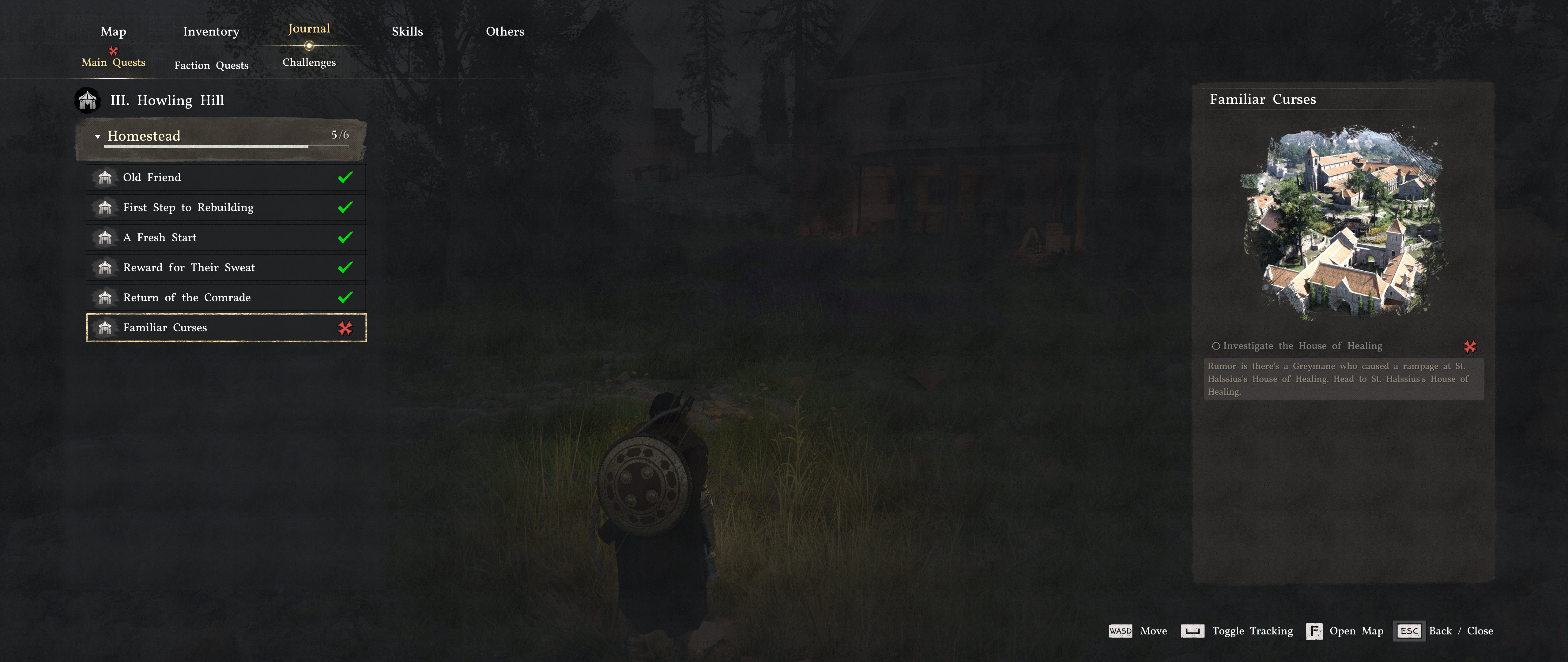
In some menus, you have the option to hold the ESC on keyboard (Option on PlayStation, Menu on Xbox) button to directly return to the game world and skip the main menu screen. The example shown below is form the Journal screen where you have the option to hold ESC (on keyboard) to close all menus and exit back into the world. Note that this functionality is not always available.
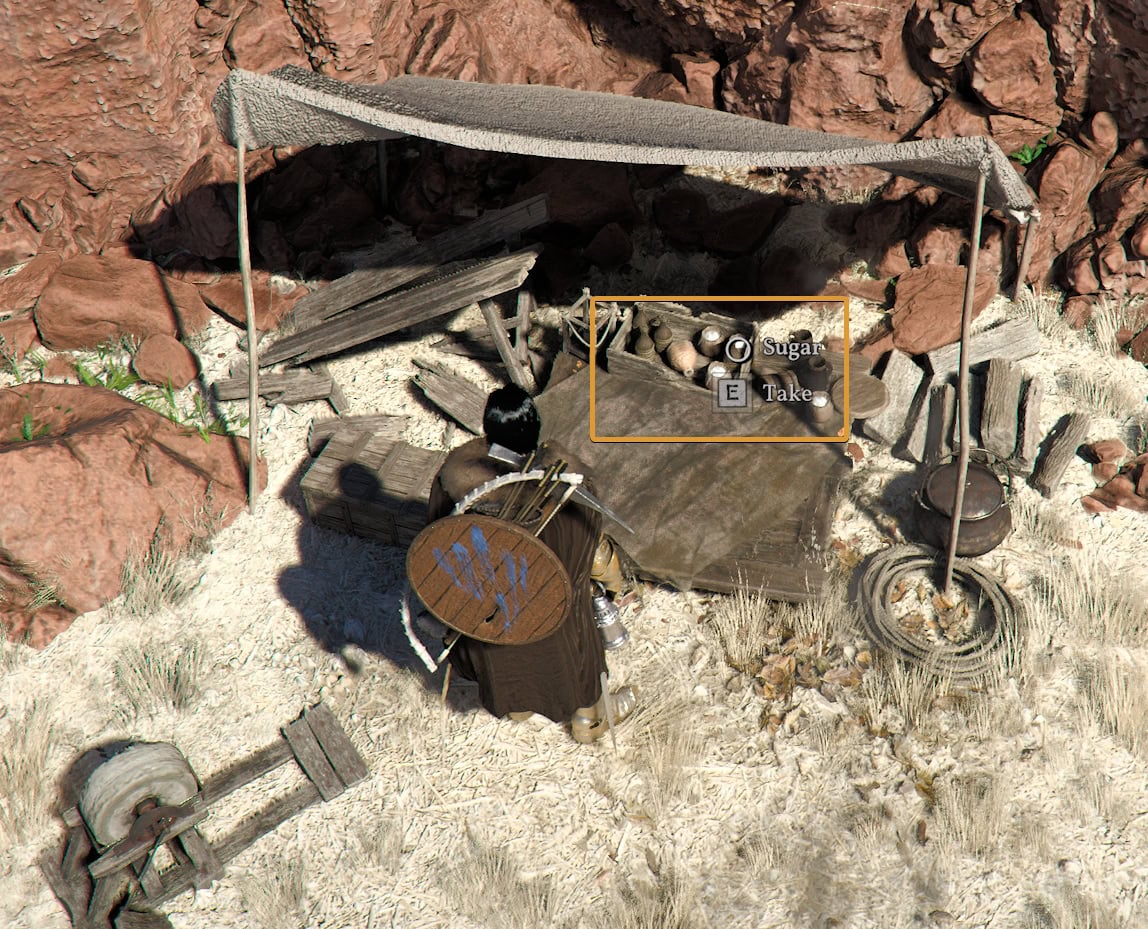
You can press and hold the button to collect an item when there are multiple items nearby. Your character will keep collecting all items in range one after another.
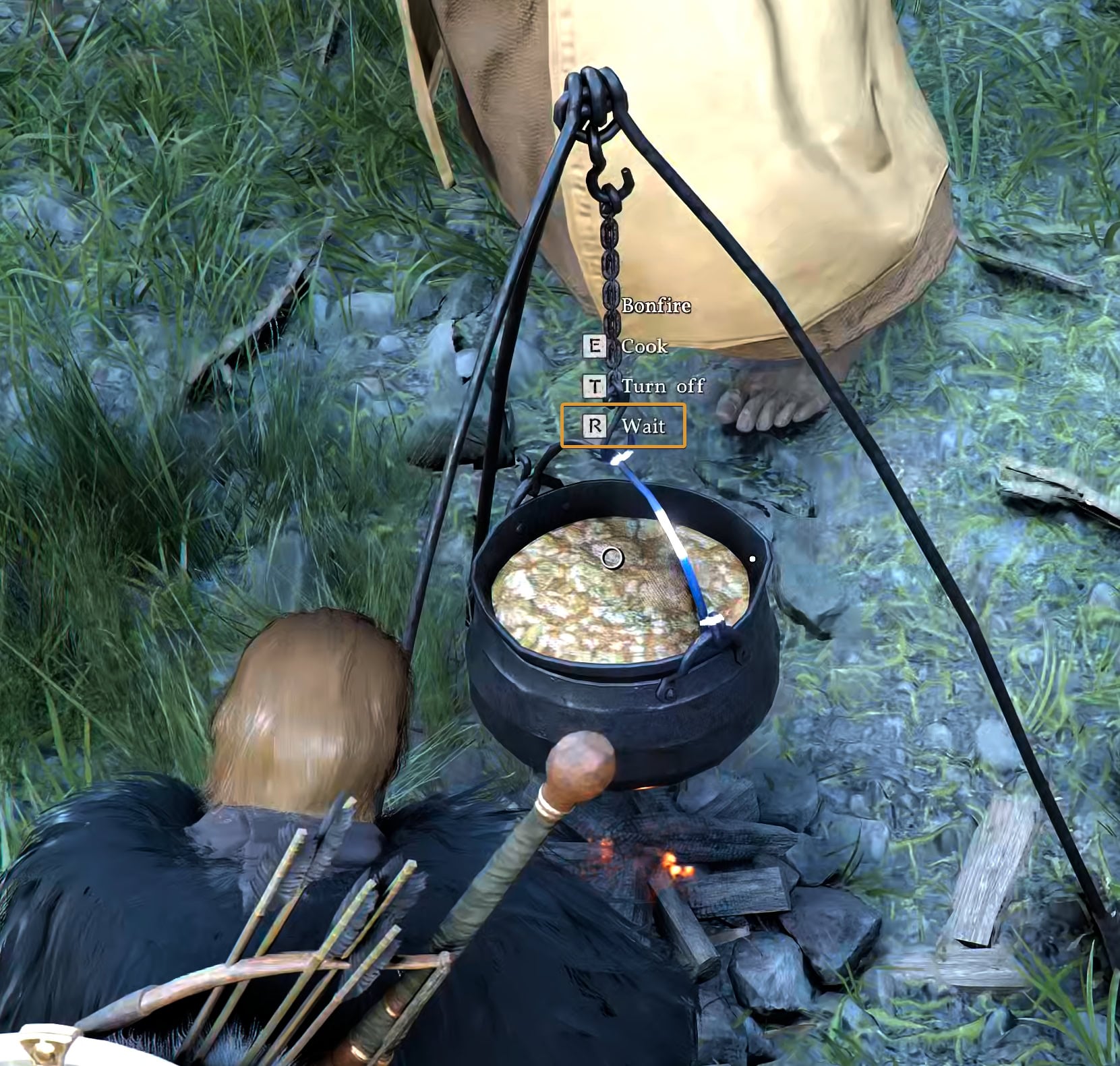
You can rest on pretty much any bed you find, not only in your camp. But you can also spend some resting time around a bonfire. When you approach a bonfire, press the modifier key (CTRL on keyboard) to see the extended list of options. The “Wait” option would appear there. It allows you to choose from the same resting times as sleeping – 3, 6, 12 hours.
You can toggle on and off the visor of your helmet (if it has a moving one) or the hood of your cloak. Open the Armor wheel menu, then hover over the headgear or cloak slot. When you release to close the wheel menu, your character will perform an animation of toggling on or off that item’s position.
Changelog
Below are the key changes made to the game’s base controls sourced from Patch Notes. The list is shortened, slightly rewritten and modified for simplicity. To check the full changes from these udpates, visit the link at the bottom of each section.
Update 1.00.03
- Improved the response speed of the interaction UI.
- Improved the responsiveness of jump inputs.
- Fixed aiming to target the center of the screen when using a Lantern or while unarmed.
- Improved the Equipment Quick Slot so that re-selecting your current equipment will stow it.
- Improved the responsiveness of the Main Menu UI.
- [Keyboard/Mouse] Improved the responsiveness of character movement controls.
- [Keyboard/Mouse] Added shortcuts to open and close Inventory, Skills, Journal, And Map.
- [Keyboard/Mouse] Added default control options for Guard/Aim (Side Button 1) and Evade (Side Button 2).
- [Keyboard/Mouse] Changed controls to maintain movement input when using Axiom Force.
Find out what else was updated, improved or added in Update 1.00.03.
Update 1.01.00
- Movement speed increases by holding down the running key.
- Movement speed increases by tapping the running key once.
- Movement speed for the player character and horse will no longer decrease even if the running key is not held continuously.
Find out what else was updated, improved or added in Update 1.01.00.
Update 1.02.00
- Added a “Movement Controls” option.
- The option can be selected via Main Menu > Others > Settings > Input > Movement Controls, and offers two options: Basic and Classic.
- Detailed descriptions can be found in the in-game options menu.
- Basic movement controls: Hold the sprint key to accelerate.
- Classic movement controls: Repeatedly press the sprint key to accelerate.
- With Basic movement controls, holding the sprint key on mounts consumes stamina at set intervals.
- With Classic movement controls, stamina is consumed each time the sprint key is pressed while mounted.
Find out what else was updated, improved or added in Update 1.02.00.
Update 1.04.00
- Added a preset feature for both keyboard/mouse and controllers.
- Added a feature where, when the interaction key is pressed, the corresponding action is performed immediately.
- Added the “Evasion Control” and “Switch Roll and Evasion Input” options.
- Improved the controls for aiming. Added ability to switch on or off the lantern on the move.
- Added the “Using Skill: Element” option. Selecting “Quick Slot Option” allows you to use the selected elements assigned for each individual input.
- Vault can now only be used by pressing Jump while performing a different attack.
- Changed all interactions so that they are executed continuously while the button is held down.
- “Dismount/Drop” and “Cancel” keys/buttons have been combined.
- [Keyboard/Mouse] Expanded the range of customizable key bindings.
- [Keyboard/Mouse] Changed the Escape key used while under status effects to match the Evade key.
- [Controller] Improved the map so that it can be opened by holding the DualSense touch pad or the Xbox controller’s View button.
- Slightly increased character movement speed.
Find out what else was updated, improved or added in Update 1.04.00.
Update 1.04.01
- [Controller] Changed the button used to change the names of pets and horses from (R3/RS) to (L3/LS).
- [PlayStation/Xbox] Changed the “Change Preset” option to be displayed the same way as on PC.
Find out what else was updated, improved or added in Update 1.04.01.
Update 1.05.00
- Fixed an issue where controller and keyboard/mouse control presets would reset.
- Fixed an issue where the Vault skill did not trigger consistently.
- Separated the interaction keys for Sit and Lean on terrain and objects.
- [Damiane/Oongka] Improved control responsiveness after using the Throw skill.
- [Keyboard/Mouse] Fixed an issue where changing quick slot tabs didn’t work near interactable targets.
- Fixed an issue where certain controls were disabled at the start of an Unarmed Duel.
Find out what else was updated, improved or added in Update 1.05.00.
Update 1.08.00
- [Keyboard/Mouse] Added a keyboard shortcut (P) that opens and closes the photo mode menu.
- [Keyboard/Mouse] Improved the input system so that all inputs can have a secondary key assigned to them.
- Improved shortcut customization so that shortcuts for Inventory, Map, Skills, Journal, Photo Mode, and Menu can be freely assigned.
- Changed the “pet” interaction with pets so that it is only available when aiming at them.
- Improved “Blinding Flash” so that it can be used while riding Blackstar.
- Improved Blackstar’s controls and camera perspective.
Find out what else was updated, improved or added in Update 1.08.00.
Update 1.09.00
- Added Controller Remapping Feature for both PS and Xbox controllers.
- Seeds can be placed into the Food Quickslot and used without opening the Inventory.
Find out what else was updated, improved or added in Update 1.09.00.
Update 1.12.00
- Оther inputs are not performed while an interaction prompt is displayed while aiming.
- Fixed an issue where, when customizing controls, if a disabled key and the interaction key were assigned to the same input, the interaction function would incorrectly be triggered by holding the input.
- [Mac] Fixed an issue where placeable items could not be placed in the house using a keyboard and mouse.
Find out what else was updated, improved or added in Update 1.12.00.
Update 1.13.00
- Improved so that when using Axiom Force during soft lock-on, it is immediately used on the target.
- [Damiane] Fixed an issue where Smiting Strike – Proficiency could not be used when equipping a spear.
- [Oongka] Fixed an issue where pressing the exit key while reading memories would transition into Vertical Flight.
- Fixed an issue where Counter Stance could be used while a flag was equipped.
- Fixed an issue where the character could be controlled during loading when switching characters.
Find out what else was updated, improved or added in Update 1.13.00.
Update 2.00.00
- Added the “Flying Mount Controls” option.
- Camera: Flying Mounts now move in the direction the camera is facing.
- Manual: Flying mounts no longer the direction of the camera, and can ascend or descend using other inputs.
Find out what else was updated, improved or added in Update 2.00.00.